Preparing and Transferring Payroll Data to General Ledger
Note:
This topic applies only to non-commitment accounting.
Pages Used to Prepare and Transfer Payroll Data to General Ledger
| Page Name | Definition Name | Usage |
|---|---|---|
|
RUNCTL_PAYGL01 |
Run the PAYGL01.SQR process and produce output in the form of accounting lines to be recognized by PeopleSoft Journal Generator. |
|
|
RUN_PAY039 |
Generate the PAY039 report that lists the accounting line entries created by running the GL Interface process (PAYGL01). |
|
|
Earnings Page |
PAY_NACHK_DIST_ERN |
View and update the distribution of payroll earnings. |
|
Net Pay Liability Page |
PAY_NACHK_NET_LIA |
View and update the distribution of net pay liability and expense. |
|
Deductions Page |
PAY_NACHK_DIST_DED |
View and update the distribution of payroll deductions. |
|
Deduction Liability Page |
PAY_NCHK_TAX_LIA |
View and update the distribution of deduction liability and expense. |
|
Taxes Page |
PAY_NACHK_DIST_TAX |
(USA) View and update the distribution of payroll taxes. |
|
Taxes (CAN) Page |
PAY_NACHK_DIST_CTX |
(CAN) View and update the distribution of payroll taxes. |
|
Tax Liability Page |
PAY_NCHK_TAX_LIA |
Use this page to view and update the distribution of tax liability. |
|
EO_BATCHPUB |
After running the PAYGL01 process on the PeopleSoft HCM database to create the Accounting Line table, run the Manual Batch Publish Application Engine process (EOP_PUBLISHM) to transfer Payroll for North America data to PeopleSoft General Ledger. |
|
|
Non-Commit Reset Processing Page (non-commitment reset processing page) |
PRCSRUNCNTL_NLC |
Run the GL Reset Run Flag process to reset the pay calendar GL Interface Run check box for any payrolls that you haven't exported to PeopleSoft General Ledger. |
Understanding the Preparation and Transfer of Data
This topic discusses:
-
Processing steps.
-
The GL Reset Run Flag (general ledger reset run flag) SQR Report process (GLXRESET).
Processing Steps
This diagram illustrates the general ledger processing steps to transmit payroll accounting lines to the general ledger:
This diagram illustrates the general ledger processing steps to transmit payroll accounting lines to the general ledger:
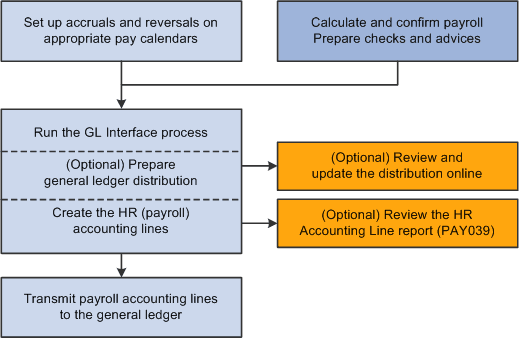
After the GL interface setup is complete, these are the ongoing steps for each payroll cycle:
-
Verify that the payroll is confirmed.
-
Run the GL Interface process.
You can run the GL Interface Application Engine process (PAYGL01) in one step or two separate steps:
-
(Optional) Prepare the distribution without generating the HR accounting lines, then review and update the distribution in online pages.
-
(Required) Generate the HR accounting lines.
-
-
Publish the contents of the HR Accounting Line table to PeopleSoft General Ledger.
Note:
Payroll for North America does not subscribe to any post-processing messages that are published by PeopleSoft General Ledger.
The Review Distribution Option
You can view and update the distribution data in the Review Payroll Distribution component after running the GL Interface process with the Review Distribution before GL option selected.
This table summarizes the review pages on which you can update combination codes:
| Page Name | Linked Pages | Description |
|---|---|---|
|
Earnings |
Net Pat Liability |
View and update the distribution of net pay liability and expense. |
|
Deductions |
Deduction Liability Net Pat Liability |
View and update the distribution of deduction liability and expense. |
|
Taxes |
Tax Liability Net Pat Liability |
Net Pat Liability View and update the distribution of tax liability and expense. |
Understanding the GL Reset Run Flag SQR Report Process (GLXRESET)
The system allows you to process only confirmed payrolls that have not yet had the GL Interface process run on them. When you run the GL Interface process, the system selects the GL Interface Run check box on the Pay Calendar table. If you must rerun the GL Interface process, you must first run the GL Reset Run Flag process. You can run the process only for payrolls that you haven't published to PeopleSoft General Ledger.
This process:
-
Deletes all rows on the HR Accounting Line table for the pay run ID that is specified on the reset process run control.
-
Deselects the GL Interface Run and GL Distribution Runcheck boxes on the Pay Calendar table for the pay run ID that you specified on the reset process run control page.
Note:
Running this process is necessary only if you have made a change that requires rerunning the GL Interface process. If you do not have to rerun the GL Interface process for the pay run ID, then you do not run this reset process.
Non Commitment Accounting Information Page
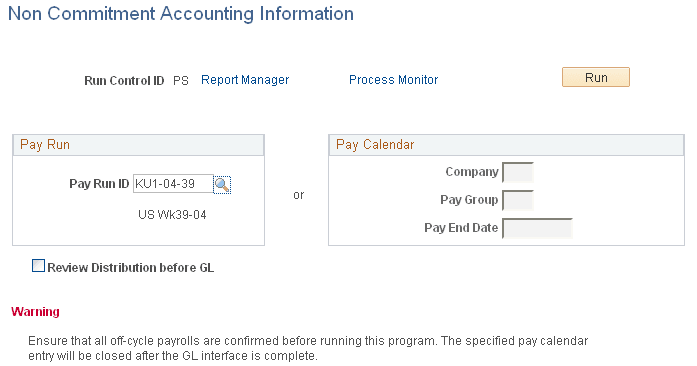
Use the Non Commitment Accounting Information page (RUNCTL_PAYGL01) to run the PAYGL01.
SQR process and produce output in the form of accounting lines to be recognized by PeopleSoft Journal Generator.
Navigation:
This example illustrates the fields and controls on the Non Commitment Accounting Information page.
To run the process:
-
Enter the pay run ID that you want to process. Alternatively, if you have more than one pay calendar for a pay run ID and want to process an individual pay calendar, enter the company, pay group, and pay end date for that pay calendar. The system processes both on-cycle and off-cycle information.
-
Select the Run button to display the Process Scheduler page.
-
Select the GL Interface (general ledger interface) check box and select the OK button to complete the process.
(E&G) If you want to interface E&G 7.5 to PeopleSoft General Ledger 8, then select the GL Interface - EG 7.5 (general ledger interface - education and government 7.5) check box.
| Field or Control | Description |
|---|---|
|
Review Distribution before GL |
Select the Review distribution before GL (review distribution before general ledger) check box to review the data before creating the lines for General Ledger. This check box is deselected by default. If you want to stop and review the distribution before creating the accounting lines, you must select this check box. If you don't select it, the process automatically creates the accounting lines. |
HR Accounting Line Report Page
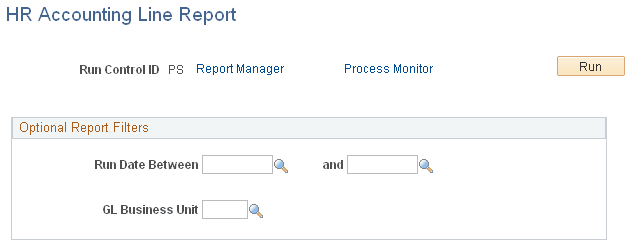
Use the HR Accounting Line Report page (RUN_PAY039) to generate the PAY039 report that lists the accounting line entries created by running the GL Interface process (PAYGL01).
Navigation:
This example illustrates the fields and controls on the HR Accounting Line Report page.
Optional Report Filters
You can limit the report results for a specified date range and GL business unit.
| Field or Control | Description |
|---|---|
|
Run Date Between and GL Business Unit |
You can run the report with these fields blank. If you specify a beginning date but no ending date, the system enters the beginning date as the default ending date value. |
Batch Publish Page
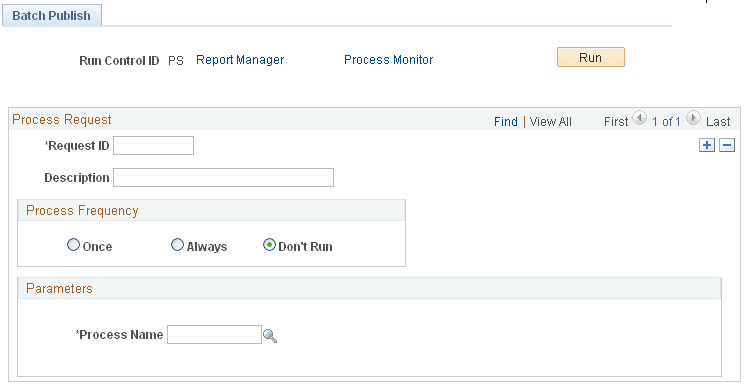
Use the Batch Publish page (EO_BATCHPUB) to after running the PAYGL01 process on the PeopleSoft HCM database to create the Accounting Line table, run the Manual Batch Publish Application Engine process (EOP_PUBLISHM) to transfer Payroll for North America data to PeopleSoft General Ledger.
Navigation:
This example illustrates the fields and controls on the Batch Publish page.
| Field or Control | Description |
|---|---|
|
Process Frequency |
Typically, you select Always. |
|
Process Name |
Select PAYGL01. |
Note:
Before trying to send any transactions to PeopleSoft General Ledger, verify with your IT staff that PeopleSoft Integration Broker nodes, queues, and service operations (routings and handlers) on have been activated .