My Job Openings Pagelet
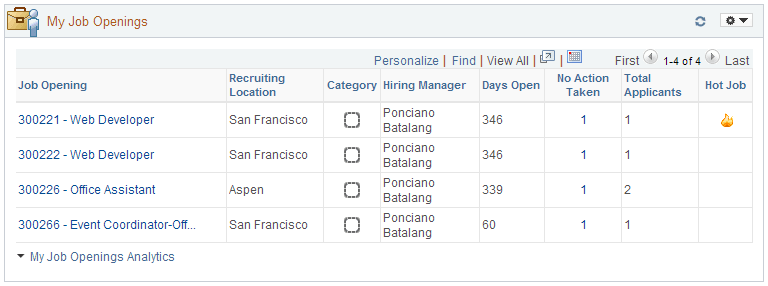
Use the My Job Openings pagelet (HRS_PE_MY_JOBS) to view jobs openings to which you have access. You can review key information about each job opening and access job opening analytics.
This example illustrates the My Job Openings pagelet.
Personalization
| Field or Control | Description |
|---|---|
|
|
Click the Pagelet Settings icon, then select the Personalize option to access the Personalize My Job Openings page, where you can choose which job openings to display. |

Job Openings Grid
Note:
The number of rows in the My Job Openings grid is limited based on the value entered in the My Job Openings Pagelet Maximum Results field on the Recruiting Installation – Jobs Page.
| Field or Control | Description |
|---|---|
|
Job Opening |
Displays the Job Opening ID and the job opening’s primary posting title. Click this link to access the Manage Job Opening page. |
|
Recruiting Location |
Displays the primary recruiting location for the job opening. |
|
Category |
If job categorization is enabled on the Recruiting Installation – Jobs Page, this column enables you to view and change the category for the job opening. Categories are a personal organizational tool, and your categorization is not visible to other users. To change a job’s category, click the Category icon to open the My Job Categories Page, where you can select either a new category or no category. |
|
Hiring Manager or Recruiter |
This column displays either the job opening’s primary hiring manager or the job opening’s primary recruiter, depending on the roles assigned to the current user:
|
|
Days Open |
For job openings in an open status, this column displays the number of days since the job opening’s earliest posting date. If the job has never been posted, this field displays the number of days since the job opening was created. If the earliest job posting date (or, if none, the job creation date) is in the future, the system displays 0. |
|
Days to Fill Date |
Displays the number of days remaining until the projected fill date. This column is hidden entirely if none of the job openings have a projected fill date or are in an open status. |
|
No Action Taken |
Displays the number of applicants in the Applied phase. Click this number to access the Manage Job Opening page pre-filtered to show only applicants in this phase. |
|
Total Applicants |
Displays the total number of applicants that have applied for the job. Applicants with multiple applications are counted only once, and draft applications are not considered. |
|
|
Displays the hot job icon for any jobs that are hot jobs. This column is hidden entirely if none of the job openings are hot jobs. |

Additional Job Opening Data
The Job Openings grid includes additional columns that are delivered hidden. To display these additional columns, use PeopleTools Application Designer to modify the grid definition.
The additional hidden columns are:
-
Job Opening Type
-
Target Openings
-
Department
-
Status
-
Desired Start Date
-
Earliest Post Date
-
Unpost Date
-
Latest Post Date
-
Projected Fill Date
Note:
If all job openings shown in the My Job Openings pagelet are continuous job openings, the Desired Start Date and Projected Fill Date columns are hidden even if you have modified the grid definition to show these columns.
My Job Opening Analytics
| Field or Control | Description |
|---|---|
|
My Job Opening Analytics |
Click to display a menu listing relevant pivot grids, then select one of the following pivot grids to display:
|