Recruiting Status Setup
To set up recruiting statuses:
-
Use the Recruiting Status and Reason Page to define status codes and associated reasons for each of the six recruitment areas.
-
Use the Recruiting Status Area Page and its secondary pages to define:
-
The default status that is used for a new (or newly approved) records in each status area.
-
Which statuses trigger notifications when they are used.
-
When (based on the application disposition) applicants are allowed to withdraw applications using Candidate Gateway self-service.
-
The status progression within each recruitment area.
-
How applying a particular status in one area can trigger additional status change effects in the same or different areas.
-
Note:
The system includes a comprehensive set of codes and associated status processing rules. Oracle recommends that you use these delivered statuses and rules rather than setting up your own.
Default Statuses
The system applies different default statuses at different stages:
| Processing Stage | Details |
|---|---|
|
Draft |
|
|
Pending Approval |
For the Job Opening and Job Offer areas, the status definitions on the Statuses and Reasons page include a check box that you use to designate the default approval status. This represents records that have been submitted but are pending approval. If approvals are active, the system applies this status to newly submitted records. |
|
Approval Denied |
For the Job Opening and Job Offer areas, the status definitions on the Statuses and Reasons page include a check box that you use to designate the approval denied status, and the system applies this status after an approver denies approval. |
|
Open |
For all status areas, the Status Area page includes a check box that you use to designate the default open status. This is applied to records after they are submitted and, if approvals are active, approved. |
Note:
Use different status codes to represent Draft, Pending Approval, Approval Denied, and Open statuses.
Status Progression
For each status code, you can define the progression from one status code to another by indicating the statuses that typically occur after the current status.
For example, the next status for a job opening with a status of Open might be Hold, Filled/Closed, or Canceled.
If a user manually updates the status to one that is not configured as a successor, the system displays a warning. The user can choose to ignore the warning and save the new status anyway.
For dispositions (but not for other status areas), flexible recruiting processes can prevent users from manually changing a disposition to an invalid successor.
Effect of Status Changes
When the status of an applicant, job opening, or application changes, this can affect the status of other records.
For example, when a recruiter decides to hire an applicant, this affects the Recruitment Summary status of other applicants and affects the job opening status. The following table explains the delivered rules for the Hire status.
| Recruitment Area | Records Affected | Impact |
|---|---|---|
|
Recruitment Summary |
Hired applicant |
Set status to Hired for the selected job opening. |
|
Recruitment Summary |
Hired applicant's other applications |
If the hired applicant is linked to other job openings, set the Recruitment Summary status for those applications to Reject and reason code to Selected for Another Position. |
|
Recruitment Summary |
Other applicants for the job opening |
If all the openings for the job opening are filled, set the Recruitment Summary status to Reject and reason code to Another Applicant was Hired. |
|
Job Opening |
Job Opening |
If all the openings are filled, set the Job Opening Status to Filled/Closed. |
Note:
This table shows the delivered rules, which we recommend that you use. However, you can adjust the status codes and rules to suit your organization.
There are restrictions on the changes allowed. For example, changing an applicant's status to Inactive, doesn't have an impact on the status of a job requisition, but it does have an impact on the status of the applicant's open applications. The following example illustrates how status values in each recruitment area impact statuses in other recruitment areas.
You define the rules for changing status values on the Effects of Status Change page.
For each rule, you define:
-
Recruitment area affected.
-
The records within the recruitment area that are affected by the status change.
-
The new status and reason code that the system applies to those affected records.
This example illustrates the Effects of Status Change page for the Hired status.
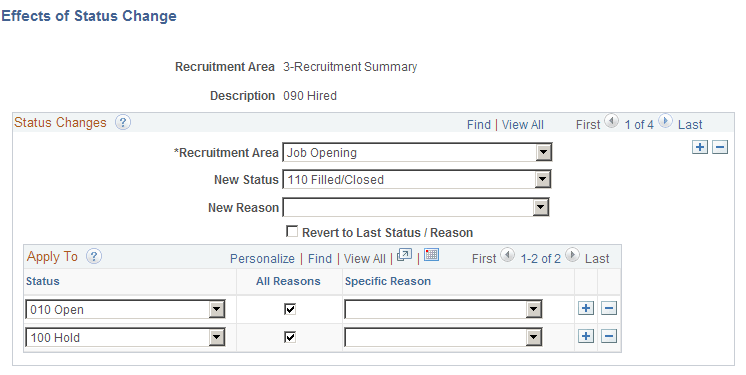
In this example, when an applicant's application is set to 090 Hired, the following rule is applied:
-
The recruitment area that is affected is Job Opening.
-
The new status that the system applies is 110 Filled/closed.
Note:
This example shows only one of the delivered rules for the Hired status. The Hired status has other rules that you access by clicking the navigation buttons.