Setting Up Data Mapping
To set up data mapping, use the Data Mapping Assignments (HRS_DM_MAP_SETUP), Category Setup (HRS_DM_CAT_SETUP), Data Mapping (HRS_DM_MAPPING), and Postal Map (HRS_HRXML_POSTAL) components.
Pages Used to Set Up Data Mapping
| Page Name | Definition Name | Usage |
|---|---|---|
|
HRS_DM_MAP_SETUP |
Create data mapping assignments. |
|
|
HRS_DM_CAT_SETUP |
Set up categories. |
|
|
HRS_DM_CAT_KEYLIST |
View key lists. |
|
|
HRS_DM_CAT_VALLIST |
View value lists. |
|
|
HRS_DM_UNMAPPED |
Map unmapped data. |
|
|
HRS_DM_MAPING_DICT |
Map keys. |
|
|
HRS_DM_VALUE |
Map values. |
|
|
HRS_HRXML_PSTL_IN |
Map inbound postal information. |
|
|
HRS_HRXML_PSTL_OUT |
Map outbound postal information. |
Understanding Data Mapping
Data mapping enables you to take information coming into your system, run it through an interpreter, and then have it presented to you in a format that fits your system. Data mapping is also used for outgoing messages in a similar fashion. The types of data mapping are:
-
Assignments and categories.
-
Postal.
-
Predefined mappings.
Assignments and Categories
Data mapping assignments define how the system translates the words or phrases coming into the system to the words or phrases used by your system. You can set up data mapping definitions based on site, recruitment source, vendor, or the default All mapping. You can also have just one data mapping definition to everything coming into your system.
Data mapping categories are data objects that are used by the assigned maps to define how data is mapped. PeopleSoft delivers 11 data mapping categories:
-
Competencies.
-
Honors and Awards.
-
Language (accomplishment).
-
Licenses and Certifications.
-
Memberships.
-
Degrees.
-
Major.
-
School.
-
Country.
-
State/Providence.
-
Language (translate values).
These delivered data mapping categories were created to support Manage External Postings, Resume Management, and Background Screening. You can create a new data mapping category; however, some development work is necessary to define an appropriate application class.
For example, suppose a user creates a new entry in the School table for Stanford University with School ID = Stanford. This alone is not enough to map school data to or from the school ID Stanford. To begin mapping to or from this ID, the user must first run the synchronization process after creating the entry for Stanford University. To enable users to more efficiently process the synchronization for data mappings, PeopleSoft delivers a batch process that enables users to synchronize all data mapping categories at the same time. To initiate this process, navigate to and create a new run control. Click the Run button, select a process server, select the Datamapping Sync (HRS_DM_SYNC) process, and click OK.
Postal
When postal information needs to be exchanged between an XML document and a Recruiting Solutions database, decisions of how this exchange occurs must be determined. This determination is at the country level.
Data Mapping Setup Steps
To set up data mapping:
-
Create data mapping assignments.
-
Synchronize data for each data mapping category.
-
(Optional) Build the search indexes for each category.
-
Establish postal mappings for each country's postal address.
-
Establish the necessary open integration framework vendors.
Assigned Mapping Setup Page
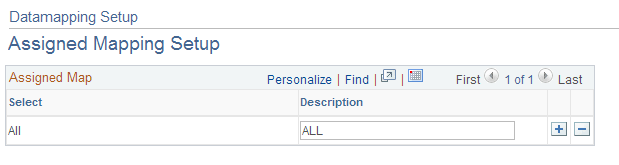
Use the Assigned Mapping Setup page (HRS_DM_MAP_SETUP) to create data mapping assignments.
Navigation:
This example illustrates the Assigned Mapping Setup page.
Assigned Map
Use this group box to specify the vendors, sites, or recruitment sources that will not use the default data map. The description is used on the Unmapped Data, Key Data Mapping, and Value Data Mapping pages.
Category Setup Page
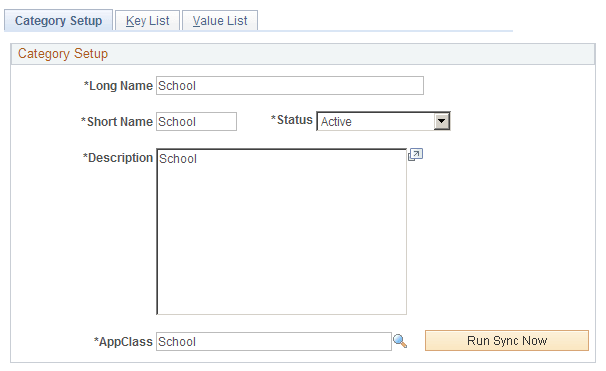
Use the Category Setup page (HRS_DM_CAT_SETUP) to set up categories.
Navigation:
This example illustrates the Category Setup page.
| Field or Control | Description |
|---|---|
|
AppClass (application class) |
Select an application class category. These categories are defined on the Application Class Registry page. |
|
Run Sync Now (run synchronization now) |
Click to synchronize the data that is associated with the selected data mapping category with the data actually existing in the corresponding component. This process populates the Key List and Value List pages. |
Key List Page
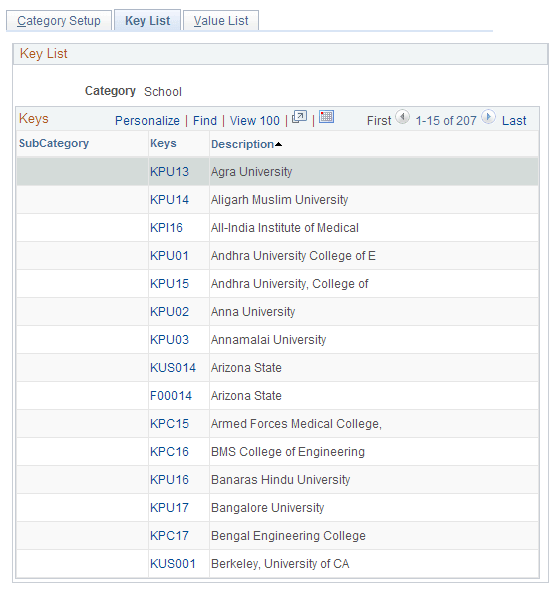
Use the Key List page (HRS_DM_CAT_KEYLIST) to view key lists.
Navigation:
This example illustrates the Key List page.
| Field or Control | Description |
|---|---|
|
Subcategory |
Serves as a secondary key for the data mapping functionality. Not all categories use the subcategory secondary key. Subcategories themselves must also be data mappings. |
|
Keys |
Displays the primary key for the category. These keys are determined by the data in the associated data mapping category tables. Click the key link to access the Key Data Mapping page. This page displays all the values that are mapped to the given key. |
Value List Page
Use the Value List page (HRS_DM_CAT_VALLIST) to view value lists.
Navigation:
This example illustrates the Value List page.
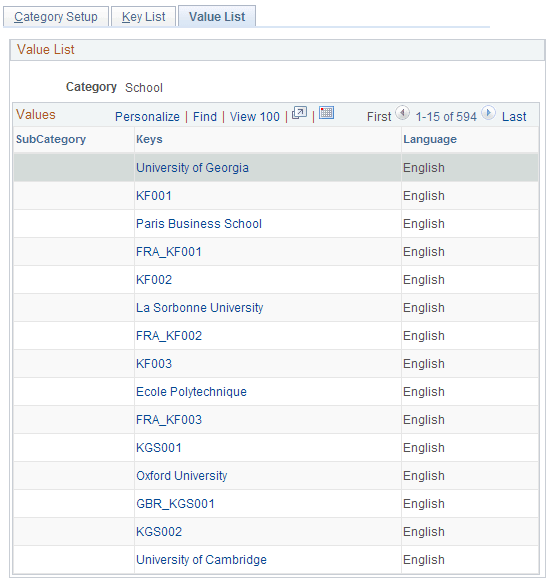
The Value List page lists all the values that are being mapped to a category key. Click a link in the Keys column to access the Value Data Mapping page.
Unmapped Data Page
Use the Unmapped Data page (HRS_DM_UNMAPPED) to map unmapped data.
Navigation:
This example illustrates the Unmapped Data page.
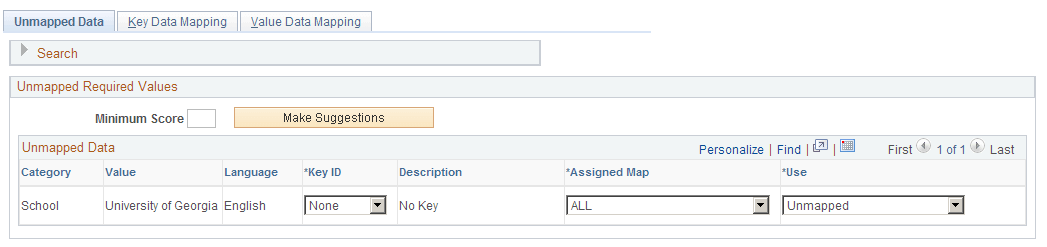
| Field or Control | Description |
|---|---|
|
Minimum Score |
Identifies a threshold for the Make Suggestions search. Only results that are greater than or equal to the minimum score appear in the Key ID field. The score of every suggestion found appears to the right of each key ID item in parentheses. |
|
Make Suggestions |
Click to run a search that provides a suggested mapping based on the minimum score that you entered. |
Key Data Mapping Page
Use the Key Data Mapping page (HRS_DM_MAPING_DICT) to map keys.
Navigation:
This example illustrates the Key Data Mapping page.
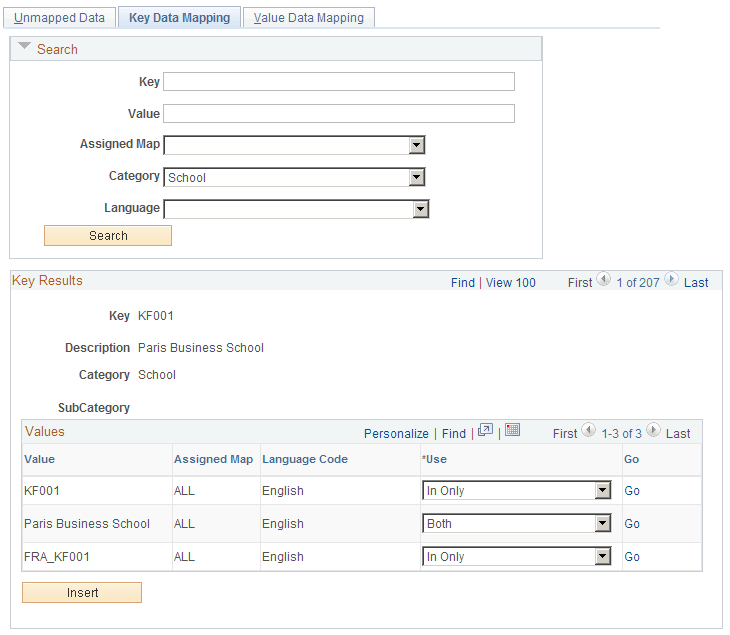
This page displays a complete list of all the values that are mapped to a given key.
Values
This group box enables you to add other values to the key. The values must be chosen from the unmapped data values.
| Field or Control | Description |
|---|---|
|
Value |
Select the values that are associated with the key. |
|
Assigned Map |
Select the data mapping assignment that the key is associated with. |
|
Language Code |
Select the language that the value is assigned to |
|
Use |
Select to use this data mapping for incoming data, outgoing data, or both. |
|
Insert |
Click to add a row to the group box. |
Value Data Mapping Page
Use the Value Data Mapping page (HRS_DM_VALUE) to map values.
Navigation:
This example illustrates the Value Data Mapping page.
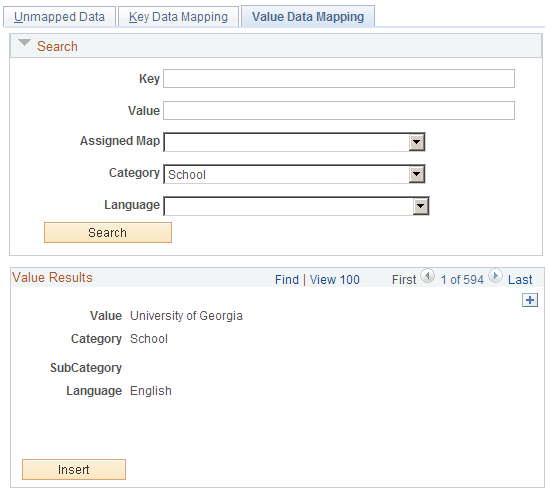
Displays all the keys that are mapped to the given value.
Keys
This group box displays all the keys that are mapped to the value and enables you to map more keys to the value. The keys that you add come from the unmapped data values.
| Field or Control | Description |
|---|---|
|
Key |
Select the key ID of the data mapping. |
|
Assigned Mapping ID |
Select the data mapping assignment that the key is associated with. |
|
Use |
Select to use this data mapping for incoming data, outgoing data, or both. |
Inbound Map Page
Use the Inbound Map page (HRS_HRXML_PSTL_IN) to map inbound postal information.
Navigation:
This example illustrates the Inbound Map page.
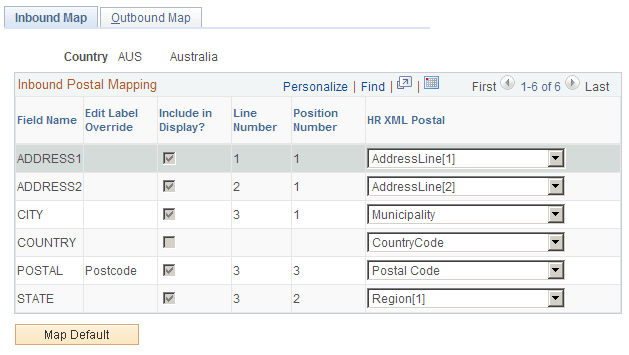
This page displays the field names that are associated with the Country table.
| Field or Control | Description |
|---|---|
|
HR XML Postal |
Select the XML element where you want the corresponding PeopleSoft field to be written for incoming messages. |
|
Map Default |
Click to have the system make an initial guess at what the mapping from the XML should be. |
Outbound Map Page
Use the Outbound Map page (HRS_HRXML_PSTL_OUT) to map outbound postal information.
Navigation:
This example illustrates the Outbound Map page.
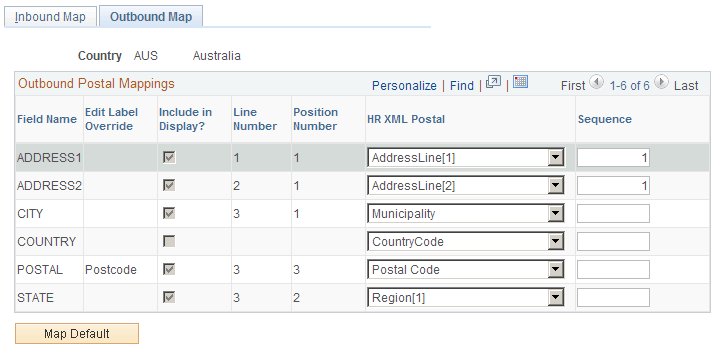
This page displays the address field names that are associated with the Country table.
| Field or Control | Description |
|---|---|
|
HR XML Postal |
Select the XML element where you want the corresponding PeopleSoft field to be written for outgoing messages. |
|
Map Default |
Click to have the system make an initial guess at what the mapping from the XML should be. |
|
Sequence |
When multiple data elements from the PeopleSoft address table are mapped to a single element in the XML document, the sequence number determines the order in which the PeopleSoft fields are mapped. |