Setting Up Recruiting Contacts
To set up recruitment contacts, use the Recruitment Contacts (HRS_CONTACT) component.
Page Used to Set Up Recruiting Contacts
| Page Name | Definition Name | Usage |
|---|---|---|
|
HRS_CONTACT |
Define contact information (name, address, phone, and email) for recruiting sources. You reference recruiting contacts from recruiting source definitions. |
Understanding Recruiting Contacts
Recruiting contacts are people who are associated with specific recruiting sources such as a third-party staffing agency. When you set up a recruiting contact, you specify name, address, phone, and email information. You do not prompt against your HR employee records to identify recruiting contacts, as recruiting contacts are typically third party representatives.
Recruiting contacts are not members of the job opening hiring team, but you can associate recruiting contact with jobs using the Recruitment Contact field in the Opening Information section of the Job Opening page.
When you associate a recruiting contact with a Vendor type recruitment source, you can also specify whether the contact is acting as the proxy for applicants that the vendor supplied. If you activate the proxy option, then pages that show applicant contact information also show the contact information for the proxy. When you send correspondence to an applicant who uses a proxy, the system sends the correspondence to the proxy, not the applicant.
Contact Setup Page
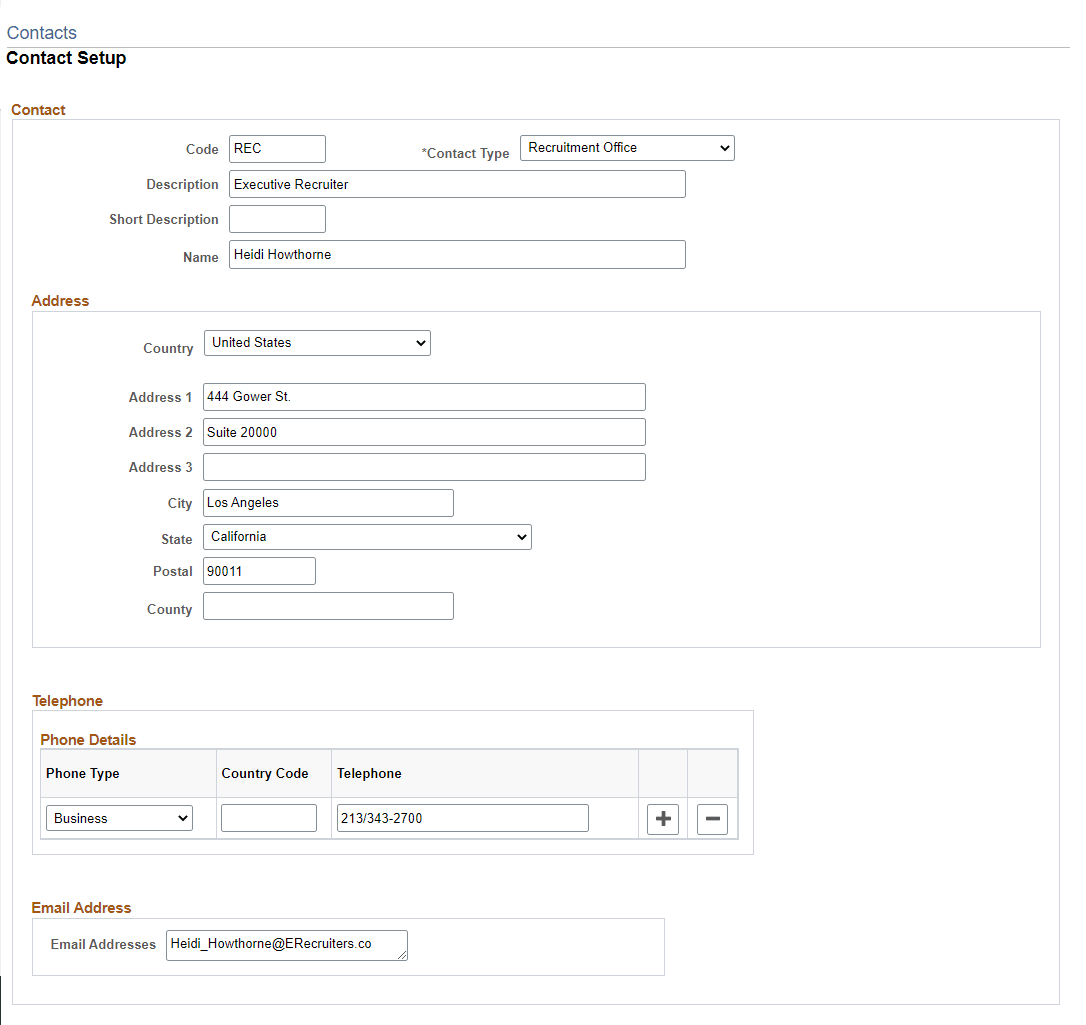
Use the Contact Setup page (HRS_CONTACT) to define contact information (name, address, phone, and email) for recruiting sources.
You reference recruiting contacts from recruiting source definitions.
Navigation:
This example illustrates the Contact Setup page.
Contact
| Field or Control | Description |
|---|---|
|
Contact Type |
Select the type of contact. Values are General, Office, and Source. |
Address
Enter the address for this contact.
Address fields (with lookup) appear as drop-down by default. However, this configuration can be changed from the framework using the Country Format setup. For more information, see Application Fundamentals: Entry and Validation Page
Note:
The system displays warning messages when any address fields are left blank. If it is not a mandatory field, the user can ignore the message and save the data.
Telephone
Enter the telephone numbers for this contact.
Email Addresses
Enter the email addresses for this contact.