Understanding Flat File Integration
If you use flat file integration, the TCD writes a flat file of reported time to a common directory. The file is picked up by Time and Labor and converted to a message associated with a service operation. These service operations are integration points that send time data back and forth from Time and Labor to your TCD.
Flat files should be based on the table structures listed in the TCD Interface section. The date/time format for flat files is CCYY-DD-MMTHH:MM:SS.ssssss[+/-hhmm]. For example, 1999-09-14T16:47:56.793000-0700.
Each message listed corresponds to a flat file format. All flat files generated are in the CSV (comma-separated value) format. Quotation marks surround each field of data. The first row of each PeopleSoft-generated file is the PSCAMA record (PSCAMA stands for PeopleSoft Common Application Message Attributes). This record includes the message sequence and process instance fields.
The first field of each row is the name of that row's record; this allows for easy parsing of files with a parent and child record in the file format. Record names can be a maximum of 15 characters. The process instance combined with the message sequence allows split files to have data that ties them together. For example, if the TIME_DEVICE_EMPL_ATT_FULLSYNC flat file becomes too large, it is split into multiple files with the same process instance.
If a TIME REPORTERS record with fields EMPLID and EMPL_RCD, and a child record EMPL_PHONE with fields EMPLID, EMPL_RCD, and PHONE_NBR are transmitted, here is what the sample files would look like:
File 1 (notice the message sequence of H for header) "PSCAMA","ENG","","","H","18","" File 2"PSCAMA","ENG","","","","18","""TIME REPORTERS","1001","0""EMPL_PHONE", "1001","0","800 555-5555""TIME REPORTERS","1002","0""EMPL_PHONE", "1002","0","800 555-6666""TIME REPORTERS","1003","0""EMPL_PHONE", "1003","0","800 555-7777"File 3 (notice the message sequence of T for trailer)"PSCAMA","ENG","","","T","18",""The first field of all rows is the record name. The process instance is the same for the header, detail, and trailing message.
Files generated by Time and Labor for the TCD are the form [message name]-[comm server ID]-[datetime of form ccyy_mm_dd_hh_mm_ss].csv . Each part of the filename is separated by a hyphen. These files are always new; Time and Labor will never append to an existing file. Once a file has been processed by the comm server, you should move it into an archive directory.
Files generated by the comm server for the Time and Labor should be of the form [message name]-[comm server].csv. The comm server should always append to the end of the file. Once PeopleSoft has processed the data, it is removed from the file and placed in an archive file of the form [message name]-[comm server ID]-[datetime of form ccyy_mm_dd_hh_mm_ss]. csv. This file is placed in an archive directory.
Flat file directories are part of Time and Labor setup. The TCD vendor should have a similar type of setup, so that none of the programs have hard-coded path names.
The most seamless flat file integration should be completely controlled by scheduled processes. Process schedulers exist on the PeopleSoft side and should also exist on the TCD vendor side. At a specified time, a scheduled process polls a directory to find files (punched and elapsed time) that follow the naming convention specified above. The TCD vendor's process scheduler should regularly initiate a process that polls a directory for the TCD setup data. The TCD vendor process scheduler should also regularly initiate a process that appends time on to the punched and elapsed time flat files. Schedulers should be strategically timed so that there is very little risk of contention. For example, the TCD vendor's population of the punched and elapsed time flat files could be at 2 a.m. every morning, while PeopleSoft's extraction of data from these files could be at 4 a.m. every morning. Also, any system that is reading from or writing to a file should force that file to be inaccessible to all other systems.
To set up flat file integration:
-
Ensure that the service operations are active.
-
Verify that one of the nodes on the PUNCHED_TIME and/or ELAPSED_TIME queues is the local node.
The appropriate routings should be specified for all the nodes on the Routings page of the Nodes component (IB_NODE).
-
Set up the inbound file rule on the File Inbound page (Enterprise Components, Integration Definitions, Inbound File Rule).
-
On the Time and Labor Installation page, set up the File Dest for TCD Integration section.
-
Make sure that the selected directory will contain the elapsed or punch time files.
-
Your inbound file publish rules should look similar to the following:
Inbound File for Punched Time: c:\temp\PUNCHED_TIME_ADD*.csv. File Layout ID: Blank, LUW Size: Blank, Application: TL_TCD_FILE, Section: Archive, File Layout Name: 1 PUNCHED_TIME_ADD, Message Name: PUNCHED_TIME_ADD.
This graphic shows an example of the File Inbound page used to set up flat file integration
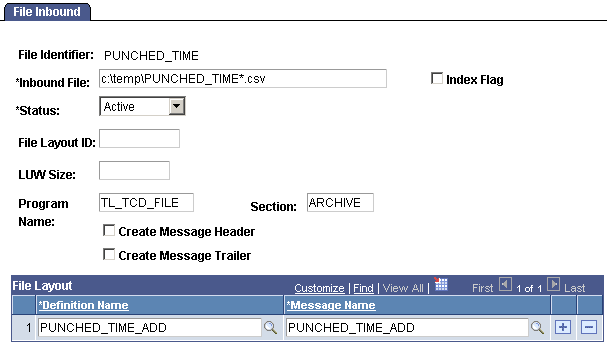
The comm server attached to your TCD creates and continually appends to a file of the form [message name]-[comm server]. csv. For example, comm server cs1 would create and append onto a file named PUNCHED_TIME_ADD-cs1.csv for its punch time message. The directory containing the comm-server-generated files should correspond to the directory in the Inbound File Rule.
To initiate the inbound file publish, select Enterprise Components, Integration Definitions, Initiate Processes, Inbound File Publish and create a run control.
After the punched time has been received by Time and Labor, the time is evaluated. If the time is error-free, the rows are located in Reported Time. If the time is invalid, the message is displayed on the TCD error queue.
Note:
If the data from your TCD is in flat file format and the value is in character format for a numeric field, the default character is zero (0). If a value is sent in a numeric format for a character field, the system adds that value into the field. If the data from your TCD is in XML format, the message including invalid formats for the fields is stopped in the Service Operations Monitor.
You need to make sure the information you send is in the correct format for proper processing. This is especially important if you are using multiple jobs and reporting by multiple time reporter record numbers. If you fill in the time reporter ID but not the time reporter record number, the system uses a default time reporter record number of zero. This is a valid value, so you will need to be sure the proper time reporter record number is entered before sending the information to Time and Labor.
See the product documentation for PeopleTools Integration Broker Service and PeopleTools Integration Broker Testing
Related Topics