Setting Up Translation Sets
This section discusses how to set up translation sets.
Page Used to Set Up Translation Sets
| Page Name | Definition Name | Usage |
|---|---|---|
|
EOEW_CODE_TBL |
Enter translation set values for map definition details. |
Translation Sets Page
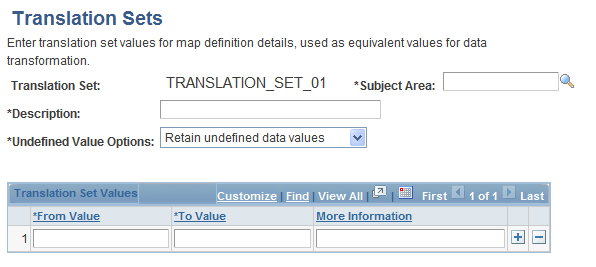
Use the Translation Sets page (EOEW_CODE_TBL) to enter translation set values for map definition details.
Navigation:
-
-
Click the Translation link on the Map Field Detail page.
-
Click the Add link on the Map Field Detail page.
This example illustrates the fields and controls on the Translation Sets page. You can find definitions for the fields and controls later on this page.
| Field or Control | Description |
|---|---|
|
Subject Area |
Select a subject area. For new translation sets, the subject area will be set to the default as defined on the Subject Area page. |
|
Undefined Value Options |
Select how to handle undefined values:
|
Translation Set Values
Enter the from and to values for each value that you want translated. If needed, enter the rationale for your selections in the More Information field.
Related Topics