Setting Options Properties
The Options tab enables you to add rich text editing capabilities to the long edit box.
Note:
This section applies to long edit boxes only.
Access the page field properties for the long edit box page control and select the Options tab.
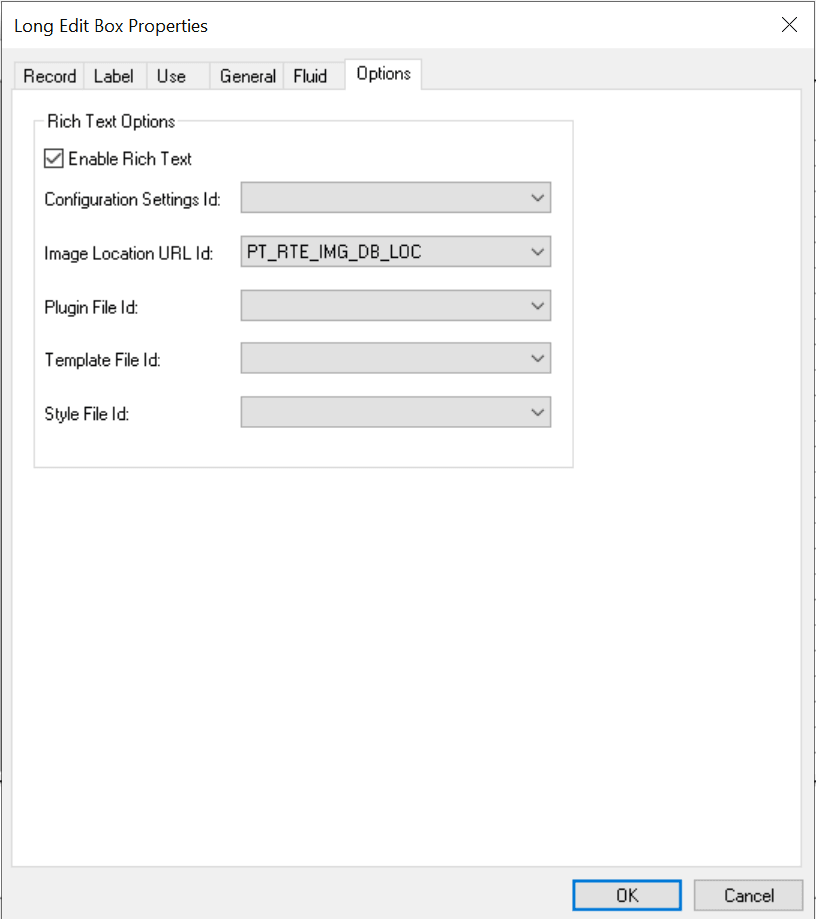
This example illustrates the fields and controls on the Long Edit Box Properties dialog box: Options tab. You can find definitions for the fields and controls later on this page.
Note:
On a page with multiple rich text editor-enabled fields, if a custom configuration file is configured for one or more such enabled fields, then the custom configuration that is loaded last will be applied to all rich text editor-enabled fields on the page. Similarly, if a custom plug-in file is configured for one or more such enabled fields, then the custom plug-in file associated with the custom configuration file that is loaded last will be applied to all rich text editor-enabled fields on the page.
| Field or Control | Description |
|---|---|
|
Enable Rich Text |
Select to enable rich text editor functionality for the long edit box. Selecting this check box enables the remaining fields on this tab. Note: When you select this option the Multi-Currency and Wrap Long Words properties on the Use tab are disabled; and the Allow Deferred Processing property on the Use tab is selected and disabled. Note: At design time, standard long edit boxes and rich text-enabled long edit boxes look the same. |
|
Configuration Settings Id |
Select a value to use a custom configuration file that modifies the editor toolbar. By default, this field is blank and the system uses the default configuration file with the default toolbar settings. HTML definitions that are prefixed with PT_RTE_CFG appear in this drop-down list box. |
|
Image Location URL Id |
Select a value to indicate the storage location of any images inserted as part of the text in the long edit box. The default value for this field is the PT_RTE_IMG_DB_LOC URL. URL IDs that are prefixed with PT_RTE_IMG appear in this drop-down list box. The URLs must be stored in the application by using the URL Maintenance page. See System and Server Administration: URL Maintenance. Note: The URL format for file attachments stored in the database is record://RECORD_NAME—for example, record://PTRTDB. |
|
Plugin File Id |
Important: The CKEditor v4 API differs from the CKEditor v5 API, which will become the supported version in a future PeopleTools 8.60 patch. Therefore, you are encouraged to research the differences between these APIs as soon as feasible so that you can update and test any custom plug-ins that you’ve created. Select a value to enable plug-ins for this instance of the rich text editor. By default, this field is blank. HTML definitions that are prefixed with PT_RTE_PLUGIN appear in this drop-down list box. |
|
Template File Id |
Important: The use of custom template files is desupported with CKEditor v5 in PeopleTools 8.60.04 and later versions. Therefore, you are encouraged to discontinue your use of custom template files as soon as feasible. Select a value to enable an alternative template definition for this instance of the rich text editor. By default, this field is blank. HTML definitions that are prefixed with PT_RTE_TMPL appear in this drop-down list box. |
|
Style File Id |
Important: The use of custom style files is desupported with CKEditor v5 in PeopleTools 8.60.04 and later versions. Therefore, you are encouraged to discontinue your use of custom style files as soon as feasible. Select a value to enable an alternative style sheet definition for this instance of the rich text editor. By default, this field is blank. HTML definitions that are prefixed with PT_RTE_STYLE appear this drop-down list box. |
Data Conversion Considerations
The rich text editor is an HTML editor that converts rich text to HTML, which the application stores in the database. When you access your data, the editor decodes the HTML at the time that it appears on the transaction page. Existing data is stored as plain text, which can cause unexpected warnings the first time the data is accessed after rich text support is enabled on a long edit box page field. Your test plan should include either updating the data to prevent the warnings or communicating with users to expect this warning.
To update the data, you must access the page; change the data in some way, such as adding a Space; and then save the component. The editor automatically encodes and updates the data.