Setting Scroll Area General Attributes
Assign the general attributes of a scroll area. These settings are the same for a scroll area as they are for a grid control.
See Setting Grid General Properties.
Manipulating Fields After Setting the Occurs Count
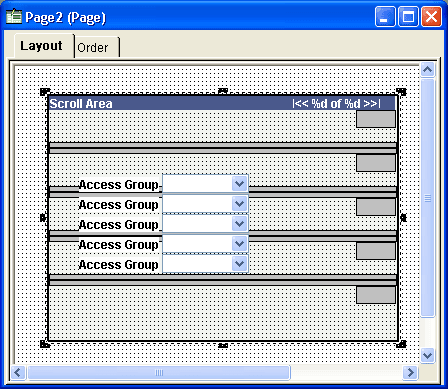
If you set the occurs count to a number greater than 1, you must reposition the fields in the scroll area. If you change the occurs count after placing fields in the scroll area, they might appear one on top of the other, very close together. Unless you indicate otherwise (in the body area of the Label tab), row separator lines might appear to distinguish one row from the next.
In the following example, the occurs count was set to 5 after placing one field, Access Group, in the scroll area. You must reposition the fields and possibly the labels so that they are evenly spaced in the row separator lines.
This example illustrates the fields and controls on the Multiple occurs counts in a scroll area. You can find definitions for the fields and controls later on this page.
Before you do so, it is helpful to know a few rules about how you can move these fields in relationship to one another. For example, you do not need to move individual fields to their proper destination. For this example, we call the first field in the column of fields, or the original field that you placed in the scroll area, the head field. The fields following the head field are other occurrences.
-
The head field controls the horizontal movement of all other occurrences that are below it.
-
You cannot move the other occurrences horizontally.
-
To evenly space the occurrences vertically, drag the last occurrence in the column to the appropriate position between the bottom edge of the scroll area and the last row separator.
All occurrences above it reposition themselves equidistant from the others.
-
You cannot move the add and delete push buttons (represented by the gray boxes on the right side of the scroll area) horizontally on the page.
You can move them only vertically in the same manner as the fields.
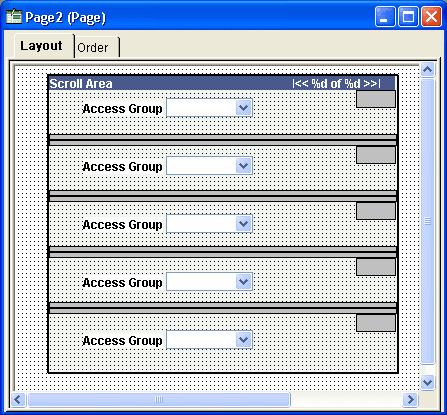
After you move the lowest field, the scroll area should look similar to this:
This example illustrates the fields and controls on the Fields moved to accommodate multiple occurs counts. You can find definitions for the fields and controls later on this page.