Understanding Scroll Areas and Scroll Bars
Scroll areas, rather than scroll bars, are the preferred control for representing multiple rows of data from a table because they are easier to use during design time and offer a wider array of features. The final product at runtime appears more contained because the default setting places a border around the data.
The benefits of using scroll areas rather than scroll bars are:
-
The navigation tools that you select for a scroll area are automatically positioned on the navigation bar or footer bar.
For scroll bars, you must place these buttons and links on the page manually.
-
Scroll areas provide the option of showing or hiding a border around the data.
-
Scroll areas provide the option of a View All button and a Find feature.
-
Scroll areas enable you to determine the text or image that appears for the action items in the navigation bars.
-
Scroll areas provide a row separator when you select multiple occurrences of data.
Scrolls, Record Relationships, and Page Processing
A page must reflect the underlying table structures so that the system knows where to store data in the database. When you have more than one underlying record definition on a page, the role of scroll areas and scroll bars in page processing is important. Scroll controls define parent and child record definition relationships on a page.
You assign an occurs level to each scroll control on the page to indicate the relationship between the record definitions and the controls and to determine how the data is processed. The primary record on a page at level 0 has no scroll area or occurs level associated with it. If the page contains a record that is subordinate to the primary table, it has a scroll area with an occurs level of 1. A table that is subordinate to the level 2 record has a scroll area with an occurs level of 2. PeopleTools does not support nesting beyond three levels.
PeopleSoft Application Designer automatically nests the scroll area after you set the occurs levels sequentially. Each field that you place on the page after each scroll area is automatically placed inside the scroll area preceding it until you place the next level-based control on the page.
Scroll Areas
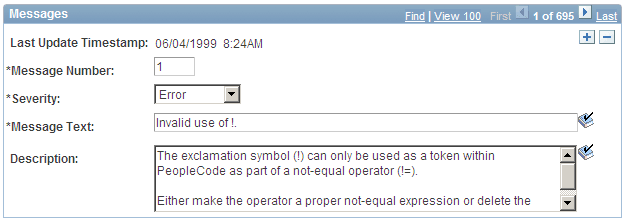
A scroll area looks like a group box with various controls. The title bar in a scroll area, however, can also serve as a navigation bar. The navigation bar gives the user various options for viewing the data. The plus and minus buttons in the body of the scroll enable the user to add and delete rows of data.
This example illustrates the fields and controls on the Example of a scroll area. You can find definitions for the fields and controls later on this page.
Related Topics