Specifying Logging Options
Access the Build Settings dialog box and select the Logging tab.
This example illustrates the fields and controls on the Build Settings dialog box: Logging tab. You can find definitions for the fields and controls later on this page.
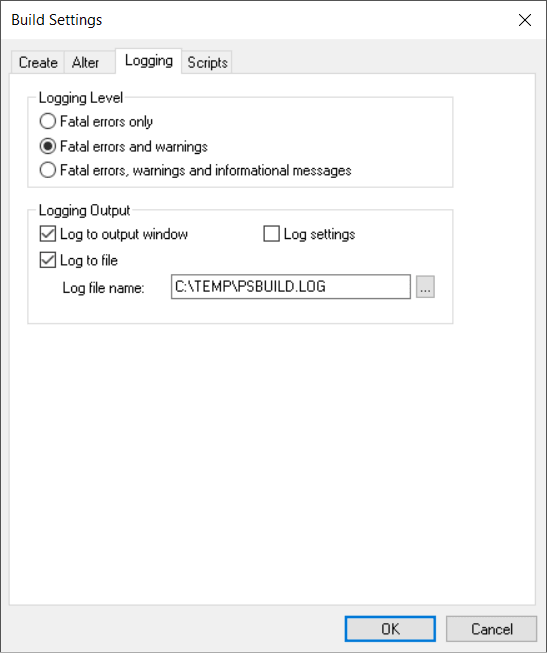
Logging Level
Specify the level of detail of information that you want in your Build log output.
| Field or Control | Description |
|---|---|
|
Fatal errors only |
Select this option if you want to see only the operations that failed. |
|
Fatal errors and warnings |
Select this option to add warnings to the fatal errors. |
|
Fatal errors, warnings and informational messages |
Select this option to see all the definitions that processed successfully and all of the errors and warnings. |
Note:
These options are personal preferences and do not affect the actual build of your SQL tables, but they might help you track down potential failures. For example, if you are processing a large number of definitions, you will want to see only the operations that failed. Whereas, if you are processing a small number of definitions, you will want to see all of the successful operations, too.
Logging Output
Specify where and in what form you want to view your log output.
| Field or Control | Description |
|---|---|
|
Log to output window |
Select to write the same information that appears in the log file to the PeopleSoft Application Designer output window. Always be aware of the level that you select. If you expect a lot of detail (high logging level plus many records to process), you may want to copy the logging information to a file and print it later. |
|
Log to file |
Select to write the log to a file. If you select this check box, you can specify a location and name for your log file in the Log file name edit box. To search for a name, click the Browse button. Select a .LOG type file from the Build File Selection dialog box. If you do not select this check box, the edit box is unavailable for entry. |
|
Log settings |
Select to write all of the runtime options to the log. If you select this check box, you do not need to rerun a test when you have a problem. If you must report a problem with the Build process or troubleshoot, you need to know the settings that were active. |
Note:
You should select the Log to file check box and the Log to output window check box with a minimum logging level of fatal errors and warnings. In case you run into a problem, you already have the information you need to research the problem. Otherwise, you must run the process again with a higher logging level.
Example Log Results
The following are samples of the type of information that you can expect to see in your log output that corresponds to the selections that you make on the Logging tab:
-
Fatal errors:
SQL Build process began on 7/30/2003 at 8:46:46 PM for database OM51U20 Error: BI_BILL_BY_F_VW - Unable to retrieve current DDL space name. Alter processed failed. (76,47) Error: BI_CHARGE_VW - Unable to retrieve current DDL space name. Alter processed failed. (76,47) Error: PS_BI_CYCLE_VW - alter failed due to an unknown column type (UNDEFINED) found for field BILL_CYCLE_ID. (76,22) Error: PS_BI_IVCLAYOUT_VW - alter failed due to an unknown column type (UNDEFINED) found for field INVOICE_LAYOUT_ID. (76,22) Error: CARINA - alter failed because SQL table does not exist. (76,7) SQL Build process ended on 7/30/2003 at 8:54:34 PM. 2487 records processed, 11 errors, 0 warnings SQL Build script for all processes written to file C:\TEMP\step38.SQL. SQL Build log file written to C:\TEMP\step38.LOG -
Warnings:
SQL Build process began on 8/27/2003 at 4:00:32 PM for database DXD7L Warning: ABSENCE_HIST2 - data would be truncated by altering REASON. Record processed. (76,24) -
Fatal errors, warnings, and informational messages:
SQL Build process began on 8/27/2003 at 3:58:58 PM for database DXD7L Warning: ABSENCE_HIST2 - data would be truncated by altering REASON. Record processed. (76,24) Error: ABSENCE_HIST2 - field PAID_UNPAID to be deleted has data present. Record skipped. (76,23) Informational: ACCOMPLISHMT_VW - view created and scripted successfully. (76,18) Informational: ACCT_AD2_INV_VW - view created and scripted successfully. (76,18) Informational: ACCT_ADJ_INV_VW - view created and scripted successfully. (76,18) Informational: ACCT_ISS_INV_VW - view created and scripted successfully. (76,18) Informational: ACCT_STK_INV_VW - view created and scripted successfully. (76,18) Informational: ACCT_TYPE_VW - view created and scripted successfully. (76,18) Informational: ACTION_SP_VW - view created and scripted successfully. (76,18) Informational: ACTION_XLAT_VW - view created and scripted successfully. (76,18) Informational: ADJUST_INV2_VW - view created and scripted successfully. (76,18) Informational: ADJUST_INV_VW - view created and scripted successfully. (76,18) 11 records processed, 1 errors, 1 warnings SQL Build script for all processes written to file C:\TEMP\PSBUILD.SQL. SQL executed online. SQL Build log file written to C:\TEMP\PSBLD.log -
Log settings:
**** Begin Build Settings for this Run
Create Tables = No
Create Indexes = Yes
Create Views = No
Create Triggers = Yes
Alter Tables = Yes
Log to File = Yes
Log to Window = Yes
Write comments to script = No
Always overwrite files = Yes
Execute SQL Now = No
Write SQL to script file = Yes
Logging level = Log fatal errors, warnings and informational messages
Table creation option = Skip table if it exists
View creation option = Drop and recreate view if it exists
IndexCreationOption = Drop and recreate index always
Alter Adds = Yes
Alter Changes = Yes
Alter Renames = Yes
Alter Deletes = Yes
Alter even if no changes = No
Alter Table Option = Alter by Table Rename
Write script output to: Single file
Log filename = c:\temp\PSBUILD.LOG
Single script filename = c:\temp\PSBUILD.SQL
Alter drop column option = skip record if data present
Alter truncate column option = skip record if data would be truncated
Target database platform = MICROSFT
Target sizing set = 0
Working With the Output Window
You can navigate from error messages in the PeopleSoft Application Designer output window to the corresponding record definition by selecting the appropriate line in the Build log and double-clicking anywhere on that line. PeopleSoft Application Designer opens the corresponding record in the definition workspace.
Also, you can double-click any line in the output window that corresponds to a file, not just a record. PeopleSoft Application Designer opens that file with whatever application that you defined to open files with a particular extension. For example, if you associated SQL files with your native SQL command utility, then your SQL utility opens and loads your PSBUILD.SQL script when you double-click the line that reads:
Single script file name = C:\Temp\PSBUILD.SQLNote:
PeopleSoft Application Designer uses the standard Microsoft Windows method for defining which programs are associated with particular file types. To modify the file associations, open My Computer, select and then select the File Types tab.