Specifying Margins
Access the class dialog box and select the Margins tab.
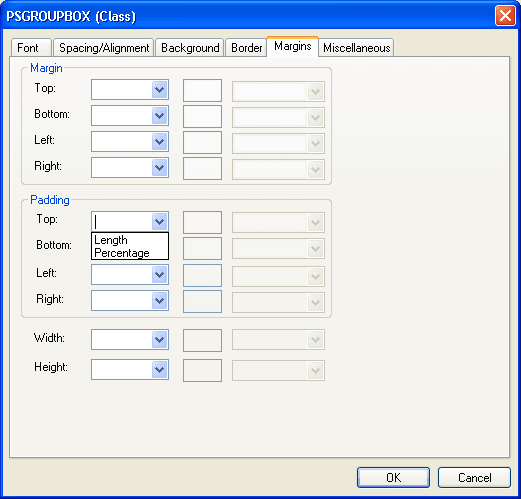
This example illustrates the fields and controls on the PSGROUPBOX (Class) dialog box: Margins tab. You can find definitions for the fields and controls later on this page.
| Field or Control | Description |
|---|---|
|
Margin and Padding |
Specify the margin and padding for each side of the element. Values are: Length: Specify a font size and the measurement type from the drop-down list box (pixels, inches, millimeters, and so on). Percentage: Specify a number, followed by a percent sign (%). The percentage value is relative to the parent element. Auto: The system calculates the width. Do not use negative values for padding. |
|
Width and Height |
Set the width and height of text elements. These properties are most useful with replaced elements, such as images. The system scales the image to fit the value that you specify. If you set either property to Auto and the image needs scaling, the system preserves the aspect ratio of the image. Do not use negative values. Note: If the width and height of a replaced element are both set to Auto, the system sets these properties to the intrinsic dimensions of the element. |