Specifying Use Properties for Push Buttons or Links
Access the Push Button/Hyperlink Properties dialog box and click the Use tab.
This example illustrates the fields and controls on the Push Button/Hyperlink Properties dialog box: Use tab. You can find definitions for the fields and controls later on this page.
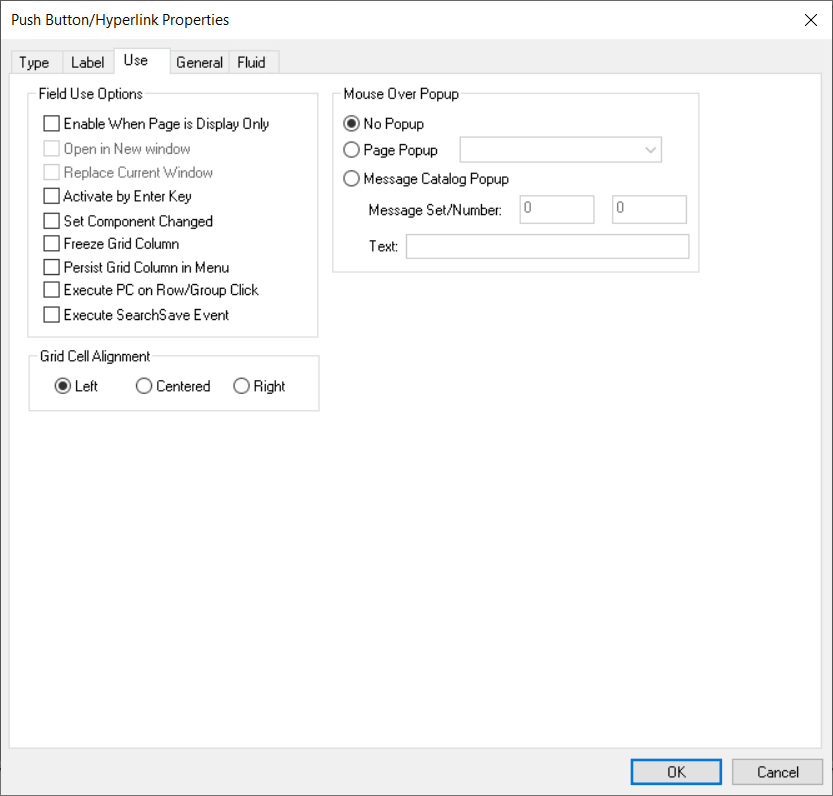
Field Use Options
This table describes the Field Use options:
| Field or Control | Description |
|---|---|
|
Enable When Page is Display Only |
Select to make the push button or link available to users who have display-only access to this page. Display-only access is set in the permission list properties. |
|
Open in New Window |
Select to open the target content page in a new browser window. This option is enabled when the destination type is either Internal Link or External Link. This option and Replace Current Window are mutually exclusive. Note: This option is not supported on fluid pages. To open a page in a new window for a fluid page, use PeopleCode, such as ViewURL or ViewContentURL. |
|
Replace Current Window |
Select to replace the existing content in the target area. This option is enabled when the destination type is either Internal Link or External Link. This option and Open in New window are mutually exclusive. |
|
Activate by Enter Key |
Select to activate the push button or link when the user presses the Enter key. You can have more than one push button or link with this feature set per page, as long as only one of these fields is enabled at runtime. Otherwise, only one push button or link with this attribute enabled is allowed per page. This feature is available for all control types except external links. When using Activate by Enter Key in a scroll area or grid with an occurs count greater than one, the Enter key triggers the first row only. Note that on a secondary page with the standard OK and Cancel buttons enabled, the Enter key activates the OK button rather than a custom button or link. Note: On fluid pages, only the button with this feature on the main page is triggered. Buttons with this feature on fluid side pages, fluid header page, or fluid footer page are not triggered. |
|
Set Component Changed |
Enables the system to issue a save warning for the field if the user changes the value and attempts to exit the page before saving. This setting reinforces current save warning behavior. This option is set by default for edit boxes, long edit boxes, radio buttons, check boxes, and drop-down list boxes. Deselecting this option overrides the save warning that normally appears to users. The user will not see a save warning after changing the value of the field and attempting to exit the page. An example of when this might be necessary is for a drop-down list box that includes links to another page. If the user selects a link from this field to transfer to another page but has not made any other changes to the page, then the system is not required to issue a save warning. By deselecting the Set Component Changed flag, you ensure that no save warning message is issued for this field. This option works for fields associated with a derived work field or database record field. For the push button/hyperlink control, the default setting is deselected instead of selected, unlike with other page controls. |
|
Freeze Grid Column |
Select to freeze the column on a grid. For more information on freezing columns, see Freezing Grid Columns |
|
Persist Grid Column in Menu |
Important: Persistent search, the drop-down menu, and other forms of classic navigation are no longer supported. The default navigational interface for PeopleSoft applications in the current release is based on the fluid banner, which can be used for both classic and fluid applications. Select to include the field as a list box item in the persistent search results grid. You must also select the Persist in Menu grid property for the grid that contains the field. This property is disabled on check boxes and radio buttons. You must enable recent search results caching at the system level in the web profile for this property to take effect. Note: This property applies only to fields that appear in grids on pages that are used as custom, application-specific search pages. |
|
Execute PC on Row/Group Click |
Important: Use this property in fluid applications only. Select to identify this button or hyperlink as a trigger field for either the grid row or group box containing this page field. When the user clicks or taps anywhere in the grid row or group box, the system executes any FieldEdit and FieldChange PeopleCode associated with this field. Note: On fluid pages, if there is a rich text editor field in a scroll area, do not enable a row action for the scroll area. |
|
Execute SearchSave Event |
Important: Use this property on custom fluid search pages or custom fluid prompt pages only. Select to trigger the execution of SearchSave PeopleCode on a Search button appearing on a fluid search page or a fluid prompt page. |
Grid Cell Alignment
Push buttons with images or text are center-aligned automatically when in a grid. Otherwise, select Left, Centered, or Right.
Note:
Grid cell alignment properties are only enabled when the control is contained within a grid and the control type is configured as a text hyperlink.
Mouse Over Popup
Select the Display Only check box to enable the Mouse Over Popup options.
Note:
The mouse over option is intended for hyperlinks and display-only edit box fields, not for Push Buttons.
Select from these mouse over pop-up options:
| Field or Control | Description |
|---|---|
|
No Popup |
Select to have no pop-up page. This value is the default. |
|
Page Popup |
Select to associate this control with a pop-up page that you select from the drop-down list box. Only pop-up pages appear in the Page Popup drop-down list box. |
|
Message Catalog Popup |
Select to associate this control with a system-defined message pop-up page that displays a message from the Message Catalog. When you select this option, the Message Set/Number fields are enabled. You can also design and implement Message Catalog pop-up pages to be context sensitive. |
|
Message Set/Number |
Enter the message set and message number of the message. These fields are enabled when you select Message Catalog Popup. |
|
Text |
Displays the message text of the message set/number that you select. This field is display-only. |
Note:
Attempts to make a push button/hyperlink editable at runtime when it has a mouse over pop-up page associated with it, for example, using PeopleCode, will fail.
Related Topics