Using the PeopleSoft Application Designer User Interface
This table describes the six main elements that comprise the PeopleSoft Application Designer user interface:
| Element | Description |
|---|---|
|
Title bar |
Displays the name of the database, the active project (optional), and the active definition (optional) in the following format: |
|
Menu |
Provides access to PeopleSoft Application Designer items and features. |
|
Toolbar |
Displays buttons that are useful in editing the active definition. |
|
Project workspace |
Provides a graphical representation of the components that are contained in a project. The project workspace has two folder tabs:
|
|
Definition workspace |
Displays individual definitions that you open. |
|
Output window |
Contains the output text from PeopleSoft Application Designer operations, such as Build (SQL Create and Alter), Find Definition References, Upgrade, Results, Validate, and PeopleCode Log. |
Note:
You should maximize the PeopleSoft Application Designer window to make optimal use of the different workspaces.
Application Designer Menus
This topic reviews the general PeopleSoft Application Designer menus. Specific menus appear for each definition when it is open and active. Those menus are discussed in the topic about each definition.
Note:
The menu items that appear on each menu often depend on the type of definition that is open in the definition workspace. Those menu items are described in the corresponding topics.
In addition to the standard Microsoft Windows File menu items, several PeopleTools-specific items appear in the File menu. This table lists the PeopleTools-related File menu items:
| File Menu Items | Usage |
|---|---|
|
Save Project |
Save the project. |
|
Save Project As |
Save the active project definition. This menu item enables you to change the name of the project when you save it. |
|
Print Project |
Print an Upgrade Project report for all the elements in the open project. |
|
Merge Projects |
Create a new project from selected definitions of two existing projects. |
|
Project Properties |
Edit properties for the open project. |
|
Definition Properties |
Provide general comments and change attributes for the active definition. You can change attributes for Use, Type, and Internet properties, depending on the definition type. |
|
View Report |
View a report of the definition in an open window in the workspace. |
|
Report from File, Print Preview |
View a print preview of a selected report file that is saved to a disk. |
|
Report from File, Print |
Print a selected report file from a disk. |
|
Report from File, View Report |
View a report from a selected report file that is saved to a disk. |
|
List of last opened definitions |
View and open one of the last few definitions you opened. You can configure the maximum number of definitions that appear in the list. |
In addition to the standard Microsoft Windows-based menu items, such as Cut and Paste, two PeopleTools-specific menu items appear in the Edit menu. This table describes their use:
| Edit Menu Items | Usage |
|---|---|
|
Find Definition References |
Search for all related definitions and references (fields, records, pages, PeopleCode, application packages, and so on) to the current open definition. The results appear on the Find Definition References tab of the Display window. |
|
Find In |
Search through all PeopleCode, SQL programs, HTML definitions, and Free form sub style sheets for a text string that you describe in a dialog box. You can also specify which type of PeopleCode and SQL programs to search. You can also search for custom style classes used in fluid pages and page fields, enabling you to identify where specific style classes are referenced across PeopleCode, HTML definitions, free form sub style sheets, and fluid page field definitions. See PeopleCode Developer’s Guide: Using the Find In Feature. |
This table describes the use of View menu items:
| View Menu Items | Usage |
|---|---|
|
View Definition |
View a definition that is referenced in the active definition. For example, if you highlight a record field in a record definition, then selecting this option opens the selected field definition. |
|
View PeopleCode |
View PeopleCode characteristics of the active definition. |
|
Filtering |
Select a filter option for your view of upgrade:
|
|
Toolbar |
Show or hide the toolbar. |
|
Status Bar |
Show or hide the status bar. |
|
Project Workspace |
Show or hide the project workspace. |
|
Output Window |
Show or hide the output window. |
|
Property Window |
Show or hide the property window. |
This table describes the use of Insert menu items:
| Insert Menu Items | Usage |
|---|---|
|
Current Definition into Project |
Insert the active definition into the project. |
|
Definitions into Project |
Display a dialog box to insert definitions into the project. |
This table describes the use of Build menu items:
| Build Menu Items | Usage |
|---|---|
|
Current Definition |
Display a dialog box to build or alter the record definition that is currently active in the definition workspace. |
|
Project |
Display a dialog box to build (SQL Create and SQL Alter) all project records. |
|
Settings |
Display a dialog box in which you set parameters that apply to build operations. |
This table describes the use of Debug menu items:
| Debug Menu Items | Usage |
|---|---|
|
PeopleCode Debugger Mode |
Start the PeopleCode Debugger, which invokes a debugging session and causes a full Debug menu to appear. When in Debugger mode, a Local Variables pop-up window appears in the definition workspace. See PeopleCode Developer’s Guide: Understanding the PeopleCode Debugger. |
This table describes the use of Tools menu items:
| Tools Menu Items | Usage |
|---|---|
|
Validate Project |
Validate attributes of the active project. |
|
Validate Database for WSRP |
Important: WSRP is desupported in PeopleTools 8.61, and currently exists for backward compatibility only. |
|
Compile All PeopleCode |
Validate all of the PeopleCode in the current database. Displays the Compile All PeopleCode dialog box where you can choose to compile and save all PeopleCode and all Directive PeopleCode. See PeopleCode Developer’s Guide: Compiling All PeopleCode Programs at Once andLifecycle Management Guide: Compiling and Saving Directive PeopleCode. |
|
Compile Project PeopleCode |
Validate the PeopleCode in the current project. |
|
Diff / Merge Project PeopleCode |
Compare and merge two PeopleCode definitions during an upgrade. |
|
Diff / Merge External Text |
Compare and merge two versions of an external text file (such as a Data Mover script or a SQL script) during an upgrade. |
|
Compare and Report |
Compare two projects and report on the differences. |
|
Copy Project |
Copy the current project to a database or a file, or export a project from a file to your database. |
|
Data Administration |
Open dialog boxes that describe space allocation in the database. |
|
Change Control |
Open dialog boxes to view history or set system-wide change control options as the administrator. |
|
Upgrade |
Upgrade an application project. |
|
Translate |
Translate base and operator language databases. |
|
Miscellaneous Definitions |
Set custom field formats, toolbars, colors, styles, access profiles, and file type codes. Important: Styles are a desupported feature. You must maintain styles by using style sheet definitions. |
|
Bulk Operations |
Insert, modify, or delete certain definition types across your entire database in one operation. |
|
Options |
Select commands specifying insertion commands, definition language preference, validating options, PeopleCode fonts, definition owner ID, and more. |
This table describes the use of Window menu items:
| Window Menu Items | Usage |
|---|---|
|
Cascade |
Cascade all of the definitions that are not minimized in the definition workspace into overlapping layers of definitions with the definition names visible. |
|
Tile |
Reorganize and resize all of the definitions that are not minimized in the definition workspace so that they are all visible and do not overlap. |
|
Arrange Icons |
Group all of the minimized definitions in the definition workspace. |
|
Close All |
Close all of the definitions in the definition workspace. |
This table describes the use of Help menu items:
| Help Menu Items | Usage |
|---|---|
|
Current Window |
Provide context-sensitive help that is related to the active window by opening the appropriate documentation in the appropriate location. |
|
PeopleBooks Library |
Go to the PeopleSoft Online Library (the online documentation for PeopleTools and your licensed PeopleSoft applications). |
|
About PeopleTools |
Display the PeopleTools release level, application release, user ID, database name, database type, and application server name. |
PeopleSoft Application Designer Toolbars
In addition to the standard Microsoft Windows toolbar button items, such as Cut, Paste, and Save, several items are PeopleTools-specific. The command name appears in parentheses following its description.
| Field or Control | Description |
|---|---|
|
|
Open the Definition Properties dialog box (). |
|
|
Open the Build dialog box (). |
|
|
Toggle the display of the project workspace (). |


Project Workspace
View projects and their associated definitions in the project workspace. A project organizes a collection of definitions in logical groups for easier development, adaptation, maintenance, and upgrade.
This example illustrates the fields and controls on the Project workspace shown with a project open. You can find definitions for the fields and controls later on this page.
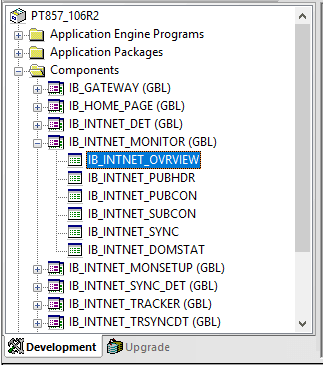
Work with a development project or an upgrade project by selecting either the Development tab or the Upgrade tab at the bottom of the project workspace.
The text on the Development and Upgrade tabs might not appear if your monitor is not large enough to display it.
Definition Workspace
Use the definition workspace to create and modify definitions. You can maximize, minimize, cascade, or tile them in the workspace.
Output Window
The output window displays status messages of various PeopleSoft Application Designer operations. The output is organized into different categories by using tabs at the bottom of the window.
The text that appears in the output window is context-sensitive, which enables you to select it and perform related operations. For example, if you have a field definition open, select to list the definitions that reference the active field definition. The list appears in the output window. Double-click any of the related definitions listed to open them.
The output window has several tabs that relate to numerous functions that you can perform with PeopleSoft Application Designer: This table describes the use of the tabs:
| Tab | Usage |
|---|---|
|
Build |
Create tables, indexes, views, triggers, and alter tables. If you select the Log to Output Window option in the Build settings, then errors, warnings, and informational messages appear here. You can control the level of detail that appears. |
|
Find Definition References |
View definitions that other references use or reference. Double-click a definition to open it. |
|
Upgrade |
View upgrade actions that are initiated from PeopleSoft Application Designer. |
|
Results |
View messages related to project operations, like opening a project or inserting definitions into a project. |
|
Validate |
Validate projects and components, and view the results. |
|
Find In |
View the Find In dialog box output. Double-click a definition to open it. You can limit the Find In search to a specific project rather than the entire database. |
|
PeopleCode Log |
View errors that you receive when you are in the debugger stepping through code. |