Setting PeopleTools Options
You can set preferences for various features in the Options dialog box. Select to access the Options dialog box. Seven tabs appear on the dialog box and each tab features configurable options for different areas of PeopleSoft Application Designer. Most of these options are described in further detail in other, more relevant areas of the product documentation. The following topics provides a general description of each tab and a link to further details about the options:
Validate
Set project validation options, enable the PeopleSoft Application Designer spell check feature, and enable WSRP validation.
Important:
WSRP is desupported in PeopleTools 8.61, and currently exists for backward compatibility only.
See Validating Projects.
Editors
Set Word Wrap options for the various editors in PeopleSoft Application Designer.
See PeopleCode Developer’s Guide: Understanding the PeopleCode Debugger.
See PeopleCode Developer’s Guide: Understanding the SQL Editor Window.
General
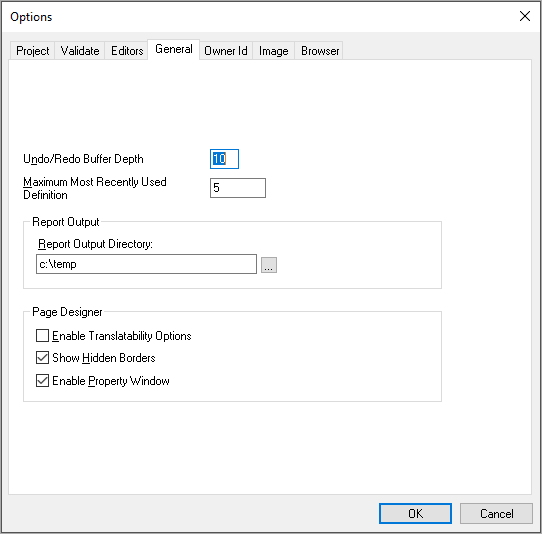
This example illustrates the fields and controls on the Options dialog box: General tab. You can find definitions for the fields and controls later on this page.
| Field or Control | Description |
|---|---|
|
Undo/Redo Buffer Depth |
Enter the number of most recently performed actions for PeopleSoft Application Designer to store in memory. The default value is 10, which mean that you can undo up to 10 immediately previous actions, such as adding or deleting page fields from a page. |
|
Maximum Most Recently Used Definition |
Enter the number of recently opened definitions to appear in a list at the bottom of the File menu in PeopleSoft Application Designer. The default value is 5. |
|
Report Output Directory |
Enter the output destination of the reports that you run in PeopleSoft Application Designer. Reports include upgrade, build, and definition reference reports. |
|
Enable Translatability Options |
Select to enable the following translatability options:
Note: Translation warnings only appear when your base language value in Configuration Manager is English. |
|
Show Hidden Borders |
Select to enable the borders of hidden group boxes and frames to appear as dashed lines indicating the boundary of all hidden group box and frame page control types. |
|
Enable Property Window |
Select to enable the property window for page controls. See Using the Property Window for more information. Note: You must close and restart Application Designer for this setting to take effect. |
Owner Id
Set the default owner ID for new definitions you create. Alternatively, leave the option blank, which is the default, to allow users to select the owner ID they want. The Owner ID helps identify which applications team last made a change to a definition.
Image
Set the preferred storage format for newly created image definitions.
Browser
Enter the base uniform resource indicator (URI) to be used by the browser to locate the application and the node name.
Related Topics