Using the Property Window
Use the property window to view and update page field properties. The property window can be used in lieu of or in addition to using the page field properties dialog box.
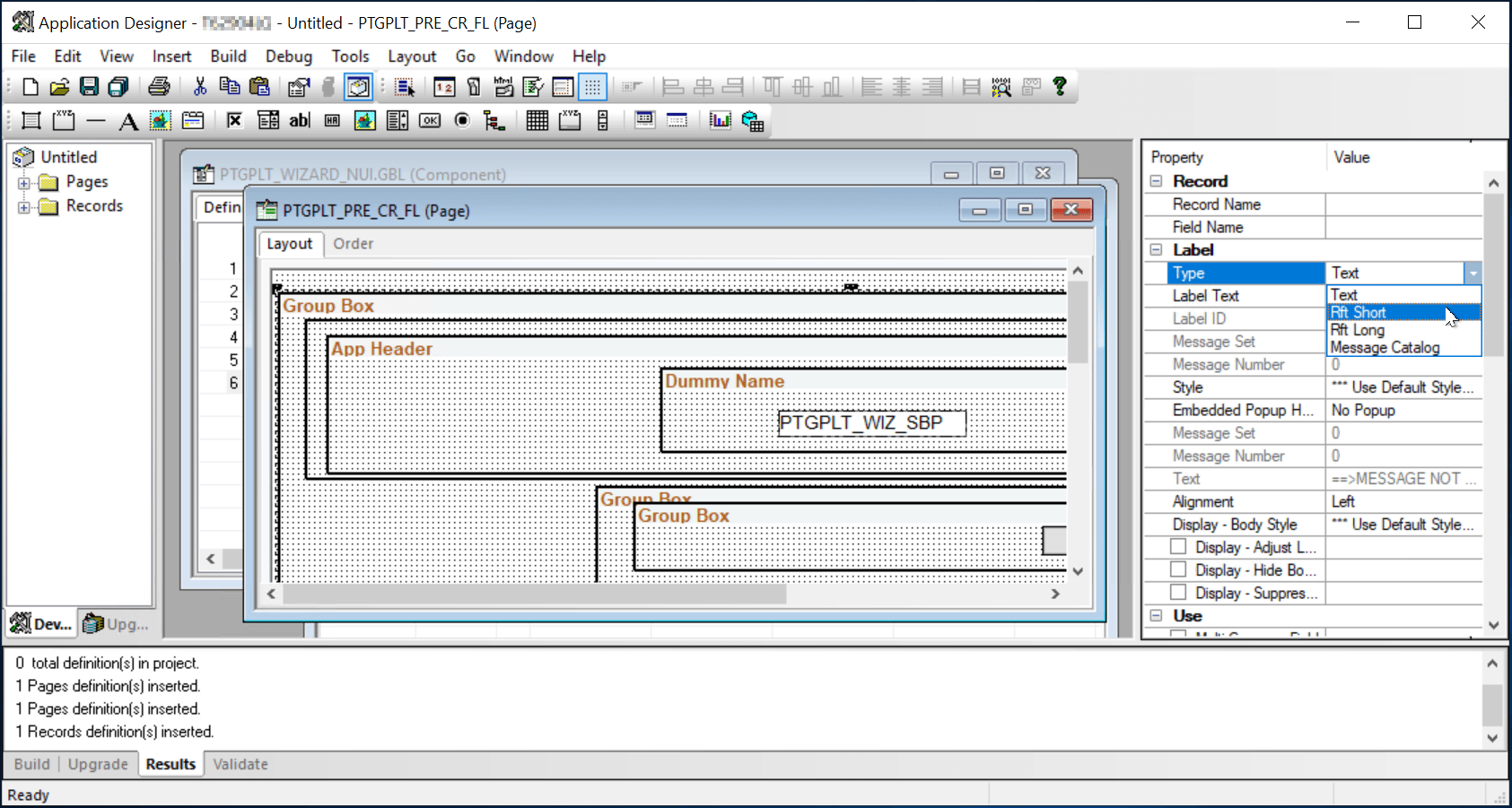
In the following example, the property window displays the page field properties for the selected group box. In addition, the Type field has been selected illustrating that properties can be updated directly in the property window.
These operations affect the use and display of the property window:
-
The property window is enabled by default.
To disable or re-enable the property window, select . Then select the General tab. See Setting PeopleTools Options.
-
The property window is visible by default.
To hide or view the property window, select . Alternatively, to hide the property window when it’s already visible, right-click anywhere on the property window, then select Hide from the pop-up menu.
-
The property window is docked by default.
To make the property window undocked, right-click anywhere on the property window, then deselect Allow Docking from the pop-up menu. See “Dockable Windows and Toolbars” in Configuring the Application Designer User Interface for more information.