Using Lookup Prompts
You can perform a full or a partial search using lookup prompts.
To perform a full search, click the Look Up button. The Look Up page opens as a stationary modal page on top of the primary page. The primary page is grayed out and inaccessible while the prompt page is active. When the Look Up page opens, the Search Results grid displays all valid values for that field up to the maximum row count. Click the field title in the Search Results grid to change the field values sort direction. To narrow the search results, you can enter partial data and click the Look Up button. Click the Advanced Look Up link to narrow the search, both by searching based on more than one field at a time and by using a variety of search operators. When the field value that you need appears in the Search Results grid, click the value link to populate the prompt field on the primary page with the selection.
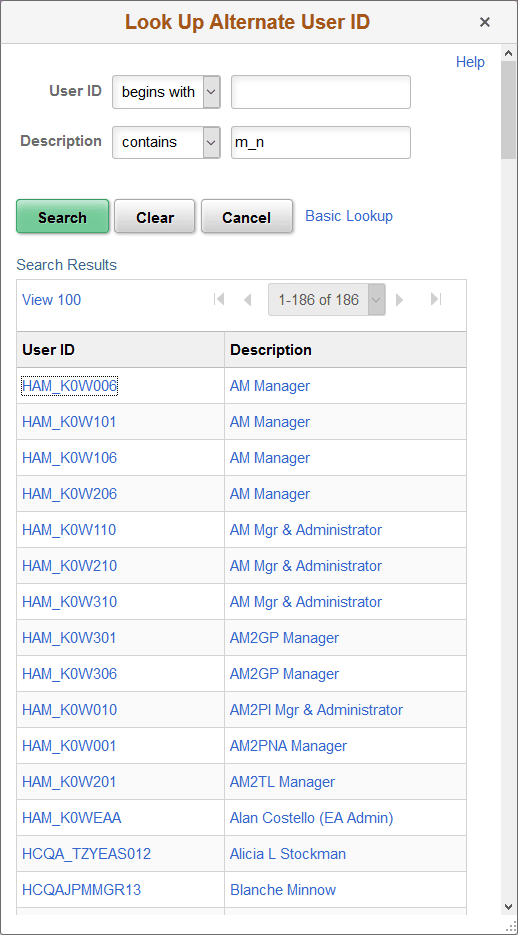
PeopleSoft applications support three wildcard characters (%, _, /) to help you search for data in character fields. On search pages and look up pages, wildcard characters only work with the begins with and contains operators.
The following example illustrates using a wildcard character on a Look Up page. Similar to prompt fields, use of the % and _ wildcard characters is supported.
Note:
Your system administrator might exclude extremely large tables from automatically prompting for performance reasons.
Note:
Application developers can use Application Designer to disable the partial search feature on lookup pages.
Look Up Page Properties
All Look Up pages share certain characteristics. All Look Up pages are modal and appear over the primary page, which is grayed out. When working with these pages, you can:
-
Resize the page.
-
Close the page from the title bar close icon.
Note:
The New Window, Personalize Page, and Copy URL links do not appear on the modal prompt lookup page.
Do not use the browser Back button when accessing prompt windows in AJAX mode. Use application links and buttons to navigate PeopleSoft applications. Clicking the browser Back button in some browsers can cause the spinning processing message to appear. To stop it, press the Back button again or click the browser Stop button and close the lookup prompt window.