Working with Favorites
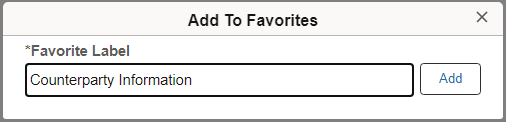
In the Actions menu, click the Add to Favorites link to add the current page as a favorite.
When you add a favorite, you can edit and personalize the label for the item. For example:
In the NavBar, click the Favorites tile to display your list of favorite pages and a link to the My Favorite Searches page which displays a list of all your favorite saved searches. See Search Technology: Viewing Favorite Searches.
This example illustrates links added to Favorites:
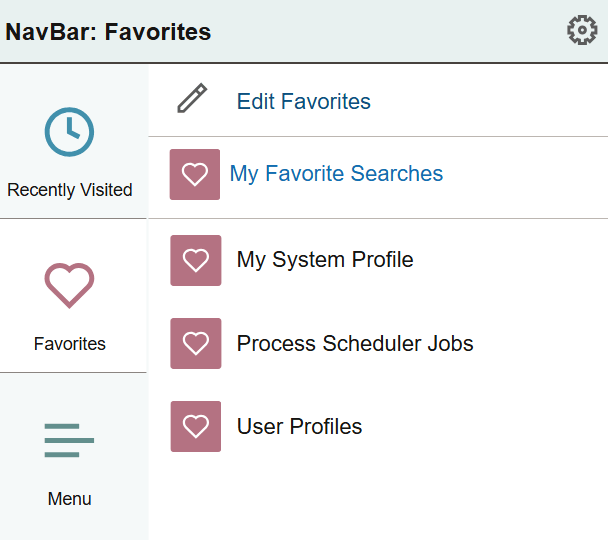
The favorites displayed in the NavBar are the same as those displayed via the Favorites button in the quick access bar on fluid homepages.
Click the Edit Favorites link to access the Edit Favorites page. On the Edit Favorites page you can re-label favorites, delete favorites, or modify the sequence in which they appear under Favorites.
This example illustrates the fields and controls on the Edit Favorites page.
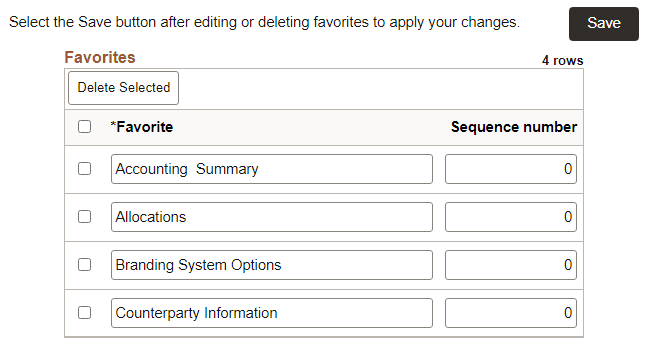
The Edit Favorites page displays a grid with the favorites that you’ve added and their sequence numbers.
Related Topics