Defining Reports
Access the Definition page (.)
This example illustrates the fields and controls on the Create BIP Report Definitions – Definition page. You can find definitions for the fields and controls later on this page.
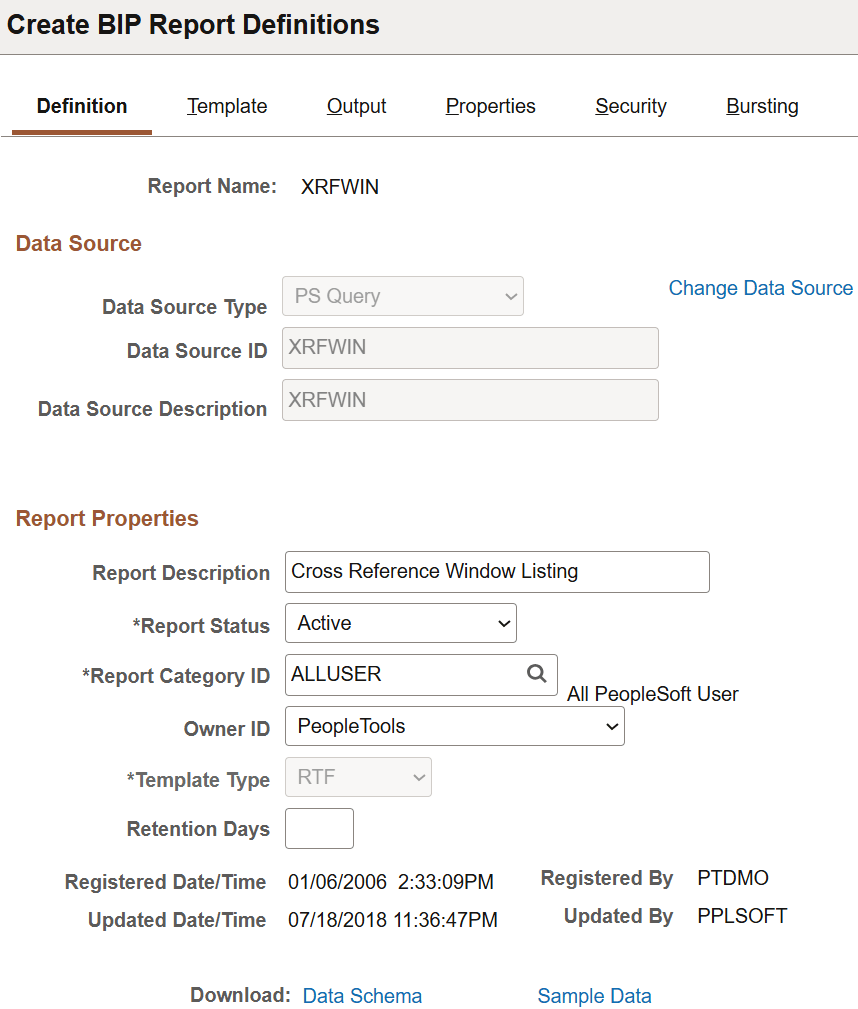
| Field or Control | Description |
|---|---|
|
Report Name |
Enter a report name. The report name must be unique, and it must not contain any special characters. If you enter spaces in the report name, the system replaces them with underscores. |
|
Data Source Type |
Select Connected Query, PS Query, Rowset, XML Doc, XML File, or Composite Query. Note: For BI Publisher power users, the data source types available are PS Query, Connected Query, and Composite Query only. Rowset and XMLDoc are desupported in PeopleTools 8.50. If the data source was defined in a previous release, it will be available. You can not create a new data source for rowset or XmlDoc. |
|
Change Data Source |
This control appears on existing report definitions for users with the XMLP Report Developer role. When you click the link the Data Source Type and Data Source ID fields become editable and you can define new values. Warning! Changing the data source may make the report unusable. If you change the data source, you may need to change other dependant parts of the report definition, such as the report template, report-level properties, bursting values, and so on. After you change the data source, be sure to review the entire report definition to verify that the report values match the newly selected report Data Source. Before changing the data source for a report, you may want to make a copy of the report and test the impact of changing the data source. See Copying Report Definitions. |
|
Cancel Data Source Changes |
This control appears after you click the Change Data Source link. Click the link to revert the report back to the initial state. Important: You are able to revert back to the initial state only prior to saving the page. |
|
Data Source ID |
Select the data source ID. You can choose from data source IDs that are based on previously registered data sources. You can select queries regardless of whether they have been previously registered as data sources. For queries, the lookup table respects the public, private, and query access group security for the current user ID. When you save a report definition with an unregistered query data source, the query is systematically registered as a data source. The query has no object owner ID, but that value can be entered manually on the Data Source page, if required. |
|
Data Source Description |
This is a read-only field that reflects the value that was entered when the data source was registered. For unregistered query data sources, this field reflects the query description. |
|
Report Description |
(Optional) Enter descriptive text that provides more detail about the report. If this field is left blank, the report name appears by default. |
|
Report Status |
Select Active, In Progress, or Inactive. Setting the report status allows work in progress as well as retirement of report definitions. Active reports must have at least one active template. Only active reports can be selected at runtime and run to success. |
|
Report Category ID |
Select a report category ID. This is a grouping mechanism for reports that provides row-level security for editing report definitions per the rights defined on the report category setup table. |
|
Object Owner ID |
(Optional) Indicate which product, feature, or application owns this report. Note: The default value that appears here is based on the Object Owner ID setting in the Report Category component (PSXPSETUPRPTCAT). |
|
Template Type |
Select PDF, RTF, ETX, XLS (Excel) or XSL. Note: ETX is only available if the data source is XML file. Only one template type is allowed per report. The template file extension that you can upload on the Template page is controlled by this value. This value also controls which report templates appear on the Translation component (PSXPTMPLTRNS), because only RTF templates are translatable. |
|
Retention Days |
(Optional) Enter a value to set the option to purge the reports from the Report Repository and archive the data to the Report Archive table. The value that you enter overrides the system setting for retaining reports. The maximum value that you can enter is 9999 days. If you don't select a value, the value from the page applies. Only BI Publisher report developers or power users with permission list PTPT2600 or PTPT2500 can set this value. |
|
Registered Date/Time |
This is a read-only field maintained by the system that indicates the date that the initial report definition was registered. |
|
Updated Date/Time |
This is a read-only field maintained by the system that indicates the date that the last update to the report definition was made. |
|
Registered By |
This is a read-only field maintained by the system that indicates the user ID of the operator who initially registered the report definition. |
|
Updated By |
This is a read-only field maintained by the system that indicates the user ID of the operator who last updated the report definition. |
|
Download |
Click Data Schema to detach the schema file orSample Data to detach the data file. Detaching the files enables the user to view the data elements prior to finalizing the report definition. These links appear if the related files exist on the registered data source. For PS Query data sources, both links always appear regardless of whether the data source is registered because these files are system-generated. |