Applying Translations Delta Package
To apply the translation delta package:
-
In Change Assistant, select Tools, Change Actions.
-
Select Update Manager and Click Next.
Note:
If you are already in the Update Manager action, select Tools, Apply Translation Delta Package.
-
Select Apply Translation Delta Package and click Finish.
-
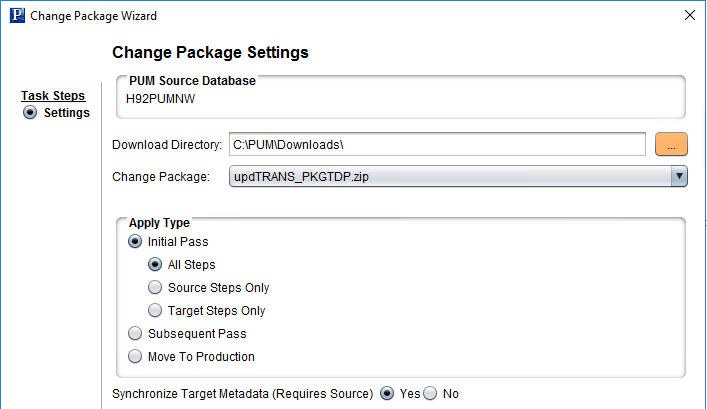
Select the download directory where the change package was created.
This example illustrates the fields and controls on the Change Package Settings page.
-
Select the translation delta change package to apply. Only translation delta packages are available in the drop down. The package name will end with TDP.
-
Select Initial Pass.
By default All Steps is selected. Change this value if you choose to decouple the source and target steps.
Note:
For information on Apply Type see Understanding the Apply Update Process
-
Click Next.
-
Select the target database.
Note:
Use the Create button to create the target database if it has not been previously created. See Defining Databases and Defining Target Database
-
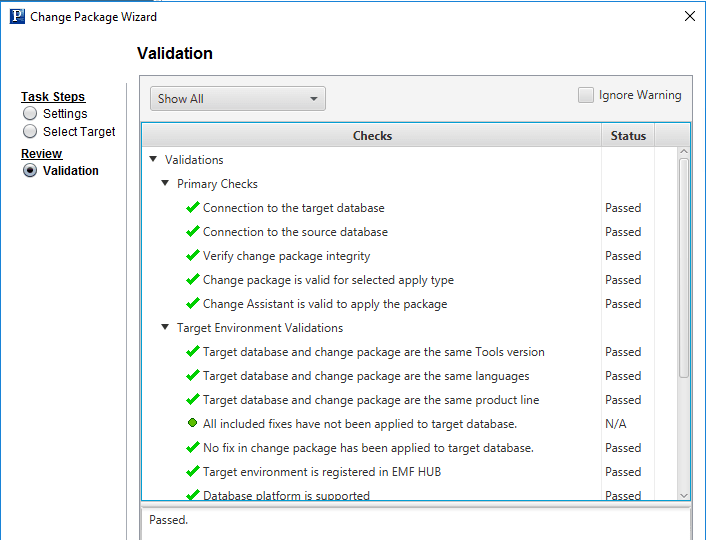
Change Assistant will connect to the target database and validate the environment. The Validation page will then be displayed.
This example illustrates the fields and controls on the Validation page.
-
Click Next.
-
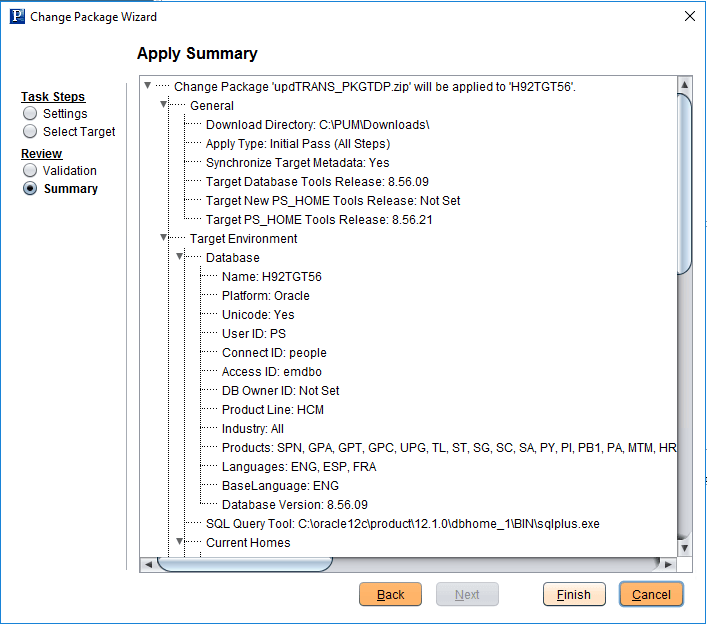
The Apply Summary is displayed, click Finish.
This example illustrates the fields and controls on the Apply Summary page.
-
Change Assistant will begin building the Change Assistant job.
-
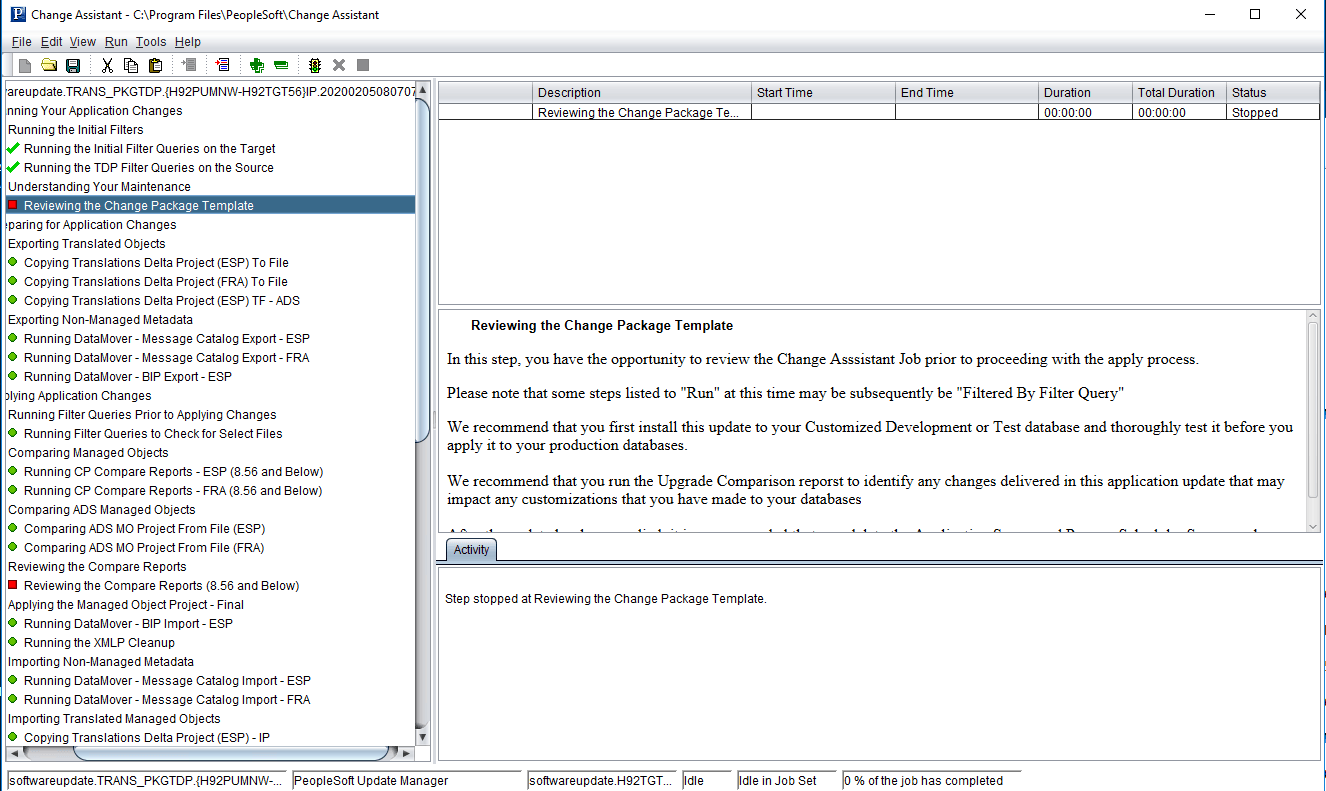
The Update job will be created and open in Change Assistant.
This example illustrates a Translation Delta Project Job.