Manage Repository Objects
The Manage Customized Objects page contains a list of the customized objects. The same object may exist in more than one customization.
To access the Customization Repository page, select the Customization Repository tile from the Update Manager Homepage.
Select Manage Repository Objects.
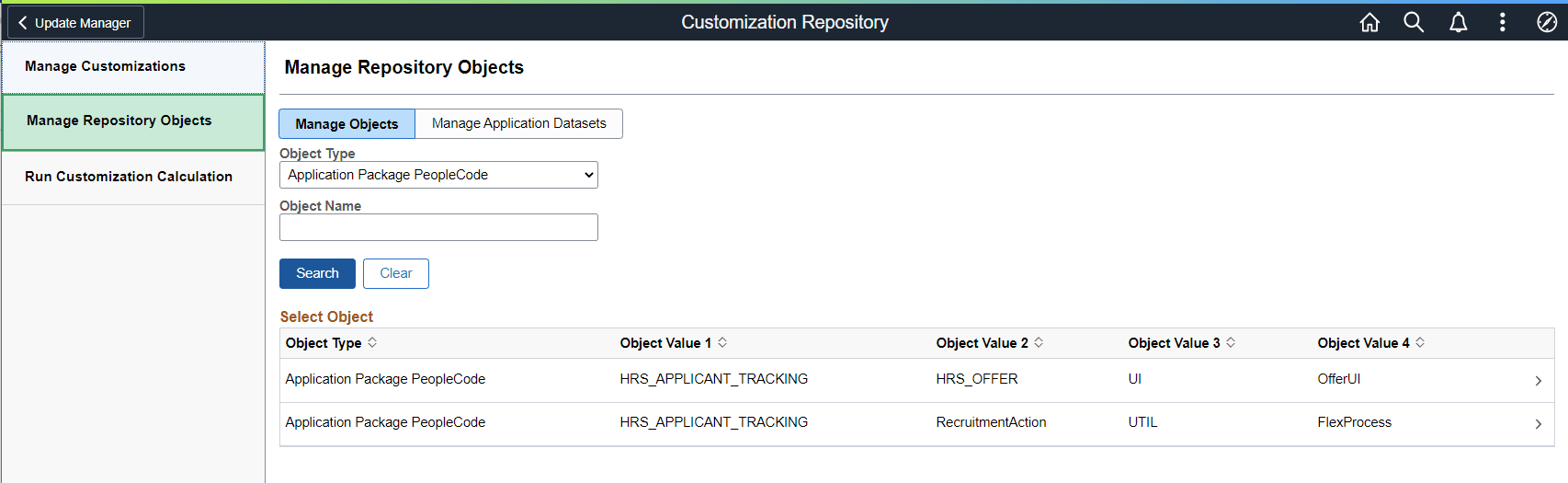
This example illustrates the fields and controls on the Manage Repository Objects page. You can find definitions for the fields and controls later on this page.
| Field or Control | Description |
|---|---|
|
Object Type |
Use the Object Type editbox to display customizations by object type. |
|
Object Name |
Use the Object Name editbox to display customizations for a specific object names. |
|
Object Type |
Specifies the managed object type. |
|
Object Value 1–4 |
These 4 columns are the same 4 key columns used to identify a managed object in PUM and managed object projects. |
|
> |
Click to open the Add/Delete Customization References page. |
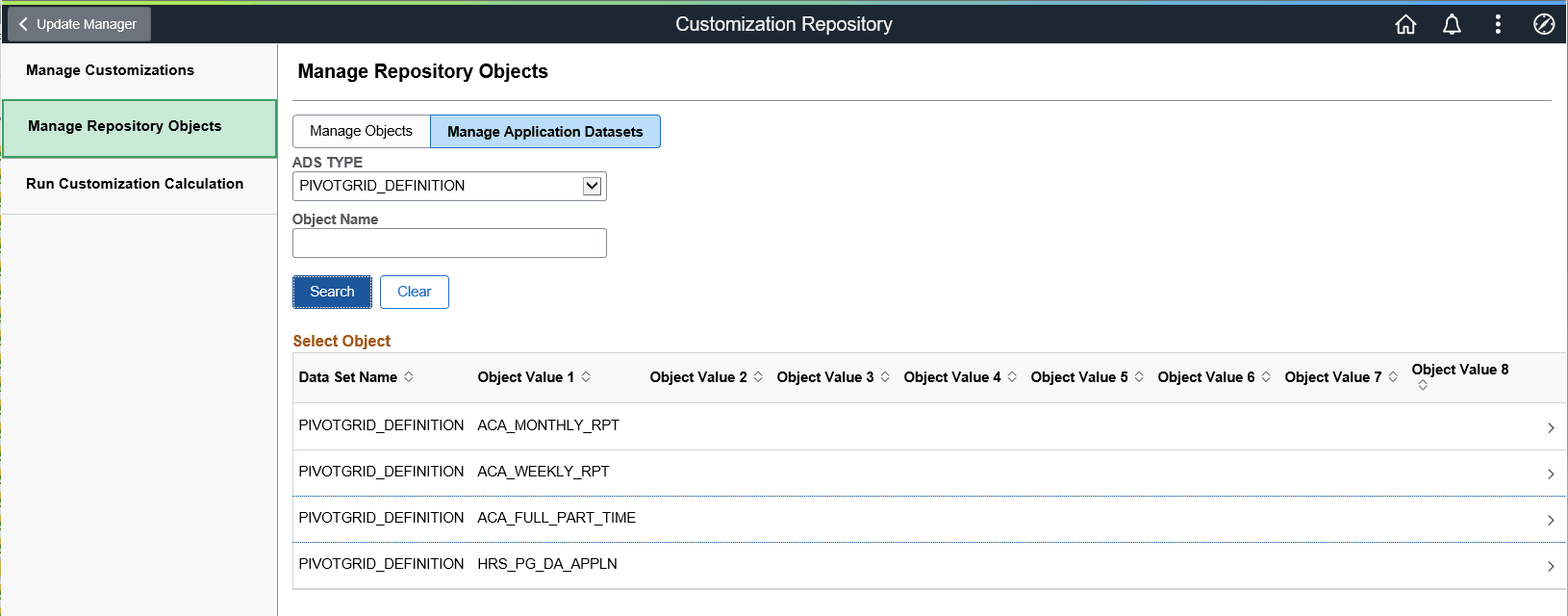
This example illustrates the fields and controls on the Manage Application Datasets page. You can find definitions for the fields and controls later on this page.
| Field or Control | Description |
|---|---|
|
ADS Type |
Select the ADS Type to display.. |
|
Object Name |
Use the Object Name editbox to display customizations for specific object names. |
|
Data Set Name |
Name of the Data Set. |
|
Object Value 1–8 |
These are the key columns used to identify an ADS managed object in PUM and ADS managed object projects |
|
Customizations |
Displays the customization count. Click the count link to open the Add/Delete Customization References page. |
Adding and Deleting Customization References
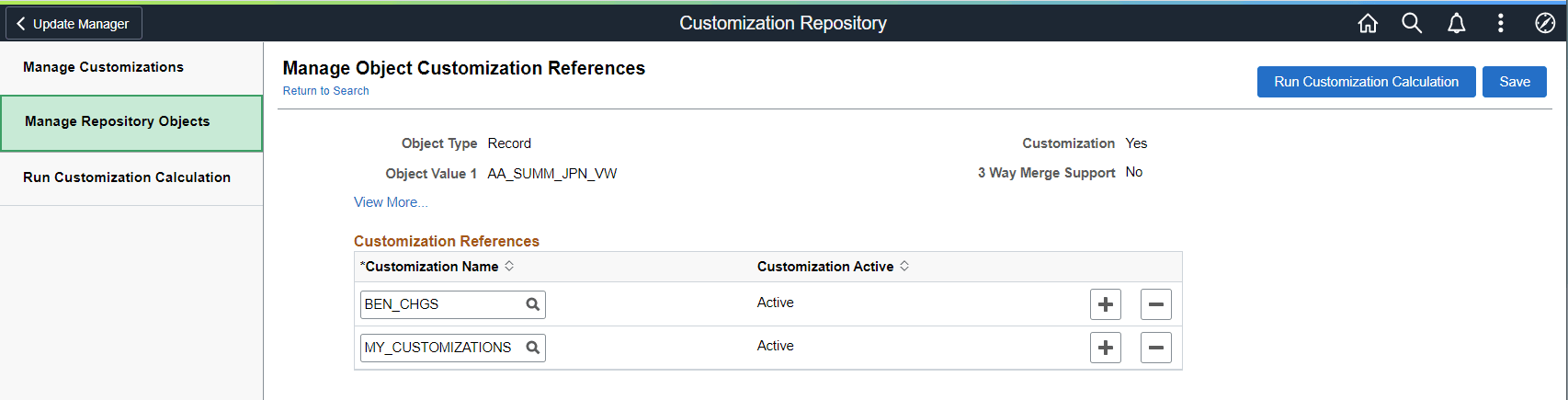
To add or delete customization references, click Data Set Name or the > icon. This will open the Manage Object Customization Reference page. The list of customizations to add to an object is limited to the list of customizations defined in the Customization Repository.
This example illustrates the fields and controls on the Manage Object Customization References page. You can find definitions for the fields and controls later on this page.
To add a reference:
-
Click the Add a row icon (+).
-
Select an existing Customization Name using the Lookup icon.
Note:
Customization Names are defined in the Customization Repository.
-
Click Save.
Note:
If a customization reference is added, the Customization Calculation must be rerun.
To delete a reference:
-
Click the Delete a row icon (+).
-
Click OK to delete the row.
-
Click Save.
Note:
If a customization reference is deleted, the Customization Calculation must be rerun.