Managing Customization Groups from the Actions Menu
Using Actions menu you can create a customization group, add customized objects to an existing customization group, and remove selected customized objects from a customization group
Note:
A customization group contains managed objects that are grouped together for analysis, ownership, testing, and maintenance planning. Creating or updating a group does not create or delete the managed objects themselves; it changes the association between the objects and the group.This example shows the Actions menu.
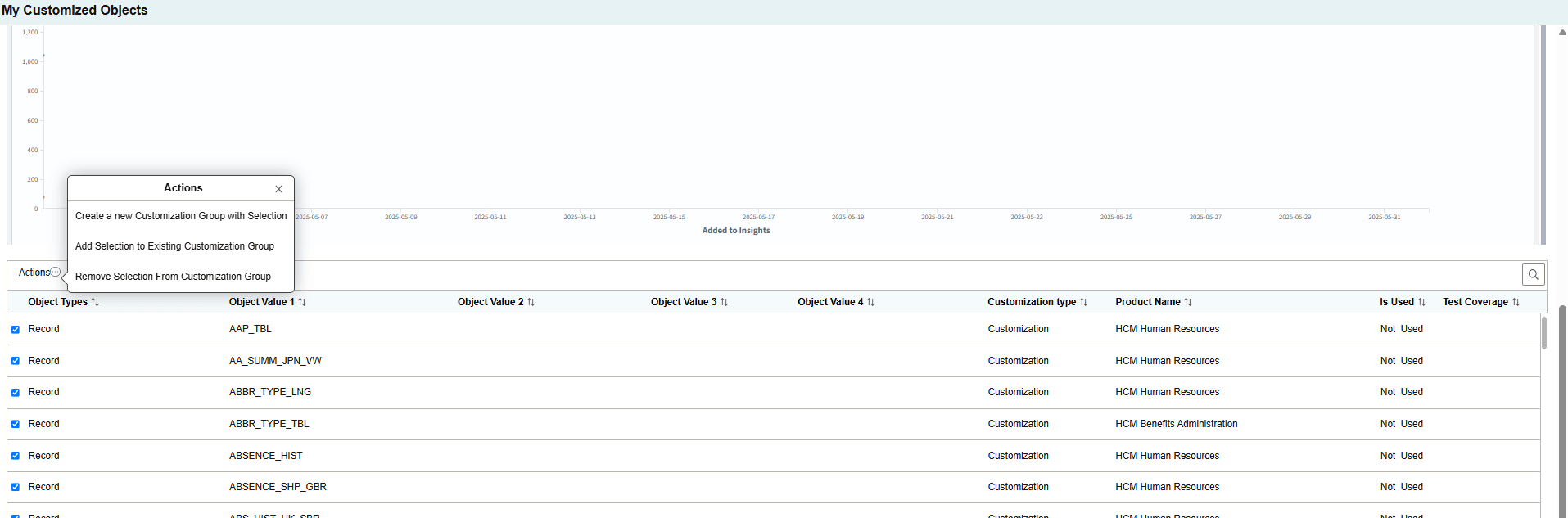
The options are:
- Create a new customization group with selection- Select the objects to create a new customization group.
After creating a customization group, you can give details such as a description, group type, group category, owner/responsibility information, and comments on the Manage Groups page. Refer Using Manage Groups Page
- Add selection to existing customization group- Select the objects that you want to add to the existing customization group. After the objects are added, you get the option to open the updated customization group on the Manage Groups page.
- Remove selection from Customization group- Select the objects that you want to remove from the customization group. After the objects are removed, you get the option to open the updated customization group on the Manage Groups page.