Using Manage Groups Page
Use the Manage Groups page to define and maintain customization groups for Customization Insights.
On this page you can create a new customization group or open an existing customization group to modify.
This page also lets you to update a customization group by using objects from a managed object project.
Also, when you select an action from the Actions menu on the My Customized Objects page, the system opens the corresponding customization group on this page.
Navigate to PeopleTools, Lifecycle Tools, Manage Groups.
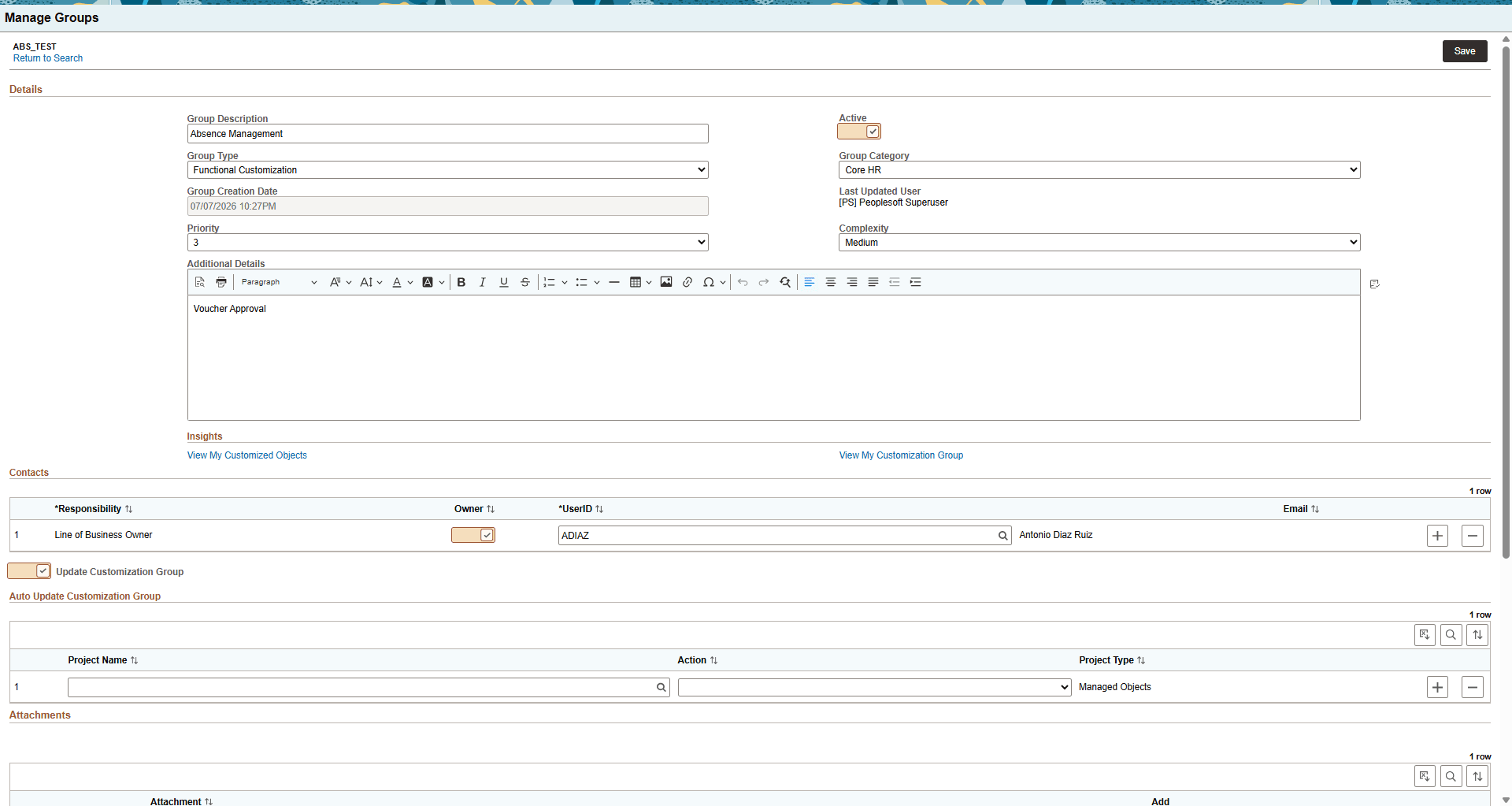
This example illustrates the fields and controls on the Manage Group page.
| Field or Control | Description |
|---|---|
|
Group Description |
Enter a description for the Customization Group. Use a meaningful description that identifies the business function. For example, Absence Management. |
|
Active |
Select to make the Customization Group active. Clear this option if the group should no longer be used for analysis, filtering, or maintenance planning. |
|
Group Type |
Select the type of customization group. This decide what appears on the dashboard PeopleSoft-delivered values include Functional Customization, Related Object Group, and Maintenance Impact Group. You can create your own values on the Manage Group Settings page. |
|
Group Category |
Use this field to classify the group by functional area or business process, such as Core HR, Reporting, Integrations, and so on You can create your own category on the Manage Group Settings page. |
|
Group Creation Date |
Displays the date and time when the customization group was created. |
|
Last Updated User |
Displays the user detail who last updated the customization group. |
|
Priority |
Use this value to indicate how important the group is for maintenance planning, testing, ownership review, or update analysis. |
|
Complexity |
Use this value to indicate the expected effort required to analyze, maintain, or test the group. PeopleSoft delivers five values, and those are Low, Medium, High, Medium-Low, and Medium-High. |
|
Additional Details |
Enter additional information about the customization group. |
|
View My Customized Objects |
Opens the My Customized Objects page. Use this link to see the different visualizations. You can review those, filter relevant customized objects, and using the Actions menu to create new customization group, update or remove customized objects from existing customization group. |
|
View My Customization Group |
Opens the My Customization Groups dashboard. Use this link to review group-level analytics for the customization group. |
|
Contacts |
|
|
Responsibility |
Select the role or responsibility for the contact. PeopleSoft-delivered roles include Functional Analyst, Line of Business Owner, Development Lead, and Test Lead. You can define additional roles on the Manage Group Settings page. |
|
Owner |
Select to identify the row as an owner for the customization group. Multiple owners or responsible users can be associated with a group. |
|
UserID |
Select the user ID for the person assigned to the selected responsibility. |
|
User Name |
Displays the name associated with the selected user ID. |
|
|
Displays the email address for the selected user, when available. |
Using a Managed Object Project to Update a Customization Group
Use the Manage Groups page to update a customization group by adding or removing objects that are part of a managed object project.
Navigate to PeopleTools, Lifecycle Tools, Customization Groups, Manage Groups.
This example illustrates the fields and controls on the Update Customization Group option.
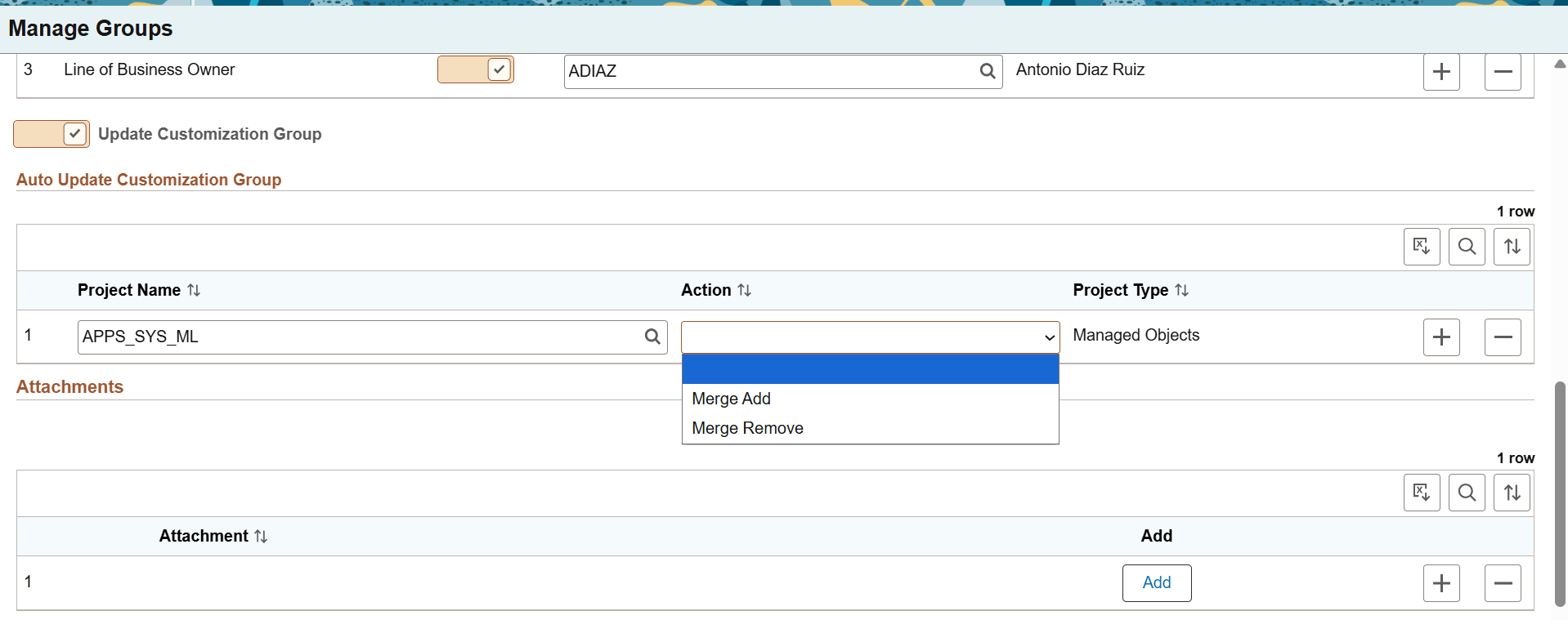
Open your customizatons group on the Manage Groups page, enable the Update Customization Group option, and then select the project and action to apply.
Table 18-1 Manage Customization Using MO Objects
| Field or Control | Description |
|---|---|
|
Update Customization Group |
Select to enable the Auto Update Customization Group section. Use this option when you want to update the group by using objects from a managed object project. |
|
Project Name |
Select the managed object project that contains the objects to add to, or remove from the customization group. |
|
Action |
Select one of the following update action to apply to the selected project:
|
|
Project Type |
Displays the type of project selected. In the example, the value is Managed Objects. |
|
Add Row (+) |
Adds another project row to the grid. |
|
Delete Row (-) |
Removes the selected project row from the grid. |
Adding or Removing Objects on the Manage Groups Page
Use the Customized Objects section on the Manage Groups page to review the objects currently associated with a customization group and to add or remove individual objects.
This example illustrates the fields and controls on the Customized Objects section.
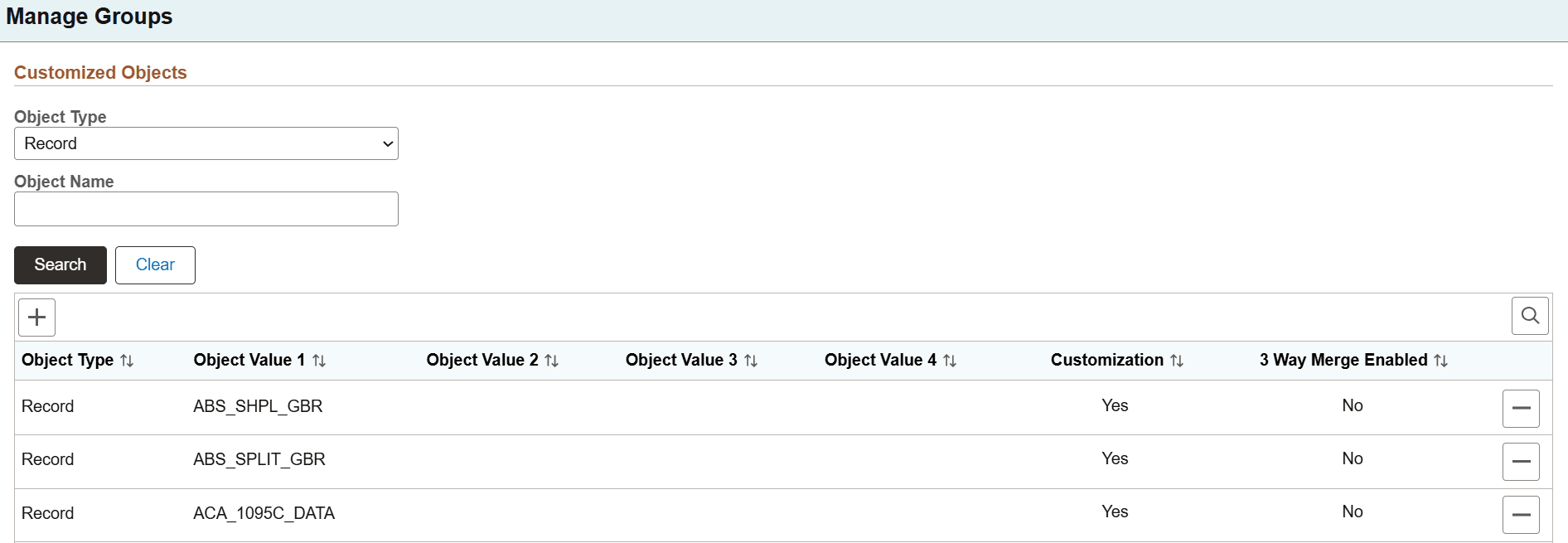
Use the search criteria to locate objects, and then use the Add Row (+) or Delete Row (-) button to update the grid