PeopleSoft Update Manager (PUM) Enabled Updates
The steps appear in the logical order that you would perform them, and the links point to the location where the information for a specific task is provided. PUM enabled applications include all 9.2 applications and Interaction Hub 9.1
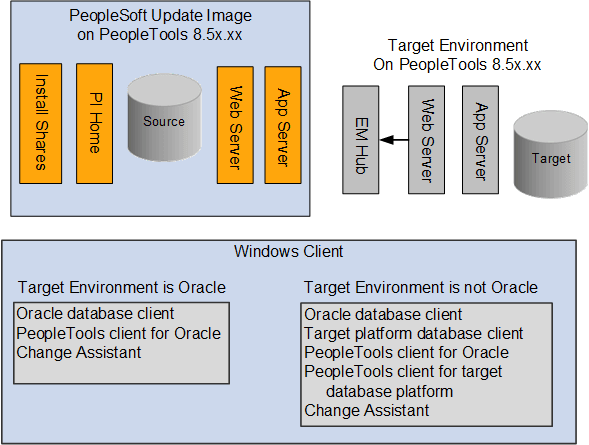
This diagram illustrates the PUM environment which includes the PeopleSoft Update Image, the target environment and the windows client.
Note:
If the target environment is Oracle database on a lower PeopleTools release than the PeopleSoft Update Image, the configuration will be the same as the target on a non-Oracle database.
| Step | Reference |
|---|---|
|
1. Use My Oracle Support (MOS) to find the current PeopleSoft Update Image and download it. |
|
|
2. Install the PeopleSoft Update Image. Note: The PeopleSoft Update Image may be at a different release/patch level than your target environments. |
See PeopleSoft Deployment Packages for Update Images Installation (PeopleSoft PeopleTools 8.5x). |
|
3. (Optional) Configure and start the PSEMAgent on every server within your PeopleSoft target environment. Note: EMF is only run on the target environments not on the PeopleSoft Update Image. EM Hub is only used for file deploy in PUM-enabled applications. |
|
|
4. Map your Windows client to the PeopleSoft Update Image shared drives. Mapping can be done using the PeopleSoft Update Image IP address. Note: The IP address can be identified using the ifconfig Linux command on the VirtualBox. |
See Configuring the Microsoft Windows Client Running Change Assistant |
|
5. Configure Microsoft Windows client running Change Assistant. |
See Configuring the Microsoft Windows Client Running Change Assistant |
|
6. Install Change Assistant on Windows client at the same release/patch level as the PeopleSoft Update Image. |
|
|
7. Start Change Assistant. Click Next on Welcome page, then select Update Manager action. |
|
|
8. In Change Assistant, select Update Manager > Define Change Package. The Change Assistant Wizard will lead you through the setup pages. |
|
|
9. Use PeopleSoft Update Manager PIA application in the PeopleSoft Update Image environment to search for updates you need, review the update impact, and define your update change package. Note: Update change packages can also be created in Change Assistant using standard search criteria. |
|
|
10. Use Change Assistant to create the change package from your custom change package definition created with PeopleSoft Update Manager PIA application, analyze the change impact, and apply the updates. |
See Packaging Updates. |
|
11. Use Change Assistant to apply the change package. |
Note:
Use the PeopleSoft Update Image Home Pages tab from the PeopleSoft Update Manager Home Page [ID 1641843.2] to access the PeopleSoft Update Image for your application. The Update Image Home page for your application will contain links to all the relevant information for the PeopleSoft Update Image you are downloading. The Installation Documentation section on the page contains a link to the installation guide for the Image.