Accessing and Enabling the Action Toolbar
To access the action toolbar, select PeopleTools, Documents, Document Builder and then select a document or create a new document.
The following example shows the action toolbar appearing under the document tree section on the Document Builder – Document page
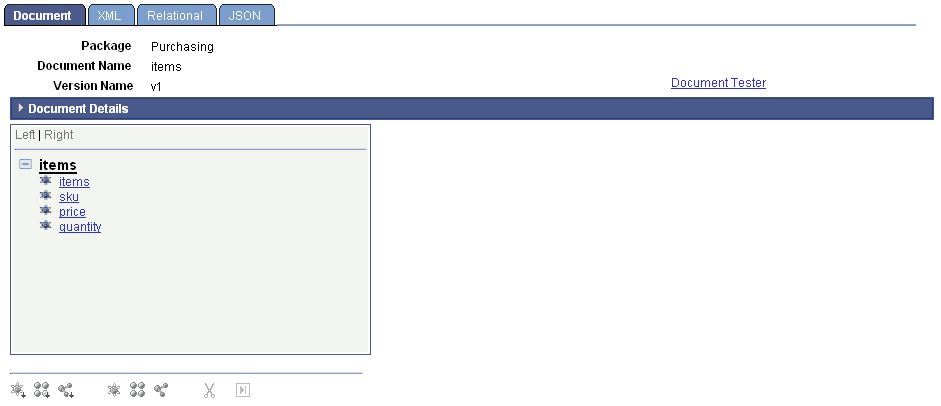
The action toolbar is not enabled until you click an element in the document tree. In the previous example, the action toolbar is not enabled since no element is selected.
This example shows the action toolbar enabled. The toolbar is enabled because an element in the document tree, price, is selected.
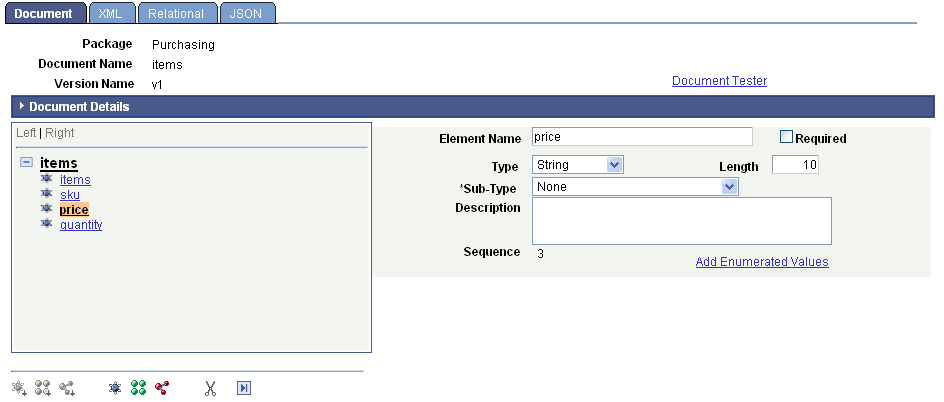
When you click an element, the element types and data types that you can add are enabled on the toolbar. If an element or data type is not enabled on the toolbar, either you have not selected an element to which to add an element or you are not allowed to add the element type or data type to the document tree at that time.
When you select the root element on the document tree, the Dependencies section appears. Document dependencies are discussed elsewhere in the product documentation.
See Viewing Document Dependencies.
When you select any other element type on the document tree, the properties defined for the element appear on the right side of the page, as shown in the previous example. Defining element properties is discussed elsewhere in this topic.