Defining Documents as Compound Element Data Types
After you create and name a document as the data type for a compound element, you specify the document package, document name, and document version on the Add Compound Child or Add Compound Peer page (IB_LOGICALCOMP_SEC).
When you specify a document as the compound element data type, you can select to use a reference of the document or a copy of the document. Using a reference of the document means that if the document defined as the compound element type is modified, then the changes will be rolled into that document. Using a copy of the document means that the document you define as the compound element type will remain the same, even if the original document is modified in the future.
This example shows specifying the document to add as a compound element data type.
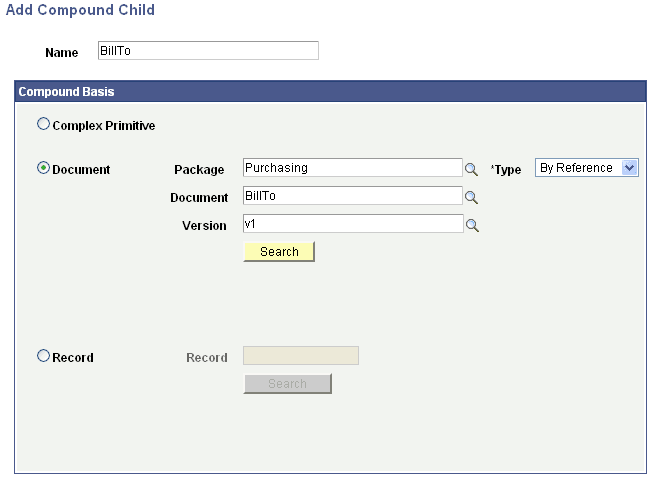
After you enter the document details, click the Search button to select the document to add as a compound element.
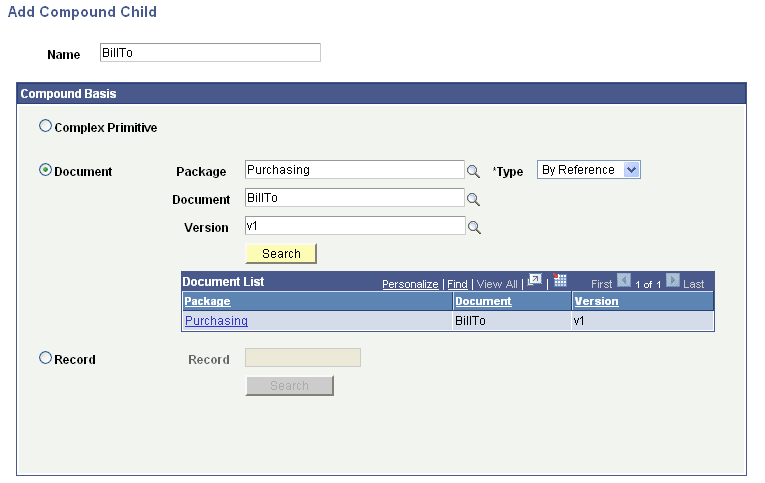
The following example shows the search results from the parameters entered in the previous example.
Note:
To select from all documents in the database, do not enter any document information and click the Search button.
After you search for and select a document, the Document Builder - Documents page appears, and the document appears as a compound element in the document tree.
The following example shows the BillTo document added as a compound element to the DEMO_PURCH_ORDER document:
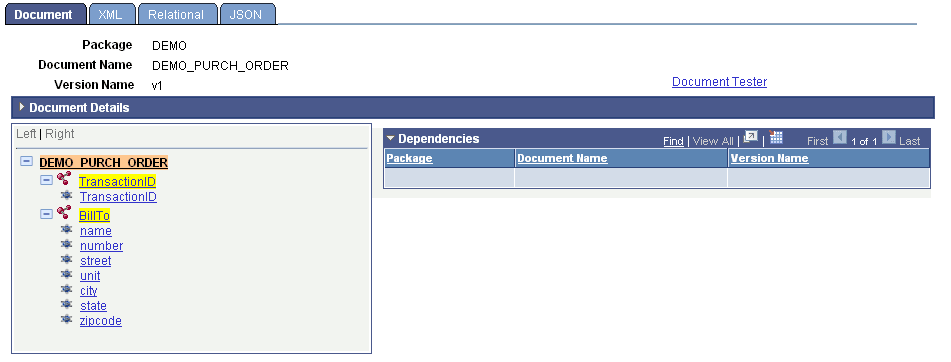
After you create a document as a compound element data type, the document element information appears on the right side of the page. A Go to Child Document link also appears. When you click the Go to Child Document link, the document definition for the compound element appears in a new window.
To define a document as a compound element data type:
-
Create and name a document as a data type for a compound element.
-
In the Type drop-down list box, select an option:
-
By Reference. (Default.)
Use a reference of the document.
-
Copy.
Use a copy of the document.
-
-
Specify the document:
-
In the Package field, enter the document package name or click the Lookup button to search for one.
-
In the Document field, enter the document name or click the Lookup button to search for one.
-
In the Version field, enter the document name or click the Lookup button to search for one.
-
Click the Search button.
The search results appear in the Document List grid.
-
Select a document from the list.
The Document Builder - Documents page appears, and the document you specified appears in the document tree.
-
-
Click the Save button.