Defining Complex Primitive Data Types
This section discusses how to:
-
Define properties for complex primitive elements.
-
Define attributes element properties.
-
Add additional attribute elements to complex primitive data types.
Defining Properties for Complex Primitive Elements
After you create and name a complex primitive data type, two elements appear in the document tree on the Document Builder - Documents page. One element is for the complex primitive and the other is for the first of one or more element attributes.
The following example shows a newly created complex primitive element (and attribute) element appearing in the document tree. TransactionID is a complex primitive element off of the root element.
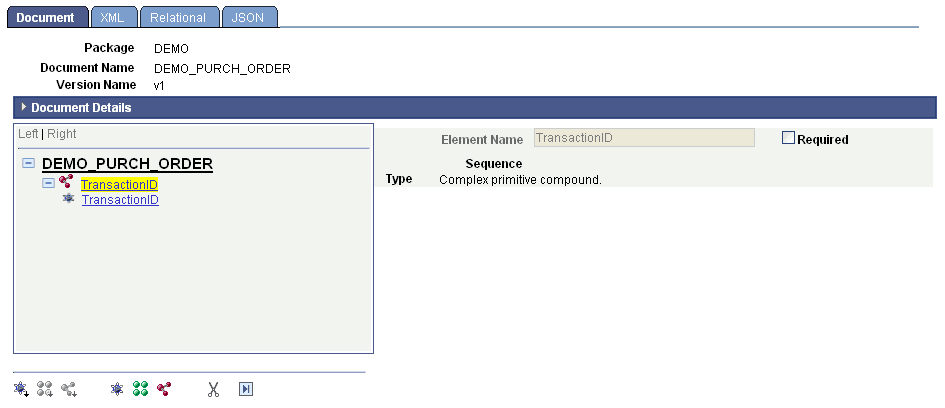
The complex primitive element is denoted by a complex primitive icon to the left of the element name. In addition, it is highlighted. The attribute is denoted by the primitive icon to the left of the name.
In the example, the complex primitive element is highlighted, and the properties appear on the right side of the page. They are:
| Field or Control | Description |
|---|---|
|
Element Name |
The name of the element as defined on the Add Compound Child or Add Compound Peer page. This value is read-only. |
|
Required |
Select the check box to make the element a required element. |
|
Sequence |
The system assigns this read-only field. The sequence number is used for indexing with the PeopleCode API for documents. |
|
Type |
This field displays the element type. |
Defining Attribute Element Properties
Properties you define for an attribute element appear when you select an element in the document tree.
The following example shows the attribute element TransactionID selected in the tree.
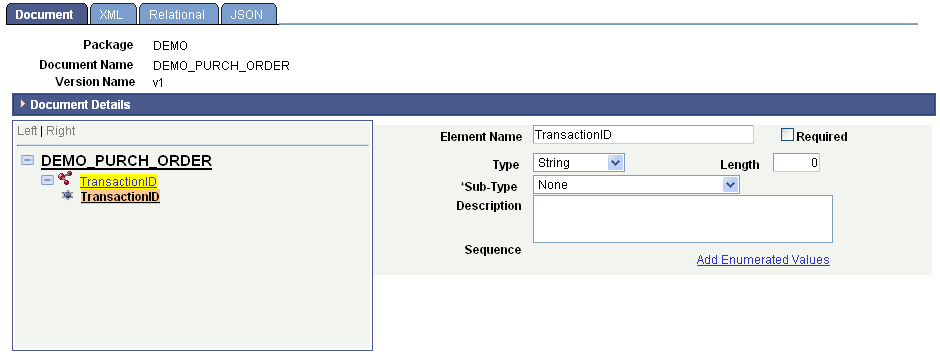
When you select an attribute element, the properties you can define for it appear on the right side of the page.
To specify attribute element properties:
-
In the document tree, select an attribute element.
The attribute element properties appear on the right side of the page.
-
In the Element Name field, enter the name of the element as you want it to appear in the generated XML.
If you change this name, the complex primitive element and attribute element name changes to the value you enter.
-
Select the Required box to make the attribute a required element.
-
From the Type drop-down list box, select an element type.
Primitive element types are described elsewhere in this topic.
-
Click the Save button.
Adding Additional Attribute Elements to Complex Primitive Data Types
You can add the following element types as attribute elements to complex primitive data types:
-
Primitive child.
-
Primitive peer.
-
Compound peer.
-
Collection peer.
You add these elements to complex primitives as you would any other element, first using the action toolbar on the Document Builder - Documents page to add the element to the document tree, and then defining the element properties.
See Managing Primitive Elements, Managing Compound Elements, Managing Collection Elements.