Using the Configuration Status Page
The Configuration Status page indicates if the integration network is minimally configured to run as described in the previous section.
The page provides visual cues that enable you to quickly asses if the integration network is properly configured. Integration components that are properly configured display on the page with a green check mark icon next to them; components that are not configured, are not configured properly, or that require additional configuration display on the page with a red “X” icon next to them.
To access the Configuration Status page, select
This example illustrates the fields and controls on the Configuration Status page. You can find definitions for the fields and controls later on this page.
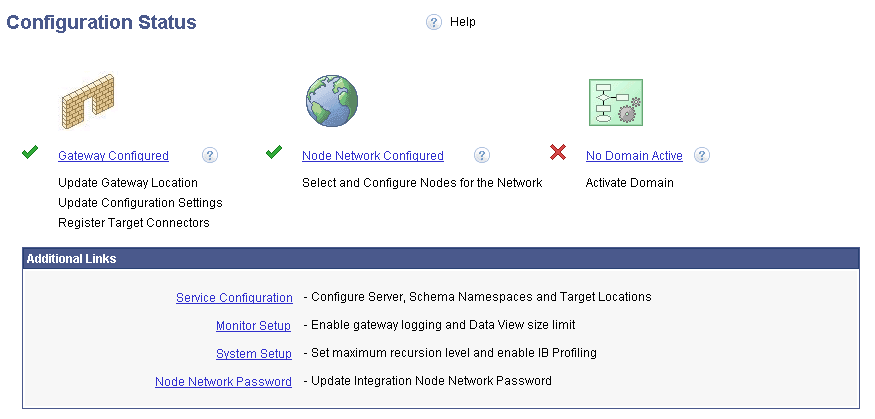
In the previous example, green check mark icons appear next to the Gateway Configured and Node Network Configured links and indicate that each of these integration components are properly configured. A red “X? icon appears next to the Activate Domain link, and indicates that the domain is not active.
The following page elements appear on the Configuration Status page:
| Field or Control | Description |
|---|---|
|
|
A green check mark icon appears next to an integration network component to indicate that the component is properly configured. |
|
|
A red “X” icon appears next to an integration network component to indicate that the component is not configured, requires additional configuration, or is not properly configured. |
|
Gateway Configured |
Click the link to access the Gateways component to view the gateway configuration or to configure the gateway. For the integration network to be properly configured, the integration gateway must be configured. |
|
Node Network Configured |
Click the link to access the Node Network page and view, configure and manage PeopleSoft nodes in the integration network. For the integration network to be properly configured, the node network must be configured. |
|
Domain Active |
Click the link to access the Domain Status page in the Service Operations Monitor to activate an application server domain. For the integration network to be properly configured, the application server domain must be active. |
|
Service Configuration |
(Optional.) Click the link to access the Service Configuration page where you specify services settings, such as the service namespace, the schema namespace, the target location, and so on. |
|
Monitor Setup Options |
(Optional.) Click the link to access the Monitor Setup Options page to set display and other options in the Service Operations Monitor. For example, use the page to verify or set the proper size limit (Data Length View Limit) for displaying XML in the Service Operations Monitor for asynchronous transactions, enable gateway logging, and more. |
|
System Setup Options |
(Optional.) Click the link to access the System Setup Options page to set the recursion level (Message Builder Depth Limit) for message parts, enabling runtime profiling to generate system performance statistics, and more. |
|
Node Network Password |
Click the link to access the Update Node Network Password page where you specify the node network password. The network node is used to perform functionality across all nodes in the integration network, including registering network nodes on participating systems. |

