Using the Network Status Setup Page
Use the Network Status Setup page (IB_INTNET_STATSET) to set options when manually verifying integration processing between the default local node and remote PeopleSoft nodes, and to set up and use automated network integration processing verification.
To access the Network Status Setup page, from the Network Status page, click the Network Status Setup link.
This example illustrates the fields and controls on the Network Status Setup page. You can find definitions for the fields and controls later on this page.
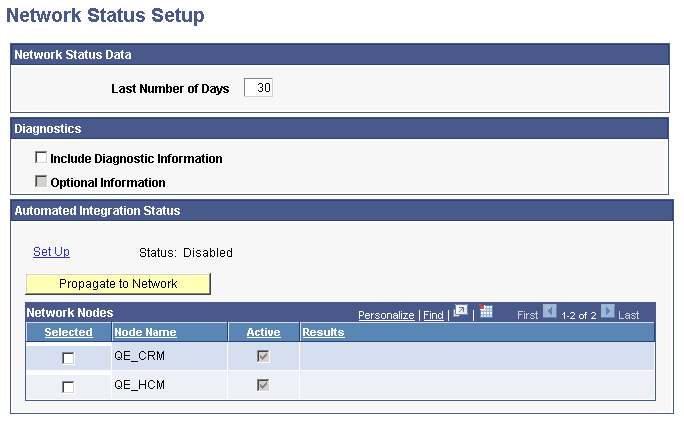
The page features the following fields and controls:
| Field or Control | Description |
|---|---|
|
Last Number of Days |
Enter the number of days for which to verify the processing of integrations between selected network nodes. The default value is 30 days. |
|
Include Diagnostic Information |
(Optional.) Select the box to generate system diagnostic information, such as dispatcher name, number of active handlers, and so on, should errors occur. |
|
Optional Information |
(Optional.) Select the box to generate information such as the number of transactions in retry status, memory available, and so on, in addition to system diagnostic information. This control is enabled only after the Include Diagnostic Information box is selected. |
|
Set Up |
Click the link to access the Automated Integration Status page to enable and set options for automated integration status monitoring. |
|
Disabled/Enabled |
This read-only field displays the status of the automated integration status monitoring feature. By default the feature is Disabled. |
|
Propagate to Network |
Click the link to propagate the monitoring settings to selected nodes in the Network Nodes grid. |
|
Selected |
Select the box next to a network node to include it in automated integration processing verification. |
|
Node Name |
Indicates the name of a remote node defined in the integration network. |
|
Active |
A check in the box indicates the remote network node is active. |
|
Results |
When you propagate the verification setting to a network node, the results of the action appear in this field. |
|
Return to Network Status |
Click the link to return to the Network Status page. |