Viewing Network Asynchronous Transaction Detail Information
This section describes how to use the Transactional Tracker to view asynchronous transaction details.
Understanding Integration Network Asynchronous Processing Status Information
Asynchronous transactional detail information that the Transactional Tracker provides includes processing status information for service operation instances, publication contracts, and subscription contracts.
The processing statuses that the Transactional Tracker uses for asynchronous service operations are the same as those used in the Service Operations Monitor.
Viewing Integration Network Asynchronous Transactional Details
Use the Tracker Main View page (IB_INTNET_TRACKER) to view details for asynchronous transactions between the local node and remote nodes in the integration network.
Before using the Tracker Main View page it’s a good idea to review the Prerequisites for Using the Transactional Tracker.
The Tracker Main View page enables you to view the transaction IDs, queue names, processing status, and more for the transactions.
You can access the Tracker Main View page from the Tracker Overview page using the Results grid; click the queue name or service operation link in the grid. You can also access the page using the standard PeopleSoft Pure Internet Architecture navigation by selecting In the WorkCenter navigation pane, click the Transactional Tracker link and then click the Tracker Main View tab.
This example illustrates the fields and controls on the Transactional Tracker – Tracker Main View page. You can find definitions for the fields and controls later on this page.
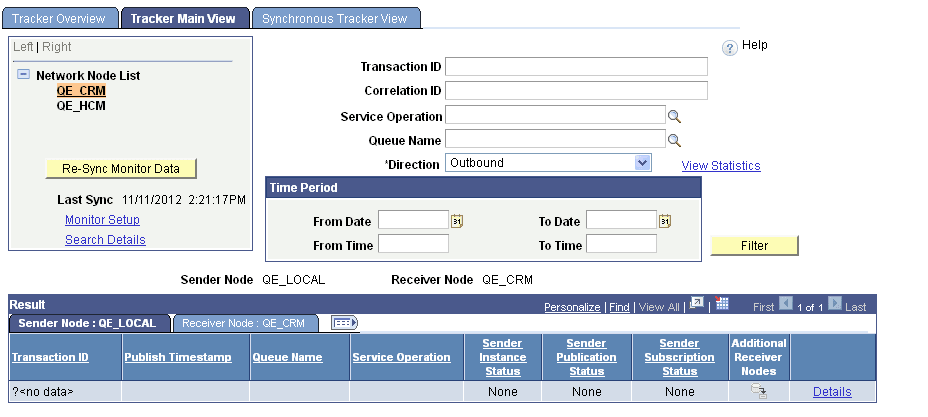
If you access the page from the Tracker Overview page, the page populates with data based on the query results from the Tracker Overview page. If you access the page without first conducting a query on the Tracker Overview page, click the Re-Sync Monitor Data button to populate the page with query data.
Use one of more of the following filters on this page:
| Field or Control | Description |
|---|---|
|
Transaction ID |
Enter the unique identifier for the transaction in the PeopleSoft system. |
|
Correlation ID |
Enter the unique identifier that is used to correlate messages that are sent separately into a single transaction. |
|
Service Operation |
Enter the name of a service operation to view transactions using the operation. |
|
Queue Name |
Enter the name of a service operation queue that is processing transactions to view. |
|
Direction |
Indicates the direction of the transaction. The valid values are:
|
|
Time Period |
Use the options in the Time Period group box to limit the query results to transactions that occurred during a specific date range or that occurred between a specific date and time range. The Time Period group box features four fields for searching by date and time: From Date, To Date, From Time and To Time. If you complete just the date fields, the time fields automatically populate from 12:01 a.m. to 11:59 p.m. When left blank, no date or time is used as part of the search criteria. |
If you access the Tracker Main View page from the Tracker Overview page, the system defaults the queue name or service operation name from the Tracker Overview page as a filter. In addition, the direction of the transaction as viewed on the Tracker Overview page is also defaulted on the page.
The following information appears in the Results grid on the Sender Node tab:
| Field or Control | Description |
|---|---|
|
Transaction ID |
The unique identifier for the transaction in the PeopleSoft system. |
|
Publish Timestamp |
Date and time the transaction was published. (Outbound transactions.) |
|
Sender Instance Status |
Processing status of the instance on the sending system. |
|
Sender Publishing Status |
Processing status of the publication contract on the sending system. |
|
Sender Subscription Status |
Processing status of the subscription contract on the sending system. |
|
Additional Receiver Nodes |
Click the link to view the names of other nodes in the network receiving the transaction. |
|
Details |
Click the Details link for a summary view of the transaction using the Transaction Tracker Details page. In addition a snapshot view of sending and receiving node details, you can also cancel and resubmit transactions for processing from the page. |
After a query the following information appears in the Results grid on the Receiver Node tab:
| Field or Control | Description |
|---|---|
|
Receiver Instance Status |
Processing status of the service operation instance on the receiving system. |
|
Receiver Subscription Status |
Processing status of the subscription contract on the receiving system. |