Personalizing the Agent Console
Access the Personalization page using the following navigation path:
This example illustrates the fields and controls on the Personalization page. You can find definitions for the fields and controls later on this page.
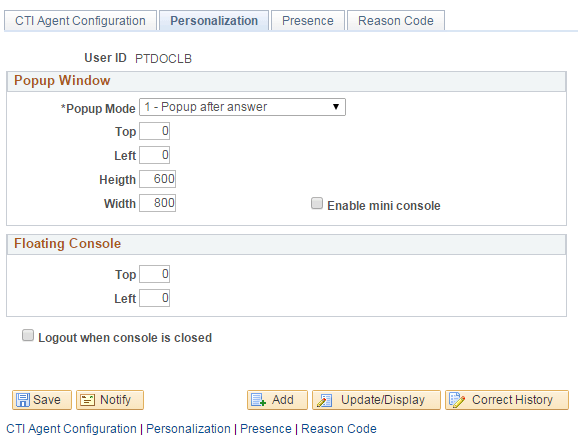
Use this page to personalize timing, size, and position of the pop-up window on the desktop as well as the position of the floating console.
Popup Window
| Field or Control | Description |
|---|---|
|
Popup Mode |
Enables you to configure when the pop-up window appears. You can have it appear after the call is answered, or you can have it appear when a call comes in. If it appears before the call is answered, the agent can determine whether she or he wants to answer the call based on the information that appears in the pop-up window. The default pop-up mode is 1- Popup after answer. In some cases, for example accepting a transfer, although you set the value as 0- Popup when incoming, you still get the pop-up window after you answer. This is because no call data was attached by the CTI vendor to the incoming event, and consequently the PeopleSoft CTI Console couldn't build the URL for the pop-up window. For example, assume party A is transferring a call to party B. Party B gets the incoming event, but party B doesn’t get a pop-up window. This is because the console did not receive the user data to generate the URL despite the fact that the mode is set to 0. But after B answers this call, A completes the transfer. Then, B gets the event partychanged, receives the user data, and generates the URL and pop-up window. |
|
Top |
Enter the top position, in pixels. This value is relative to the top of the screen. |
|
Left |
Enter the left position, in pixels. This value is relative to the left side of the screen. |
|
Height |
Enter the height of the window, in pixels. The minimum value is 100. |
|
Width |
Enter the width of the window, in pixels. The minimum value is 100. |
|
Logout when console is closed |
This setting depends on CTI vendor support and may not be supported by all vendors. For JSMCAPI consoles with vendor support, select this setting to automatically sign out the agent when the CTI Console is closed. |
|
Enable mini console |
Select to enable the administrator or user to configure the presence of the CTI mini console in the pop-up window. If this check box is not selected, the mini console does not appear in the popup window. Note: The mini console has performance overhead. |
Floating Console
| Field or Control | Description |
|---|---|
|
Top |
Enter the top position in pixels. This value is relative to the top of the screen. |
|
Left |
Enter the left position in pixels. This value is relative to the left side of the screen. |