Configuring CTI Agents
Access the CTI Agent Configuration page using the following navigation path:
This example illustrates the fields and controls on the CTI Agent Configuration page. You can find definitions for the fields and controls later on this page.
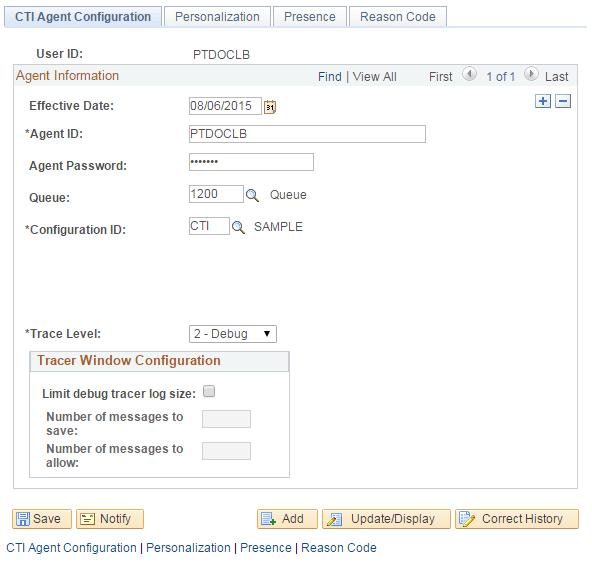
Configuring CTI agents involves the CTI Agent Configuration page, the Phone Book page, and the Personalization page.
| Field or Control | Description |
|---|---|
|
User ID |
Displays the PeopleSoft user ID of the agent. |
Agent Information
| Field or Control | Description |
|---|---|
|
Effective Date |
Enter the date on which the current configuration should become active. |
|
Agent ID |
Enter a user ID for the agent within the switch. |
|
Agent Password |
Enter the password that the agent uses to sign in to the phone, if any. |
|
Queue |
Enter the name of the queue that you want to assign to an agent. Use the Queue Configuration page to associate a queue with a directory number identifying an ACD group. |
|
Configuration ID |
Select the name of the configuration that you want to associate with the agent. The configuration ID is the name of the configuration that you created using the CTI Configuration page. |
|
Application User Name/Password |
These fields appear only if they are relevant to your setup. Enter the CTI user name and password of the agent. |
|
CTI Client Signature |
Note: This option appears only for Cisco configurations. This control shows the signature of a particular agent. The signature uniquely identifies an agent if you have implemented call monitoring. Typically, this value appears as an email address, such as john.doe@example.com. |
|
Trace Level |
Options are:
If a value other than 0 is selected, a tracer window appears to display activities and events on the chat or MultiChannel Console for debugging purposes. If you are using the JSMCAPI console, two tracers (a JSMCAPI tracer and a console tracer) appear if trace level 2, Debug, is selected. Note: Setting the trace level to 2 - Debug can degrade performance. Unless you are troubleshooting the system, set the trace level to None. |
|
Limit debug tracer log size |
This check box is enabled when the value entered for Trace Level is not 0. Select this check box to enable the agent to clear the tracer log based on Number of log messages to save when cleared and Maximum number of log messages to allow. If the check box is cleared, the tracer log will not get cleared and the Number of log messages to save when cleared and Maximum number of log messages to allowfields will be disabled. |
|
Number of log messages to save when cleared |
Specify the minimum number of recent tracer log messages that should be maintained in the tracer window. |
|
Maximum number of log messages to allow |
Specify the maximum number of tracer log messages that will be maintained in the tracer window. |