Using the Agent Console Page
Access the Agent Console page using the following navigation path:
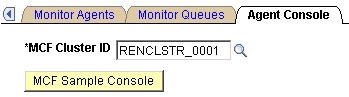
This example illustrates the fields and controls on the Agent Console page. You can find definitions for the fields and controls later on this page.
| Field or Control | Description |
|---|---|
|
MCF Sample Console |
Click to initiate the sample console. Note: To demonstrate the MCF sample console, you must have an MCF cluster running and communicating with the specified REN server cluster. |
After you click MCF Sample Console, a new browser window displaying the sample console appears along with a Tracer Window. The MCF Sample Page contains the following group boxes which are explained in detail in the following sections:
-
Open/Close Session
-
Register User to Session
-
Register Group, Login User to Group, and User-Group States
-
Address Operations
-
Buddies
-
Error Message/Information
-
Server State and Broadcasts
Note:
To enable the new browser window to appear, disable any pop-up blocking software for your browser.
Open/Close Session
Access the Open/Close Session group box.
This example illustrates the fields and controls on the Open/Close Session group box. You can find definitions for the fields and controls later on this page.

| Field or Control | Description |
|---|---|
|
UQ Session Id |
The universal queue session ID. |
Register User to Session
Access the Register User to Session group box.
This example illustrates the fields and controls on the Register User to Session group box.

Register Group, Login User to Group, and User-Group States
Access the Register Group, Login User to Group, and User-Group States group box.
Note:
The presence change happens only when you change from active to inactive or from inactive to active. When you log in, the default value is active and therefore no presence change occurs.
This example illustrates the fields and controls on the Register Group, Login User to Group, and User-Group States group box.

Address Operations
Access the Address Operations group box.
This example illustrates the fields and controls on the Address Operations group box.

Buddies
Access the Buddies group box.
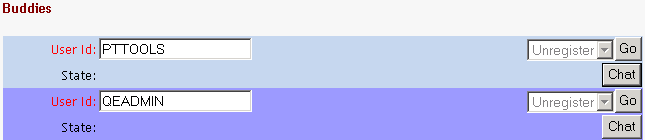
This example illustrates the fields and controls on the Buddies group box.
Note:
If one agent is logged on the multichannel console and another agent is logged on the sample pages, the agents may see an incorrect buddy state for each other.
Note:
The buddy states on this page are not automatically displayed. You must monitor an agent first using the Monitor Agents page before the buddy states are displayed.
See Using the Monitor Agents Page and Sample Monitor - Agent States Page.
| Field or Control | Description |
|---|---|
|
|
Click to initiate an agent-to-agent chat session. |

Error Messages/Information
Access the Error Messages/Information group box.
This example illustrates the fields and controls on the Error Messages/Information group box.

Any error messages associated with the process display here.
| Field or Control | Description |
|---|---|
|
Clear |
Click the button to clear a displayed error message. |
Server State and Broadcasts
Access the Server State and Broadcasts group box.
This example illustrates the fields and controls on the Server State and Broadcasts group box. You can find definitions for the fields and controls later on this page.

| Field or Control | Description |
|---|---|
|
UQ State |
Displays the state of the queue server. |
|
REN State |
Displays the state of the REN server. |