Using the CTI Sample Console
Access the CTI Sample Console page using the following navigation path:
This example illustrates the fields and controls on the CTI Sample Console page. You can find definitions for the fields and controls later on this page.

| Field or Control | Description |
|---|---|
|
REN Server Cluster ID |
Select the REN server cluster on which to test the sample console. |
|
CTI Sample Console |
Click to initiate the sample console. Note: To demonstrate the CTI sample console, you must have a CTI server running and communicating with the specified REN server cluster. |
After clicking CTI Sample Console, a new browser window appears that displays the sample console along with a tracer window. The Sample CTI Console contains the following group boxes which are explained in detail in the following sections:
-
Open/Close Session
-
Register User to Session
-
Register Group, Login User to Group, and User-Group States
-
Register Extension to Session, and Extension Operations
-
Buddies
-
Error Message/Information
-
Server State and Broadcasts
Note:
To enable the new browser window to appear, disable any pop-up blocking software for your browser.
Open/Close Session
Access the Open/Close Session group box.
This example illustrates the fields and controls on the Open/Close Session group box. You can find definitions for the fields and controls later on this page.

The Open/Close Session group box displays information about the session.
| Field or Control | Description |
|---|---|
|
CTI Session Id |
This field displays a value identifying the session. If no session ID is displayed, check to ensure that the CTI server and REN server are both running. |
You can close an active session by clicking the Go button. You cannot make a selection from the drop-down list box.
Register User to Session
Access the Register User to Session group box.
This example illustrates the fields and controls on the Register User to Session group box. You can find definitions for the fields and controls later on this page.

Register a user to the session in the Register User to Session group box.
Because a CTI agent can have an agent ID different from the agent's user ID, both values are required. If the agent has a password, the password is also required.
| Field or Control | Description |
|---|---|
|
Language |
Reserved for future use. The default language is English. |
You can register or unregister an agent by clicking the Go button. You cannot make a selection from the drop-down list box.
Register Group, Login User to Group, and User-Group States
Access the Register Group, Login User to Group, and User-Group States group box.
This example illustrates the fields and controls on the Register Group, Login User to Group, and User Group States group box. You can find definitions for the fields and controls later on this page.

| Field or Control | Description |
|---|---|
|
Group Id |
Enter the group ID to which the agent will be registered. To register the agent with the specified group, click the Go button. You cannot make a selection from the drop-down list box. |
|
Login |
Click the Go button to log in if Login appears in the drop-down list box. Click the Go button to log out if Logout appears in the drop-down list box. Note: The agent cannot receive calls until the agent is in the Ready state. Note: After you login to the group, a new pop-up window opens prompting for reason code data. If you register to an invalid group, the system displays an error message. |
|
Presence |
Enter a presence description to associate with the state that is selected in the drop-down list box. This presence value is different from any presence values that are predefined in the agent configuration. The agent cannot select from the pre-defined values. |
|
State |
Select an agent state. State options are:
Each state value has an associated state code that appears in the State field. To enable incoming calls, select Ready from the drop-down list box and click the Go button. |
|
Media Type |
Reserved for future use. The sample console supports only the telephone (voice) channel. However, JSMCAPI can support other channels. |
Register Extension to Session and Extension Operations
Access the Register Extension to Session, and Extension Operations group box.
This example illustrates the fields and controls on the Register Extension to Session and Extension Operations group box. You can find definitions for the fields and controls later on this page.

| Field or Control | Description |
|---|---|
|
Extension |
Enter a valid telephone extension number. |
|
Phone Number |
Enter a valid telephone number for use in subsequent operations, such as dial, forward, or do-not-disturb (DND). |
|
Mute |
Select to mute a call. Note: This is enabled only when the agent is on a call. |
|
CTI Busy |
This flag is checked by the queue server for an agent handling a voice task. Note: If the flag is checked, the queue server will not assign new tasks to such an agent. The CTI Busy flag allows the application to implement a request which conveys the status of the agent to the queue server. Because the queue server stores the task list and the status in its temporary cache, a recovered or a rebooted queue server will not have the information of a agent's previous CTI status. The agent can send its CTI status to the queue server to indicate that it is busy with a CTI task. |
|
Forward |
Select to forward incoming calls to the specified number. |
|
DND (do not disturb) |
Select to put the selected extension in do-not-disturb status. |
|
Line 1 or Line 2 |
Displays a name or value for each line. On the sample console, the value will either be 1 or 2. |
|
DTMFInfo ( Dual-tone Multi frequency information) |
Select to send DTMF digits on the line |
|
CallResult |
Select to set call result on the line |
|
ReScheduleTime |
Select to set reschedule time on the line |
|
Type |
Select to set reschedule type on the line. |
|
User Data |
Enter name-value pairs representing user data to be attached to a call. |
|
Call Data |
Enter any call data to be attached to the call. Call data includes:
|
Buddies
Access the Buddies group box.
This example illustrates the fields and controls on the Buddies group box.
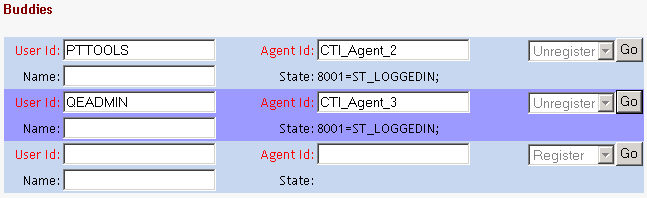
Before an agent can chat with a buddy, the buddy must be registered in the Buddies group box.
Because a CTI agent can have an agent ID that is different from the agent's user ID, both values are required.
Note:
If one agent is logged on the multichannel console and another agent is logged on the sample pages, the agents may see an incorrect buddy state for each other.
Error Messages/Information
Access the Error Messages/Information group box.
This example illustrates the fields and controls on the Error Messages/Information group box. You can find definitions for the fields and controls later on this page.

Any error messages associated with the process display in this section.
| Field or Control | Description |
|---|---|
|
Clear |
Click the button to clear a displayed error message. |
Server State and Broadcasts
Access the Server State and Broadcasts group box.
This example illustrates the fields and controls on the Server State and Broadcasts group box. You can find definitions for the fields and controls later on this page.

| Field or Control | Description |
|---|---|
|
CTI State |
Displays the status of the CTI server. |
|
REN State |
Displays the status of the REN server. |
|
Info (information) |
Displays the text of a broadcast message from the CTI server. |
Tracer
The tracer displays all requests between the CTI server and the console, which can be useful for debugging.