Object Creation Examples
When declaring variables, use the class with the same name as the data buffer access data type (rowset objects should be declared as type Rowset, field objects as type Field, and so on). Data buffer variables can be of type Local, Global, or Component.
The following declarations are assumed throughout the examples that follow:
Local Rowset &LEVEL0, &ROWSET;
Local Row &ROW;
Local Record &REC;
Local Field &FIELD;
Level Zero Access
The following code instantiates a rowset object, from the Rowset class, that references the level zero rowset, containing all the page data. It stores the object in the &LEVEL0 variable.
&LEVEL0 = GetLevel0();The level zero rowset contains all the rows, rowsets, records, and fields underneath it.
If the level zero rowset is formed from component buffer data, then the level zero rowset has one row of data and that row contains all the child rowsets, which in turn contain rows of data that contain other child rowsets.
If the level zero rowset is formed from buffer data, such as from an application message, then the level zero rowset may contain more than one row of data. Each row of the level zero rowset contains all the child rowsets associated with that row, which in turn contain rows of data that contain other child rowsets.
Use a level zero rowset when you want an absolute path to a lower-level object or to do some processing on the entire data buffer. For example, suppose you load all new data into the component buffers and want to redraw the page. You could use the following code:
/* Do processing to reload Component Buffers */
&LEVEL0 = GetLevel0();
&LEVEL0.Refresh();
Rowset Object
The following code instantiates a rowset object that references the rowset that contains the currently running PeopleCode program:
&ROWSET = GetRowset();You might later use the &ROWSET variable and the ActiveRowCount property to iterate over all the rows of the rowset, to access a specific row (using the GetRow method), or to hide a child rowset (by setting the Visible property).
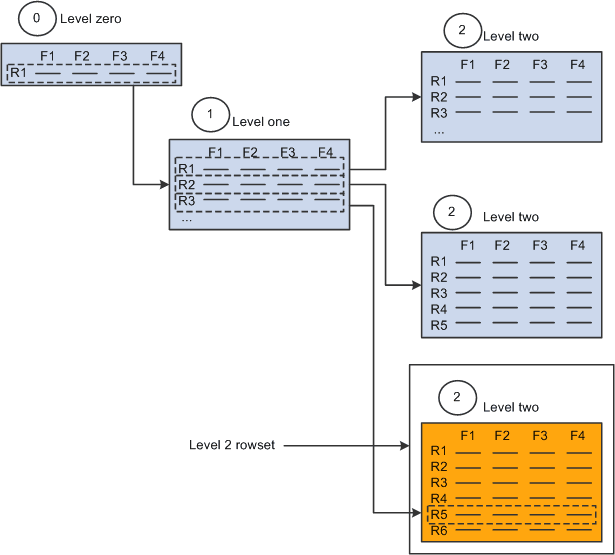
The level one rowset contains all the level two rowsets. However, the level two rowsets can only be accessed using the different rows of the level one rowset. From the level zero or level one rowset, you can only access a level two rowset by using the level one rowset and the appropriate row.
For example, suppose your program is running on some field of row five of a level two scroll area, which is on row three of its level one scroll area. The resulting rowset contains all the rows of the level two scroll area that are under the row three of the level one scroll area. The rowset does not contain any data that is under any other level two scroll areas. The following diagram illustrates these results:
A further illustration uses an example from the Employee Checklist page.
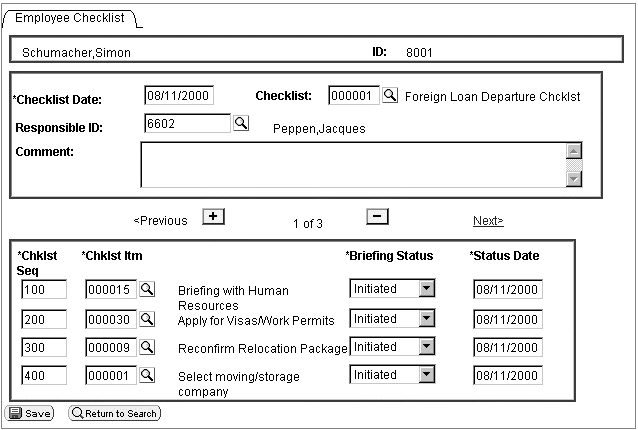
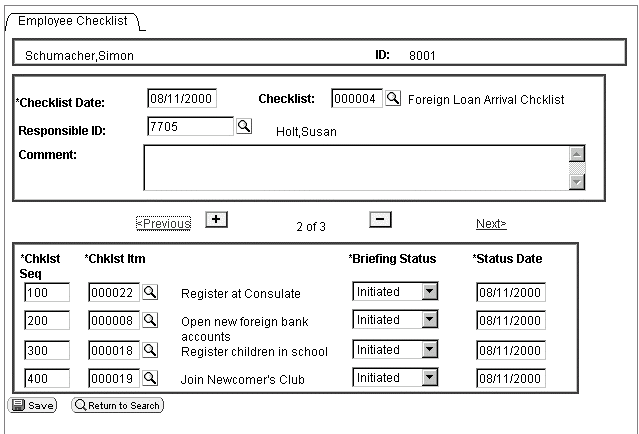
Suppose that one employee was associated with three different checklists: Foreign Loan Departure, Foreign Loan Arrival, and Foreign Loan Host. The checklist code field (CHECKLIST_CD) on the first level of the page drives the entries on the second level. Each row in the level one rowset produces a different level two rowset.
The Foreign Loan Departure checklist (000001) produces a checklist that contains such items as Briefing with Human Resources and Apply for Visas/Work permits, as shown in the following example:
The Foreign Loan Arrival checklist (0000004) produces a checklist that contains items such as Register at Consulate and Open New Foreign Bank Accounts, as shown in the following example:
Row Object
When you create a page, you put fields from different records onto the page. You can think of this as creating a type of pseudo-SQL join. The row returned from this pseudo-join is a row object.
For example, the first level scroll area of the EMPLOYEE_CHECKLIST page contains the following fields, associated with these records:
| Field | Record |
|---|---|
|
CHECKLIST_DT |
EMPL_CHECKLIST |
|
CHECKLIST_CD |
EMPL_CHECKLIST |
|
COMMENTS |
EMPL_CHECKLIST |
|
DESCR |
CHECKLIST_TBL |
|
NAME |
PERSONAL_DATA |
|
RESPONSIBLE_ID |
EMPL_CHECKLIST |
The pseudo-SQL join might look like this:
JOIN A.CHECKLIST_DT, A.CHECKLIST_CD, A.COMMENTS, B.DESCR, C.NAME, A.RESPONSIBLE_ID
FROM PS_EMPL_CHECKLIST A, PS_CHECKLIST_TBL B, PS_PERSONAL_DATA C, WHERE. . .
What goes into the Where
clause is determined by the level zero of the page. For our example,
the value is WHERE
EMPLID=8001.
When the component is opened, data is loaded into the component buffers. Any row returned by the pseudo-SQL statement is a level one row object. The following table shows a returned row:
| CHECKLIST_DT | CHECKLIST_CD | COMMENTS | DESCR | NAME | RESPONSIBLE_ID |
|---|---|---|---|---|---|
|
12/03/98 |
000001 |
Foreign Loan Department Checklist |
Peppen, Jacques |
6602 |
Record Object
A record definition is a definition of what your underlying SQL database tables look like and how they process data. After you create record definitions, you build the underlying SQL tables that contain the application data that your users enter online in your production environment.
When you create a record object using the CreateRecord function, you are creating an area in the data buffers that has the same structure as the record definition, but no data.
When you instantiate a record object from the Record class using some variation of GetRecord, that record object references a single row of data in the SQL table.
Note:
The data in the record that you retrieve is based on the row, which is analogous to setting keys to return a unique record.
The following code instantiates a record object for referencing the EMPL_CHECKLIST record of the specified row:
&REC = &ROW.GetRecord(RECORD.EMPL_CHECKLIST);Using the short method, the following line of code is identical to the previous line:
&REC = &ROW.EMPL_CHECKLIST;You might later use the &REC variable and the CopyFieldsTo property to copy all like-named fields from one record to another. In the following example, two row objects are created, the copy from row (COPYFRMROW) and the copy to row (COPYTROW). Using these rows, like-named fields are copied from CHECKLIST_ITEM to EMPL_CHKLST_ITM.
For &I = 1 To &ROWSET1.ActiveRowCount
©FRMROW = &ROWSET1.GetRow(&I);
©TROW = &RS2.GetRow(&I);
©FRMROW.CHECKLIST_ITEM.CopyFieldsTo(©TROW.EMPL_CHKLST_ITM);
End-For;A row may contain more than one record: in addition to the primary database record, you may have a related display record or a derived record. You can access these records as well. The level one rowset, &ROWSET1, is made up of many records. The following accesses two of them: EMPL_CHECKLIST and DERIVED_HR.
&REC1 = &ROW.EMPL_CHECKLIST;
&REC2 = &ROW.DERIVED_HR;
Field Object
The following instantiates a field object, from the Field class, that is used to access a specific field in the record:
&FIELD = &REC.GetField(FIELD.CHECKLIST_CD);You might later use the &FIELD variable as a condition:
If ALL(&FIELD) ThenHere is another example:
If &FIELD.Value = "N" ThenNote:
The data in the field that you retrieve is based on the record, which is in turn based on the row.
You can also set the value of a field. Using the GetField function does not create a copy of the data from the component buffer. Setting the value or a property of the field object sets the actual component buffer field or property.
See Assigning Objects.
In the following example, the type of field is verified, and the value is replaced with the tangent of that value if it is a number
If &FIELD.Type <> "NUMBER" Then
   /* do error recording */
Else
   &FIELD.Value = Tan(&FIELD.Value);
End-If;