Setting Values for Variables and Properties
Setting the value of a variable or property in the debugger gives you the flexibility to try out changes and see the results in real time or to recover from a logic error and continue.
You can change the value of variables or properties in the Local Variables, Component Variables, Function Parameters, and Component Buffers panes. Only variables or properties with conventional data types (Any, Boolean, Date, DateTime, Float, Integer, Number, String, Time) can by changed. You cannot assign a new object to an object variable. Values that are not editable appear on a gray background.
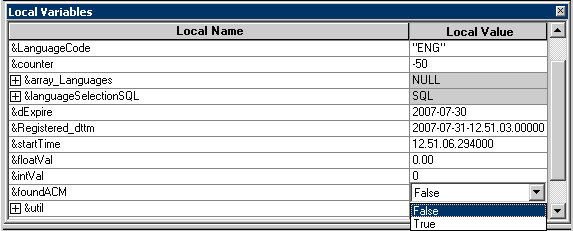
While the debugger is running and halted at a breakpoint, select a field in the value column, such as the Local Value column in the example, and revise the value.
This example illustrates the fields and controls on the Local Variables pane showing a drop-down list to set the value for a Boolean variable. You can find definitions for the fields and controls later on this page.
The debugger performs data type checking to prevent entry of incorrect data type values. For example, character strings are not allowed for integer data types, and so on. However, data integrity is not verified, so be aware that changing variable values at runtime can corrupt program execution as well as program data. For example, setting an integer value higher than what is permitted in the function could cause a crash when execution continues. It is the developer’s responsibility to enter an appropriate value.
Modifying a variable in a debugger pane changes the value in memory only. The change does not trigger any PeopleCode events and does not cause any PeopleCode flags to be set.