Create Analytics- Step 2
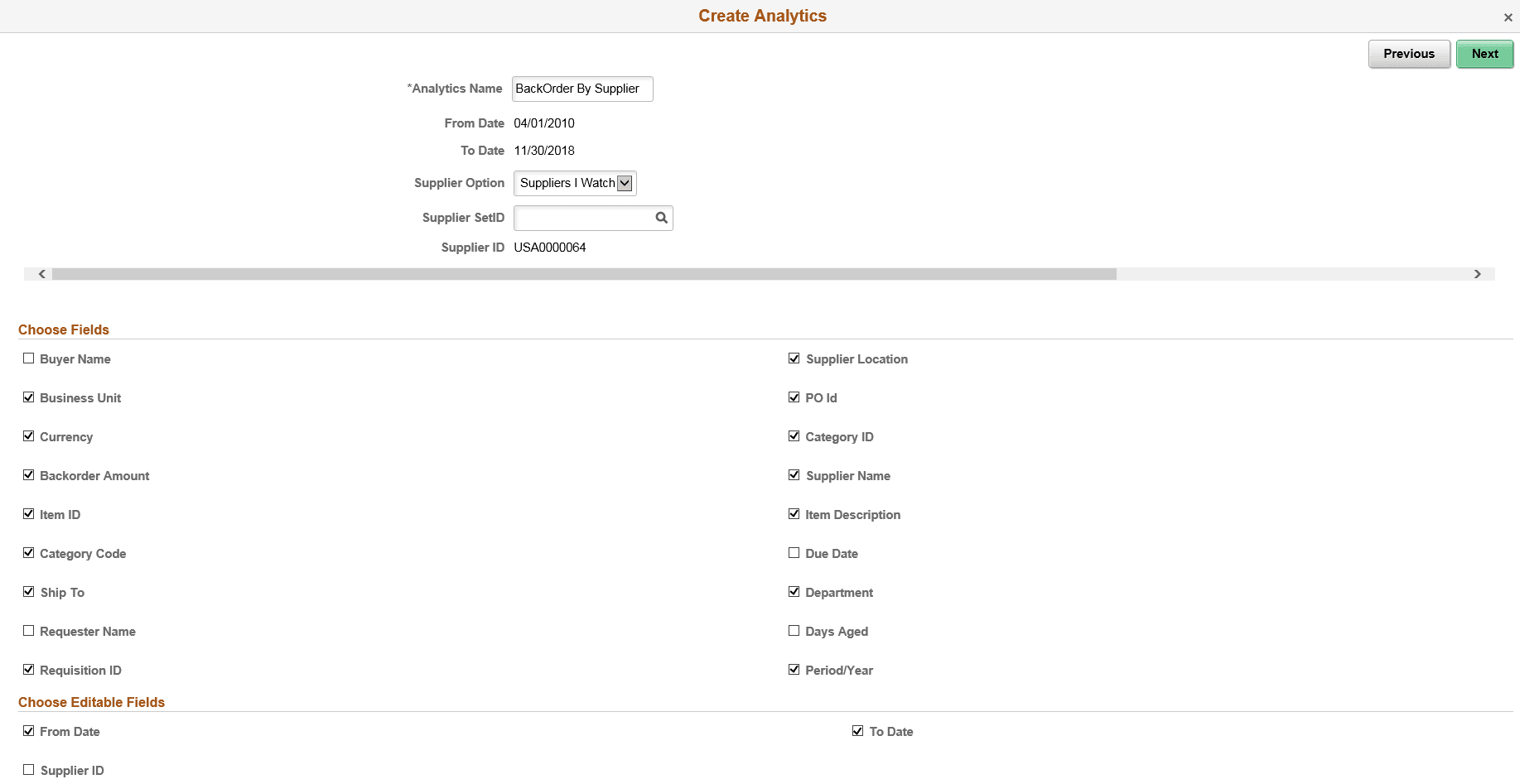
Use the Create Analytics Wizard - step 2 (PTPG_REPORT_WIZ_2) to select the fields for the analytic reports and to change the default values of the prompt fields.
Note:
This page displays only the prompts that are set to Visible in the base report template.
This example illustrates the Create Analytics Wizard - step 2. Definitions for the fields and controls appear following the example.
| Field or Control | Description |
|---|---|
|
From Date, To Date,Supplier OptionSupplier SetIDSupplier ID |
These options are based on the parameters set in the Related Content configuration. These prompts are defined in the Pivot Grid base template model. Note: The Supplier field is read-only because the value for this field is implicitly passed from the transaction page because of the related content configuration. |
|
Choose Fields |
Use this section to select the fields that will appear in the analytic reports. Fields which are used as dimensions on the base model of the analytic are already selected. |
|
Choose Editable Fields |
Select fields which you can modify during runtime. A user can change the prompt values to gain more insight into the analytics. |
Runtime Prompts
Map a prompt field as a page field so that the value is taken from the page context, in this case context of the analytic. The PeopleSoft administrator can map fields and configure parameters while creating the pivot grid base template. A simplified analytic is always mapped with a pivot grid base template. See Portal Technology: Configuring Related Content, Related Actions, and Menu and Frame Layouts.
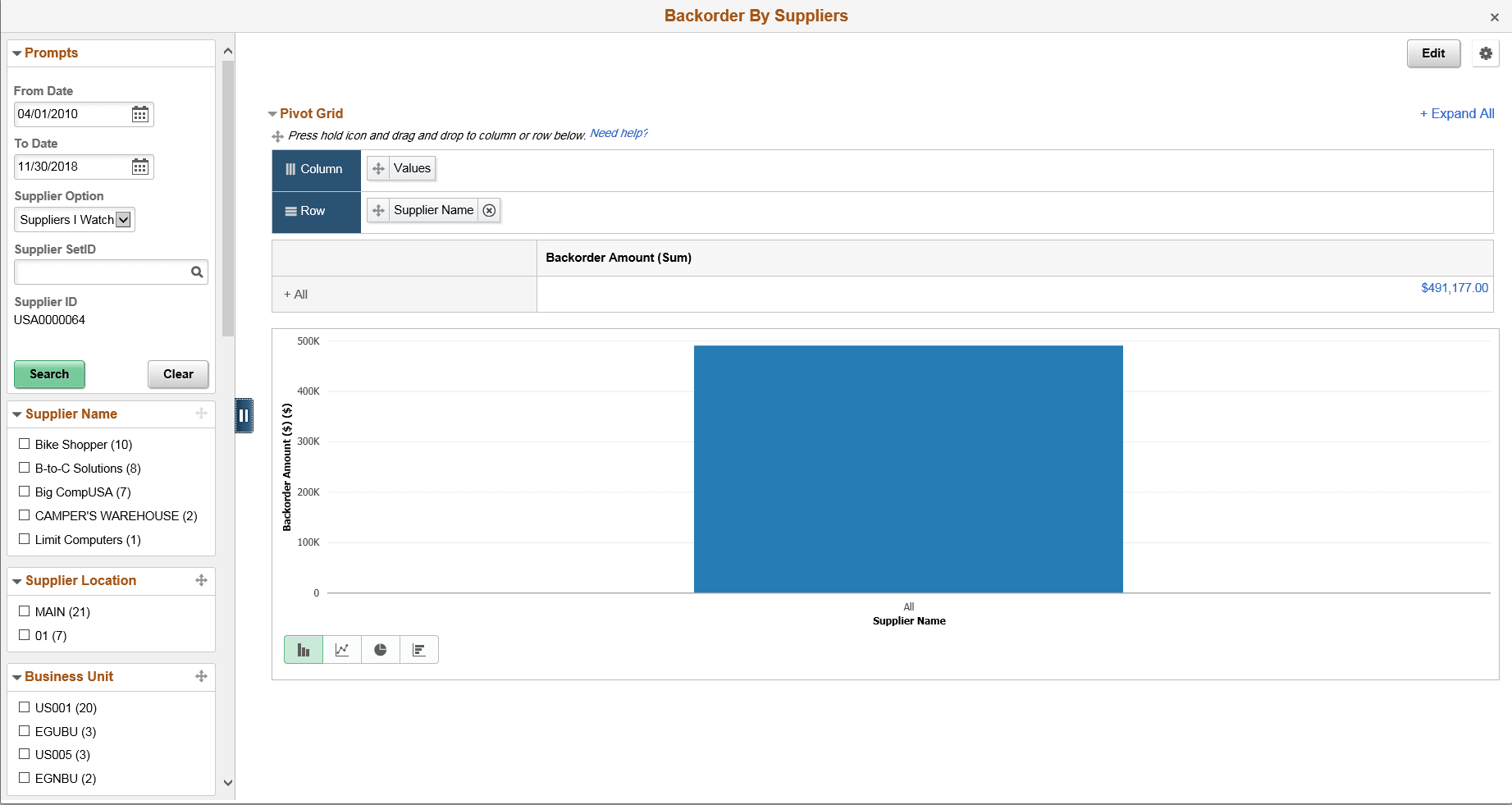
You will not see a runtime prompt while editing or creating an analytic, but you can find it when you open the analytic.
From Date, and To Date were selected under Choose Editable Fields section. The fields are editable.
Note:
The values provided for runtime prompts are only used for the current session. They are not retained for further sessions. The analytics opens with default values assigned to the base template.