Including Chart, Detail View Results, and Filters on the Application Page
To include the chart, detail view results, and filters (prompts) on the application page:
-
In Application Developer, open the application page for job opening HR_OPEN_JO_FLU.
Note:
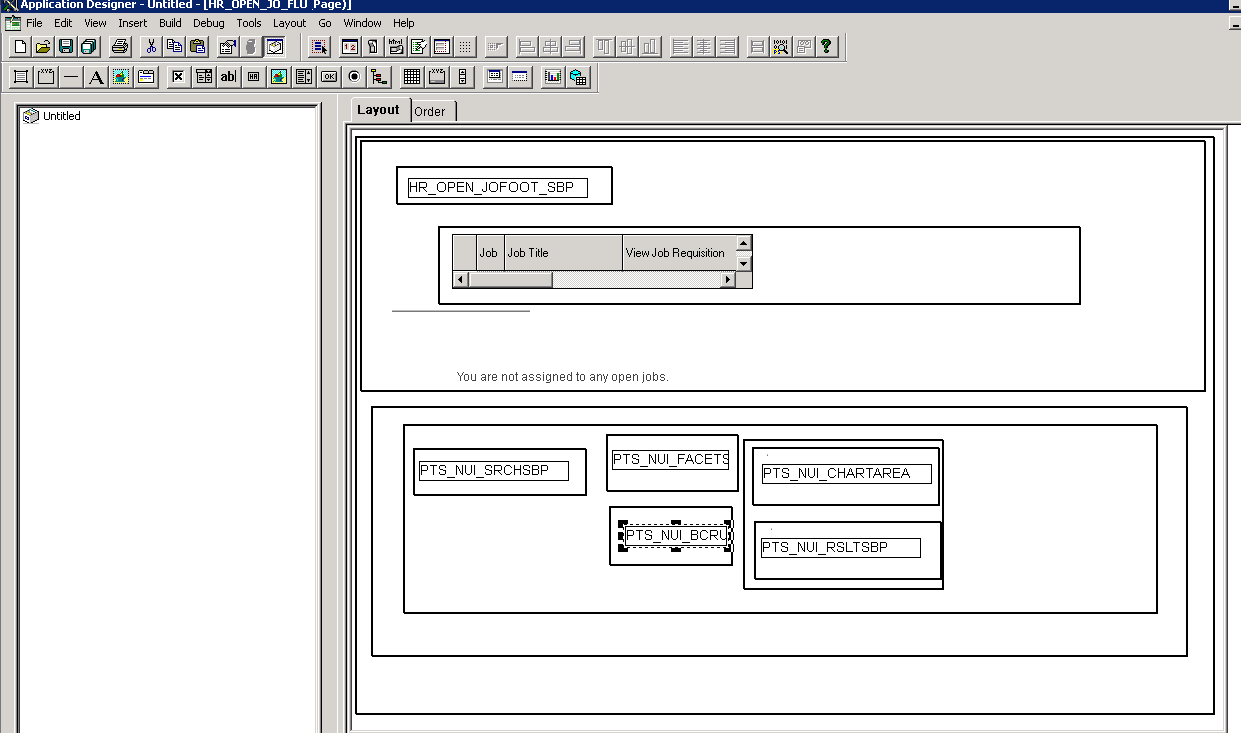
The application page HR_OPEN_JO_FLU already includes the system search subpage PTS_NUI_SRCHSBP, chart area PTS_NUI_CHARTAREA, facet subpage PTS_NUI_FACETSBP, and locator link subpage PTS_NUI_BCRUMBSBP.
-
Insert the results subpage PTS_NUI_RSLTSBP into the application page.
Note:
You are not required to add a horizontal rule set to level 0 before the results subpage and before the chart area subpage.
This example shows the application page for job opening HR_OPEN_JO_FLU, including the system search subpage PTS_NUI_SRCHSBP, facet subpage PTS_NUI_FACETSBP, locator link subpage PTS_NUI_BCRUMBSBP, chart area PTS_NUI_CHARTAREA, and result subpage PTS_NUI_RSLTSBP.
-
Return to the application fluid page Job Openings.
This example shows the rendered application fluid page Job Openings. The application page includes subpages of search options, facet, locator links, chart, and detail results view.Note:
The facet will drive both the chart and the results view.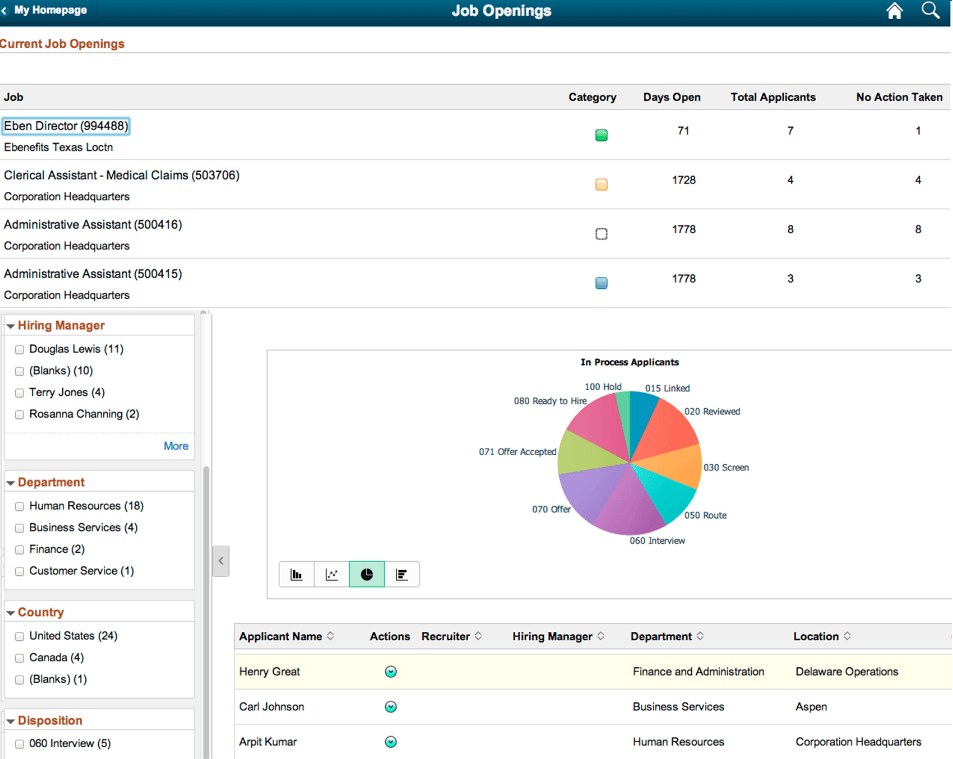
-
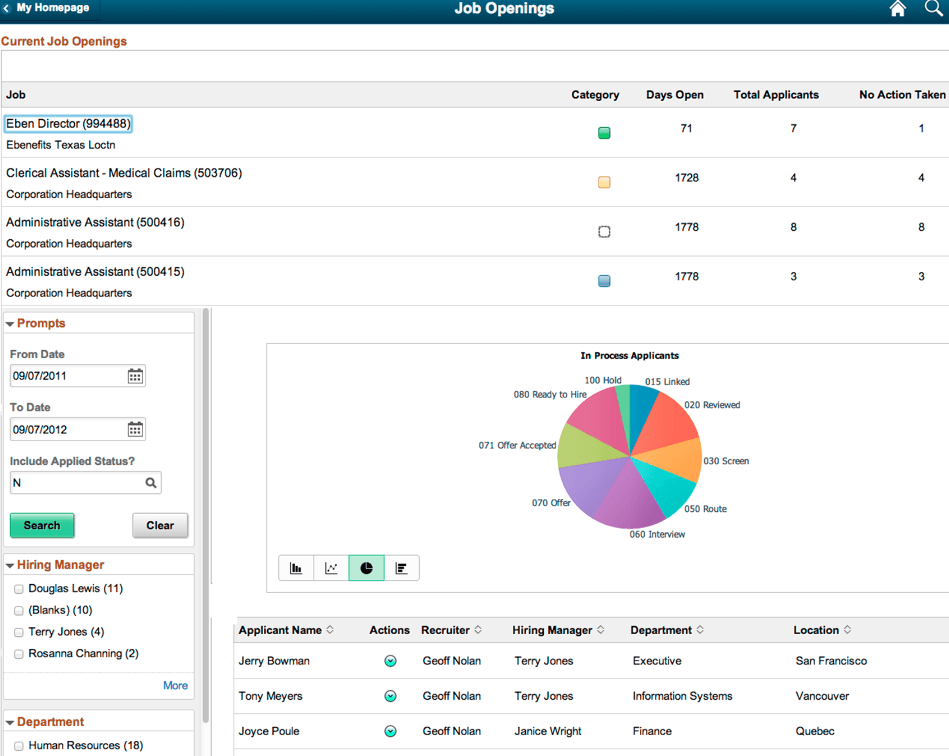
Optionally, you can remove the PTS_NUI_SRCHSBP subpage add the filter subpage PTS_NUI_FLTSBP to display the filters (prompts) in the view if the Pivot Grid model has prompts.
This example shows the rendered application fluid page Job Openings. The application page includes subpages of prompts, facet, locator links, chart, and detail results view.
-
Optionally, enable the Options Menu icon to display the view Pivot Grid layout option on the Chart Only model. See Enabling the Options Menu.