Including Chart, Facets, and Locator Links on the Application Page
To include the chart, facets, and locator links on the application page:
-
In Application Developer, open the application page for job opening HR_OPEN_JO_FLU.
Note:
The application page HR_OPEN_JO_FLU already includes the system search subpage PTS_NUI_SRCHSBP and chart area PTS_NUI_CHARTAREA.
-
Insert the facet subpage PTS_NUI_FACETSBP and the locator link subpage PTS_NUI_BCRUMBSBP.
Note:
You can add the facet pane either before or after the chart area. If you add the facets before the chart in the layout order, remember to include a horizontal rule that is set to level zero before the chart area.
-
Optionally, you can select a horizontal or vertical layout for both the chart and the facet.
Note:
You can apply the layout for the subpages horizontally using the style ps_box_horizontal for the group box surrounding them. Otherwise, you can apply the layout for the subpages vertically by using the style ps_box_vertical for the group box surrounding them.
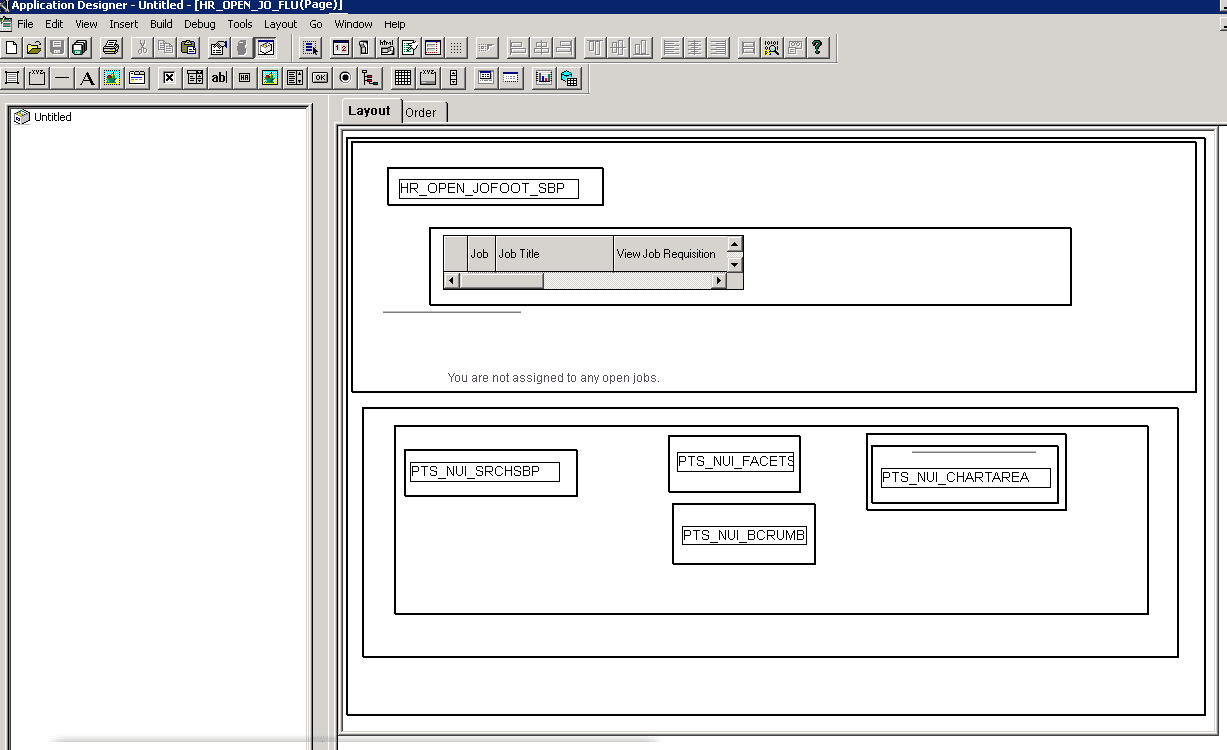
This example shows the application page for Job Openings HR_OPEN_JO_FLU, including the system search subpage PTS_NUI_SRCHSBP, chart area PTS_NUI_CHARTAREA, facet subpage PTS_NUI_FACETSBP, and locator link subpage PTS_NUI_BCRUMBSBP. This example includes a horizontal layout that uses the ps_box_horizontal style around the group-box for the subpages.
-
Return to the application fluid page Job Openings.
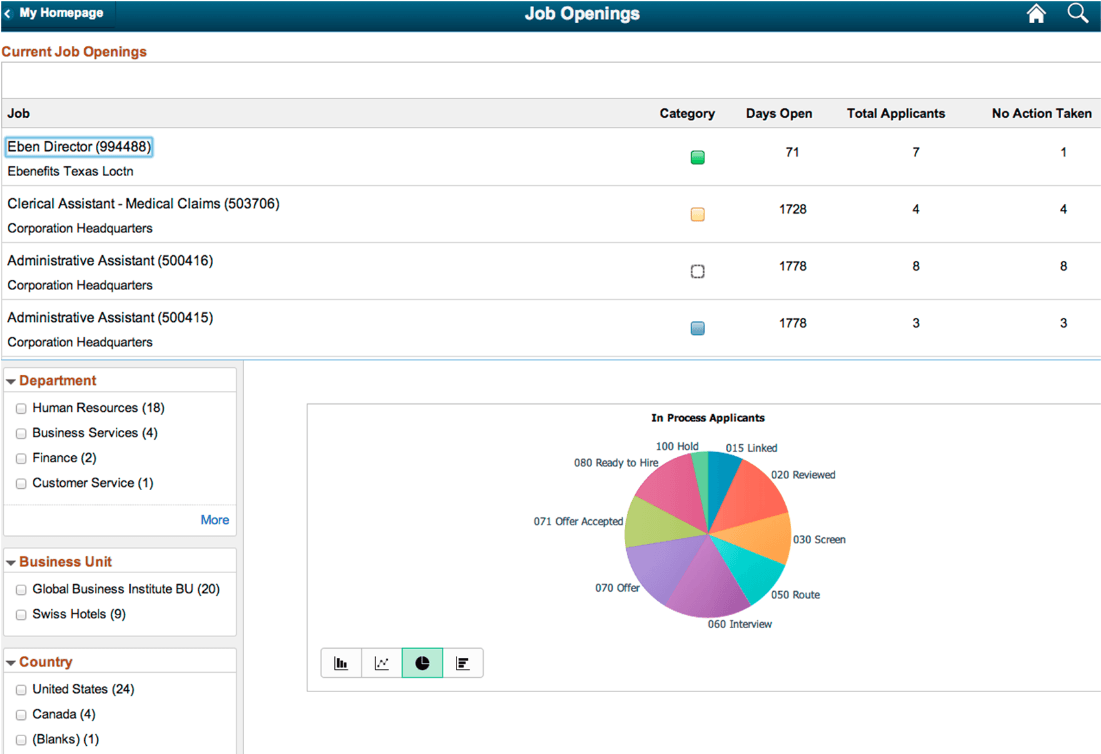
This example shows the rendered application fluid page Job Openings. The application page includes subpages to show a chart, search options, a facet, and locator links.
-
Optionally, you can apply facets on the results to narrow the size of the chart and add the locator links as in the classic Pivot Grid Viewer.