Adding a Folder
Access the Add Folder page. (Click the Add Folder button on the Maintain Collection page.)
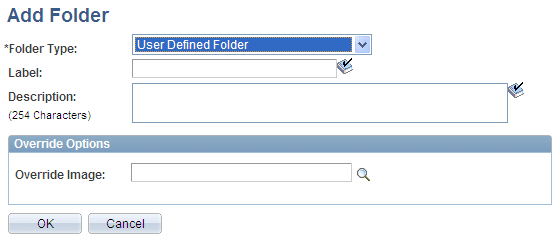
This example illustrates the fields and controls on the Add Folder page (user-defined folder). You can find definitions for the fields and controls later on this page.
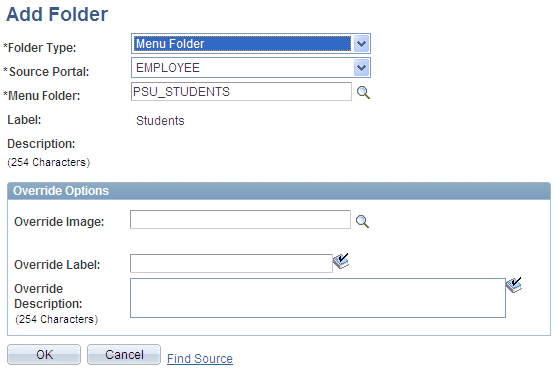
This example illustrates the fields and controls on the Add Folder page (menu folder). You can find definitions for the fields and controls later on this page.
| Field or Control | Description |
|---|---|
|
Folder Type |
Select one of these values: Menu Folder: Creates a reference to an existing folder in the portal registry. The reference automatically inherits all of the content and folder references registered in the selected menu folder. User Defined Folder: Creates a user-defined folder, enabling you to specify the folder label, description, and valid from date and to date for the folder. |
|
Source Portal |
This field appears when the Folder Type value is set to Menu Folder. Select the portal registry from which you want to select a folder. The current portal is selected by default. Available source portal values include all portals defined in the PeopleSoft databases, as well as a special Local Portal value. The Local Portal option is useful for cases in which a navigation collection will be copied between portals, and the folder reference that you are defining should automatically refer to the current portal. |
|
Source Folder |
This field appears when the Folder Type value is set to Menu Folder. Select a folder to reference. Click the Browse Portal Registry button to access the Select Source Folder page, where you can view a graphical display of the selected portal registry and select the folder that you want to reference. |
|
Label |
If you are adding a menu-based folder, this field is populated with the label on the source, which can be overridden in the Override Label field. This text appears as link text for the folder on the Maintain Collection page, as well as on the navigation collection page or pagelet. |
|
Description |
If you are adding a menu-based folder, this field is populated with the description on the source, which can be overridden in the Override Description field. This text appears when the mouse cursor is moved over a folder link and as descriptive text beneath the folder link on the navigation collection page or pagelet. |
Override Options
| Field or Control | Description |
|---|---|
|
Override Image |
Select the image that you want to display as the icon for the folder reference. If a default folder image has been defined at the system or registry level, this image overrides the default. This image appears as the large image for the folder on the navigation collection publication. When defined for folders nested within folders, the image appears on the navigation collection page that is accessed to display the contents of the parent folder. If you override the image, changes to the image on the source reference are not reflected on the navigation collection publication. If you want source reference changes to be reflected on the navigation collection publication, do not override this image. See Setting Up Navigation Collection Options, Navigation Collection Images. |
|
Override Label |
If you are adding a menu folder, you can enter a label to override label text in the Label field. If you override label text, changes to label text on the source reference are not reflected on the navigation collection publication. If you want source reference changes to be reflected on the navigation collection publication, do not enter override text in this field. |
|
Override Description |
If you are adding a menu-based folder, you can enter a description to override description text in the Description field. If you override description text, changes to description text on the source reference are not reflected on the navigation collection publication. If you want source reference changes to be reflected on the navigation collection publication, do not enter override text in this field. |
|
Find Source |
This link appears for users who can access the Structure and Content pages when the Folder Type value is set to Menu Folder. Select to access the Folder Administration page, where you can view details about the selected menu folder. You may want to access this page to add a source reference image, change a source reference label, or check source reference security. |