Creating or Editing a Navigation Collection
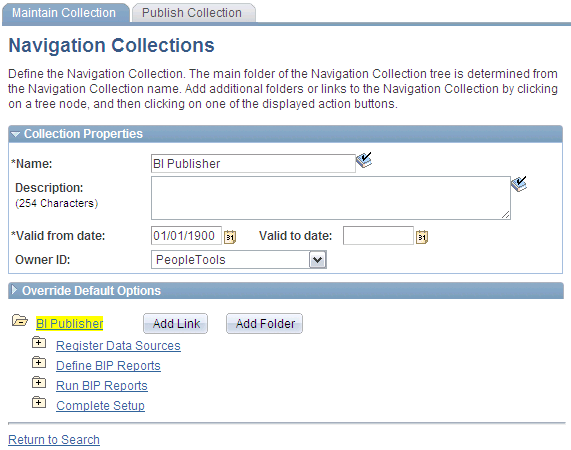
Access the Navigation Collections page. (Click the Edit link for an existing navigation collection on the Find an Existing Collection page).
This example illustrates the fields and controls on the Navigation Collections page. You can find definitions for the fields and controls later on this page.
Note:
If you modify a navigation collection that has already been published, you do not need to republish the collection using the Publish Collection page. Saving your edits on the Maintain Collection page is sufficient because navigation collection publications are dynamically generated for display based on their saved navigation collection definitions.
Collection Properties
| Field or Control | Description |
|---|---|
|
Name |
Enter a name for the navigation collection. This text appears as the label on the published navigation page or pagelet. |
|
Description |
Enter a description of the navigation collection. This text can appear in several locations. If the navigation collection is published as a navigation page, the description text appears when the mouse cursor is moved over the menu item link that is used to access the page. The description text also appears on the navigation page. If the navigation collection is published as a navigation pagelet, the description text appears on the navigation pagelet. |
|
Valid from date/Valid to date |
Enter a range of dates during which this navigation collection is available. This information is copied to the portal registry when you register the navigation collection using the options on the Publish Collection page. Oracle recommends that you leave the Valid to date field clear if you anticipate that the navigation collection should remain active indefinitely. |
|
Owner ID |
Use this value to identify navigation collections created by your organization when you are searching for navigation collections through PeopleSoft Application Designer or SQL queries on the portal registry table. Do not select a delivered PeopleSoft owner ID. You can define unique owner IDs for your organization by entering field translate values for the OBJECTOWNERID field using PeopleSoft Application Designer . If a default value has been set at the system or registry level, it appears, but can be overridden. |
Override Default Options
The Override Default Options group box enables you to enter values that override any navigation collection defaults defined at the system, registry, and source reference levels and which apply to only the navigation collection that you are creating. Leave fields clear if you don't want to override any default values.
See Setting Up Navigation Collection Options.
| Field or Control | Description |
|---|---|
|
Style Sheet Name |
Select the style sheet for this navigation collection. |
|
Maximum Child Links |
Enter the maximum number of child links to display. Note: If more links are available for this collection, a More link appears. |
|
Show Images |
Select one of these values: Always Show Images: Select to always display images on pages and pagelets for this navigation collection. Never Show Images: Select if you don't want images to appear on pages and pagelets for this navigation collection. Only Show Defined Images: Select to display only specifically defined images on pages and pagelets for this navigation collection. If you select this option, only images defined as a part of this navigation collection or the source reference are displayed on the pages and pagelets for this navigation collection. System-level and registry-level default images are not displayed. Note: If you select the Only Show Defined Images option, small images do not appear on your navigation collection pages or pagelets because small images can be defined only as system-level and registry-level defaults. |
|
Collection Image |
Select the large image that you want to display as the top-level image for this navigation collection. |
The navigation collection that you define is displayed as a tree hierarchy of nodes at the bottom of the page.
The Name value that you entered for the navigation collection appears as a root node link at the top of the hierarchy. Each node below the navigation collection name is either a folder or content reference link that you defined using the following options and their associated pages.
A navigation collection may be composed of a series of individual content reference links, a series of folders containing content reference links, or a combination of individual content reference links and folders.
| Field or Control | Description |
|---|---|
|
Add Link |
Click to access the Add Link page. This option appears when you select the navigation collection root node folder or user-defined folders in the navigation collection hierarchy. If you use this option at the root-node level of the hierarchy, the content reference link that you create appears directly off the root node, at the same level in the navigation collection structure as a folder. |
|
Edit Link |
Click to access the Edit Link page. This option appears when you select a content reference link in the navigation collection hierarchy. |
|
Delete Link |
Click to access the navigation collections - Delete Confirmation page, where you are prompted to confirm or cancel the deletion of the selected content reference link. This option appears when you select a content reference link in the navigation collection hierarchy. |
|
Add Folder |
Click to access the Add Folder page. This option appears when you select the navigation collection root node folder or user-defined folders in the navigation collection hierarchy. If you use this option at the root-node level of the hierarchy, the folder that you create appears directly off the root node. Using this option while in any folder in the hierarchy creates a folder within the selected folder. |
|
Edit Folder |
Click to access the Edit Folder page. This option appears when you select any folder other than the root node folder. |
|
Delete Folder |
Click to access the Navigation Collections - Delete Confirmation page, where you are prompted to confirm or cancel the deletion of the selected folder. This option appears when you select any folder other than the root note folder in the navigation collection hierarchy. This deletes the folder only from the navigation collection. |
|
|
Designates a folder for which content is user-defined. These folders are added on the Add Folder page by means of the User Defined Folder folder type. Click to expand the node and access options that enable you to edit or delete the folder. Alternatively, select the associated folder name link to display options for editing or deleting the folder, but not expand folder contents. |
|
|
Designates a folder for which content is menu-based. These folders are added on the Add Folder page by means of the Menu Folder folder type. You cannot view folder contents because a menu-based folder automatically inherits the content and folder references registered in the selected menu folder. This content cannot be edited from within navigation collections. Select the associated folder name link to access options for editing aspects of the folder or delete the folder from the navigation collection. |
|
|
Designates a content reference link in the hierarchy. Click to access options that enable you to edit or delete the content reference from the navigation collection. |


