Assigning Branding Themes
Use the Assign Branding Themes page to specify portal-specific branding options and defaults to override the system default settings. In addition, use this page to assign different themes, skins, custom tabs, and fluid homepages by user attribute.
Note:
Once a portal-specific definition has been created, it cannot be entirely deleted. However, you can use effective dates to control whether a definition is currently in effect.
Navigation:
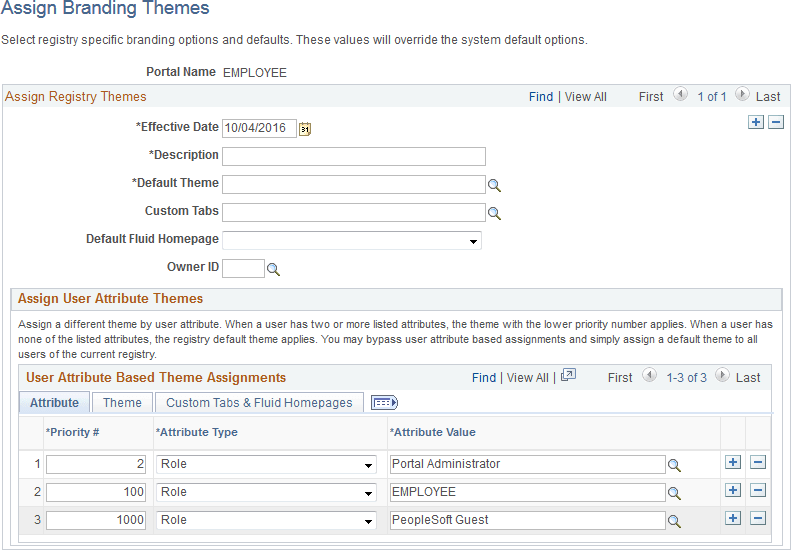
This example illustrates the fields and controls on the Assign Branding Themes page.
| Field or Control | Description |
|---|---|
|
Portal Name |
Displays the name of the current portal registry. Note: You can edit theme assignments for the current portal only. Therefore, sign into a different portal to modify its theme assignments. |
|
Effective Date |
Specify the effective date for this definition. |
|
Label |
Enter a label for the theme definition. |
|
Default Theme |
Select the default theme for this portal. |
|
Default Skin |
Select a default skin for all users who sign into this portal. Note: The list of available skins is specified on the Assemble Themes page. |
|
Custom Tabs |
Select the default custom tabs navigation collection for this portal. Note: Custom tabs are visible from classic homepages only. |
|
Default Custom Tab |
Select a default classic homepage tab from the custom tabs navigation collection for all users who sign into this portal. |
|
Default Fluid Homepage |
Select a default fluid homepage for all users who sign into this portal. Note: If the Fluid Homepage field on the Web Profile Configuration - Look and Feel page specifies both a component for rendering fluid homepage tabs and a specific homepage, then any value set on this page will be overridden. See Fluid User Interface Developer’s Guide: Configuring Web Profile Settings for Fluid Applications for more information. |
|
Owner ID |
Select which product, feature, or application owns this definition. |
User Attribute Based Theme Assignments
Use the User Attribute Based Theme Assignments grid to override theme assignments, custom tabs, and default homepage tabs by user attribute. In PeopleTools, two user attribute types are delivered: by role or by permission list. You can use this grid to override the portal settings for the theme, skin, custom tabs collection, default custom tab, and default fluid homepage.
Important:
Because user attribute based assignments override system-level and portal-level settings, you can create a custom user experience by user group. Moreover, you can set a classic custom tab as the default homepage for a group of users even when the system-wide personalization settings specify the fluid homepage as the default for all users, or vice versa. See the following section, “Setting the Default Homepage to be the Opposite of the System-Wide Setting,” for more information.
When you assign branding themes by user attribute, you also assign a priority sequence number to each attribute. The priority number dictates each attribute’s precedence in determining which theme will be displayed for each user. If a user has two or more attributes with a branding theme assignment, the attribute with the higher priority applies with 1 being the highest priority, 2 being the next highest priority, and so on. If a user has none of the attributes used in theme assignments, the portal-wide settings apply.
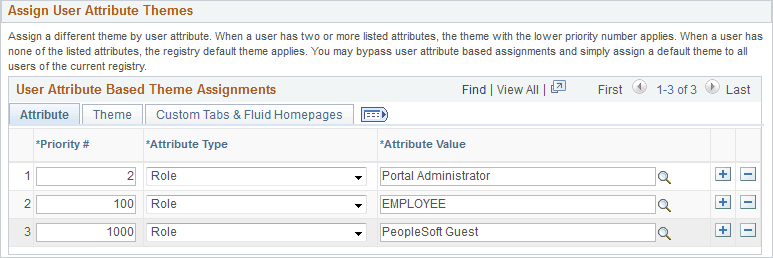
This example illustrates the fields and controls on the Attribute tab of the User Attribute Based Theme Assignments grid.
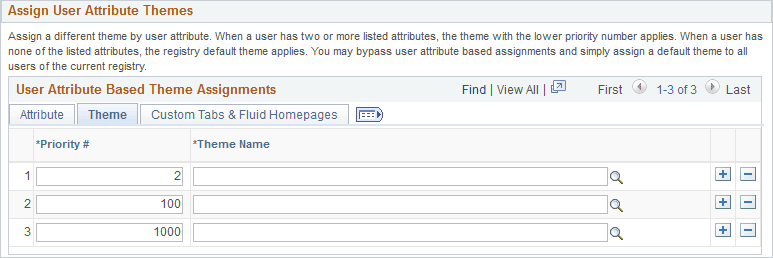
This example illustrates the fields and controls on the Theme tab of the User Attribute Based Theme Assignments grid.
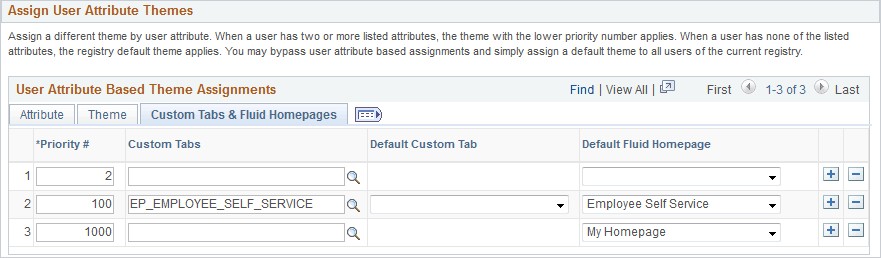
This example illustrates the fields and controls on the Custom Tabs & Fluid Homepages tab of the User Attribute Based Theme Assignments grid.
| Field or Control | Description |
|---|---|
|
Priority # |
Specify the priority for this attribute with 1 being the highest priority, 2 being the next highest priority, and so on. |
|
Attribute Type |
Specify the attribute type. The PeopleTools-delivered values are:
|
|
Attribute Value |
Select a value for the selected attribute type. |
|
Theme Name |
Select the theme for this attribute. |
|
Custom Tabs |
Select a custom tabs navigation collection for this attribute. Note: Custom tabs are visible from classic homepages only. |
|
Default Custom Tab |
Select a default classic homepage tab from the custom tabs navigation collection for this attribute. |
|
Default Fluid Homepage |
Select a default fluid homepage for this attribute. Note: If the Fluid Homepage field on the Web Profile Configuration - Look and Feel page specifies both a component for rendering fluid homepage tabs and a specific homepage, then any value set on this page will be overridden. See Fluid User Interface Developer’s Guide: Configuring Web Profile Settings for Fluid Applications for more information. |
Add to Project
Click the Add to Project link to access the Add To Project page to insert this portal-specific branding definition into an ADS project. See Lifecycle Management Guide: Adding Data Set Instances from Object Designer Pages and Migrating Branding Data Using ADSs for more information.
Setting the Default Homepage to be the Opposite of the System-Wide Setting
System-wide personalization settings specify the default homepage type (fluid or classic) for all users. Fluid is set as the default homepage type for desktop and laptop (HPPC), and for tablet users (HPTABLET). (See Fluid User Interface Developer’s Guide: Setting Device Homepage Defaults for more information on these system-wide settings.)
Note:
The default homepage type for smartphone users is always a fluid homepage, which is not affected by the system-wide homepage settings.
To set the default homepage to be the opposite of the system-wide setting for a specific group of users:
-
Create a navigation collection for custom homepage tabs.
For example, when the system-wide personalization settings specify fluid as the default homepage type, include classic content references in the navigation collection.
-
Create a portal-specific branding theme assignment using the Assign Branding Themes page.
-
Create a user attribute based assignment in the User Attribute Based Theme Assignments grid:
-
Specify the user group by role or permission list.
-
Specify the custom homepage tabs navigation collection.
-
Select a specific item from this navigation collection as the default custom tab.
For example, select one of the classic content references.
Important:
Selecting a default custom tab is an essential step. Otherwise, users will still see the default homepage type as specified by the system-wide settings.
-
Note:
When a classic content reference is selected as the default custom tab here or through user personalization, the user must add the Homepages tile to the NavBar in order to be able to navigate to any fluid homepages.