Assigning Related Content to Classic Components and Pages
To assign related content to a classic component or page:
-
Access the Configure Related Content page:
-
Click an Edit button on the Manage Related Content for Content References page.
-
Select a content reference for a classic page on the Select a Content Reference page.
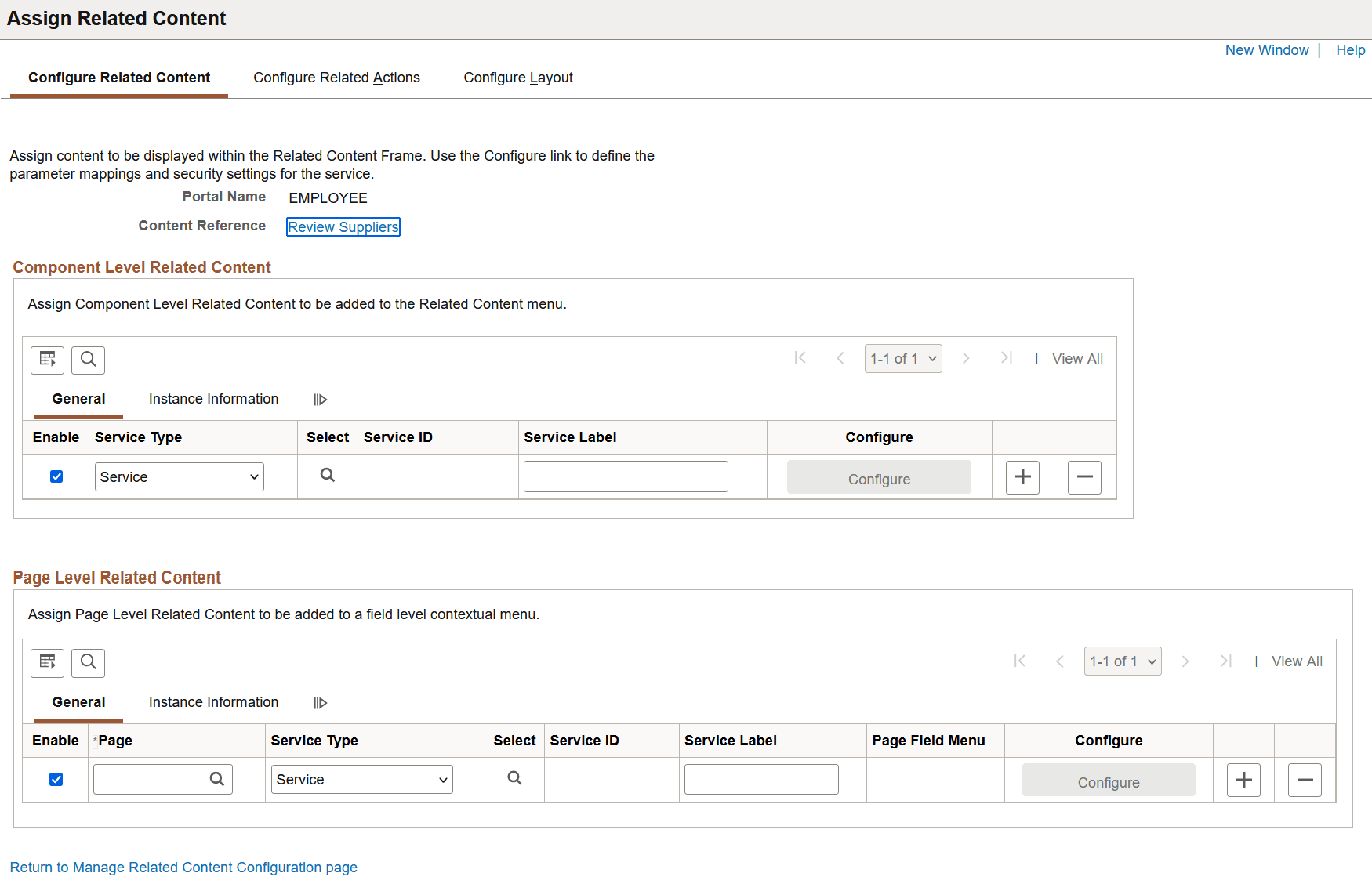
This example illustrates the fields and controls on the Configure Related Content page for a classic content reference.
-
-
Determine whether the assignment is to be made at the component level or at the page level. See Component Level Versus Page Level Assignment for more information.
If the assignment is to be made at the page level, in the Page Level Related Content group box, click the Page lookup button and then, select the page to which you want to assign the service.
-
Select the service type:
-
If you select Content Reference, click the Select button and select the content reference to use as an anonymous service on the Select a Content Reference page:
This example illustrates the fields and controls on the Select a Content Reference page:
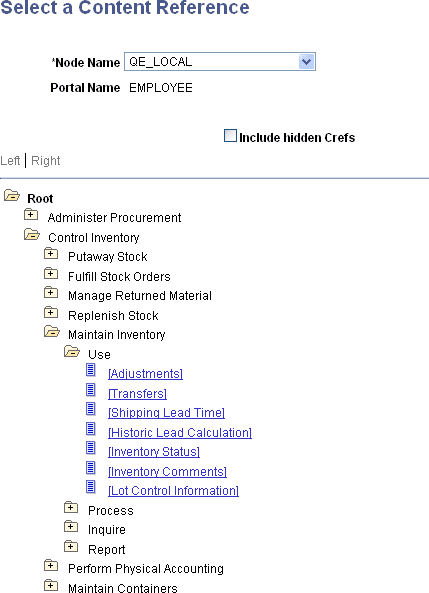
Select the local node or a remote node to select a local or remote content reference.
-
If you select Pagelet, click the Select button and select the pagelet from the Pagelet Search page to use as an anonymous service.
See Searching for and Importing Pagelets and Tiles or more information on searching for pagelets on local and remote nodes.
-
If you select Service, click the Select button and select the explicitly defined service on the Look Up Service ID page:
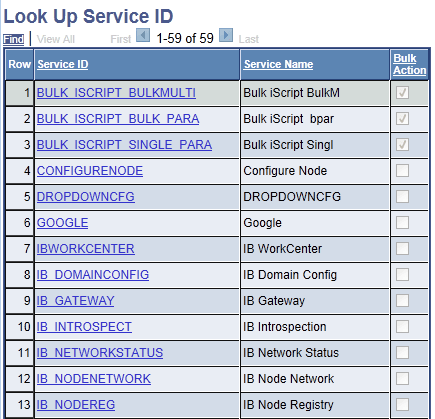
This example illustrates the fields and controls on the Look Up Service ID page.
-
-
Click the Configure button to configure the service parameters, filters, and security. See Configuring Service Parameters, Filters, and Security.