Assigning Related Content to Fluid Components and Pages
To assign related content to a fluid component or page:
-
Access the Configure Related Content page:
-
Click an Edit button on the Manage Related Content for Content References page.
-
Select a fluid content reference on the Select a Content Reference page.
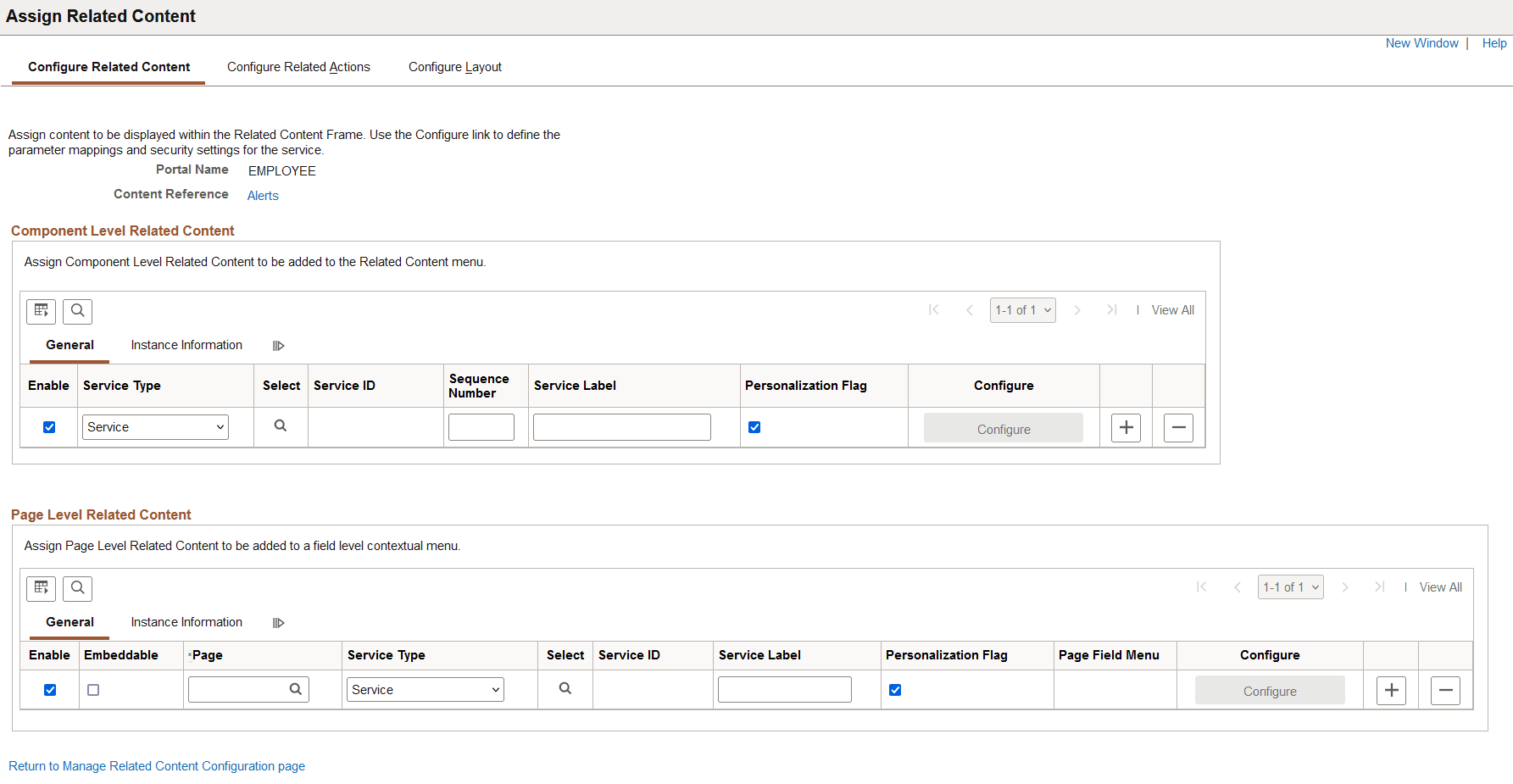
This example illustrates the fields and controls on the Configure Related Content page for a fluid content reference.
-
-
Determine the type of assignment to be made:
-
Related content at the component level to be displayed in the Related Information panel at the right of the page.
-
Embedded related content at the page level.
-
-
For related content at the component level:
-
Select the service type: Service or Grouplet.
-
Then select a PeopleSoft Tile related content service definition (Service) or an existing content reference definition (Grouplet).
-
Specify the sequence number for the item within the Related Content frame.
Note:
Unlike other items of related content, the sequence is not specified on the Configure Layout page tab.
-
Select the User Personalization option if you want to give users the ability to show or hide this related content item.
-
Click the Configure button to configure the service parameters, filters, and security. See Configuring Service Parameters, Filters, and Security.
-
Save the configuration without configuring the layout.
Note:
The Configure Layout page tab is not used to configure fluid related content.
-
-
For embedded related content at the page level:
-
Click the Page lookup button and then, select the page to which you want to assign the service.
Important:
Select only a page that appears in the actual component definition in Application Designer. Do not select any of the PeopleTools-delivered pages such as PTGP_USERPRE_S1_FL, PTIA_MDSIDEPAGE, and so on.
-
Always select the Embeddable option.
-
Select the service type: Service or Grouplet.
-
Then, select a PeopleSoft Tile related content service definition (Service) or an existing content reference definition (Grouplet).
-
Select the User Personalization option if you want to give users the ability to show or hide this related content item.
-
Click the Configure button to configure the service parameters, page field menu, and filters. (See Configuring Service Parameters, Filters, and Security for additional information.)
-
For the Page Field Menu field, select the related content group box (drop zone) defined in Application Designer. (See Fluid User Interface Developer’s Guide: Working with Embedded Related Content for more information on creating related content group boxes.)
-
Save the configuration.
-
Note:
At the page level, the Analytic Service (ANALYTICSERVICE) can also be selected as the service type to display simplified analytics in the Related Information panel at the right of the page. See Pivot Grid: Simplified Analytics Overview for more information on configuring the Analytic Service.
Related Topics