Component-Based Pagelets
Component-based pagelets are PeopleSoft component definitions that you create and configure in PeopleSoft Application Designer and then register in the PeopleTools portal as pagelets. With minor differences, the process that you use to create, configure, and assemble the definitions that compose this type of component definition follows closely the application development process. While the process is similar to that which you use to create standard component definitions, some definition properties are different. In addition to these definition properties, other portal-related differences can exist depending on whether you use an existing component or create a new one.
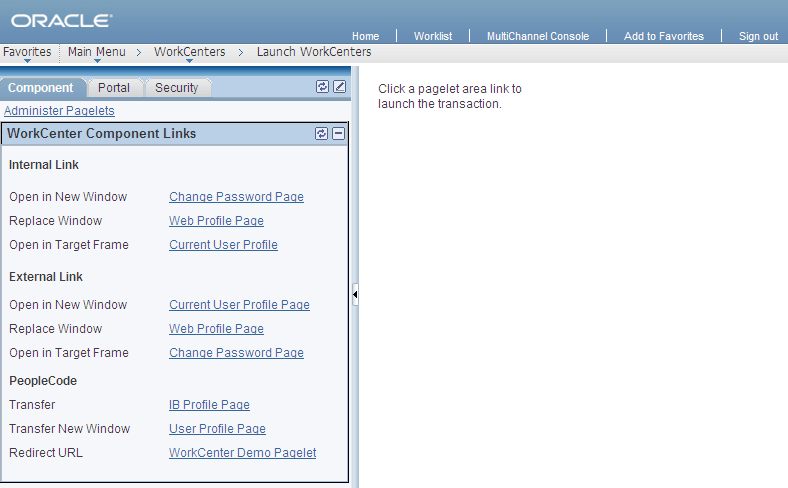
This section discusses the important differences in settings between standard component definitions and components that you use in component-based pagelets. All examples in this section use an example component-based pagelet, titled WorkCenter Component Links, which you see in the pagelet area of this WorkCenter page:
Record Definition Settings
Record definitions that support component-based pagelets typically are not set to the SQL table record definition type because the pagelet area is not intended to write data to tables. Create or use record definitions with a record type of SQL View or Derived/Work.
See Application Designer Developer’s Guide: Setting Record Properties.
Page Field Definition Settings
All pagelets should be designed to produce interaction between the pagelet area and the target content area. When defining pages that are part of component-based pagelets, the page developer can most easily facilitate this interaction by inserting push button/hyperlink page controls and then configuring properties that are inherent to that type of control. The developer can also write PeopleCode programs that accomplish the same pagelet area to content area interaction.
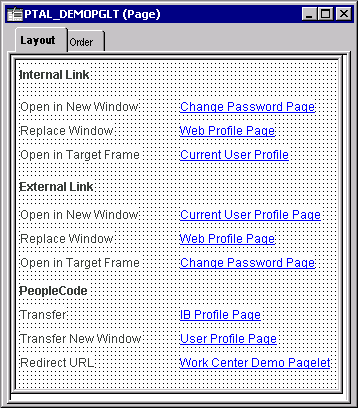
The WorkCenter Component Links pagelet is based on the PTAL_DEMOPGLT page definition, which includes nine push button/hyperlink controls:
See Application Designer Developer’s Guide: Understanding Page Design and Development.
By setting the push button/hyperlink page control Type and Field Use properties at design time, the developer determines the resource that appears when the user clicks the link and also where that the resource appears, such as in the target content area, a modal window, or a new window. Secondary pages, PeopleCode, internal links and external links only are valid destination types for push button/hyperlink controls when you use them on component-based template pagelets.
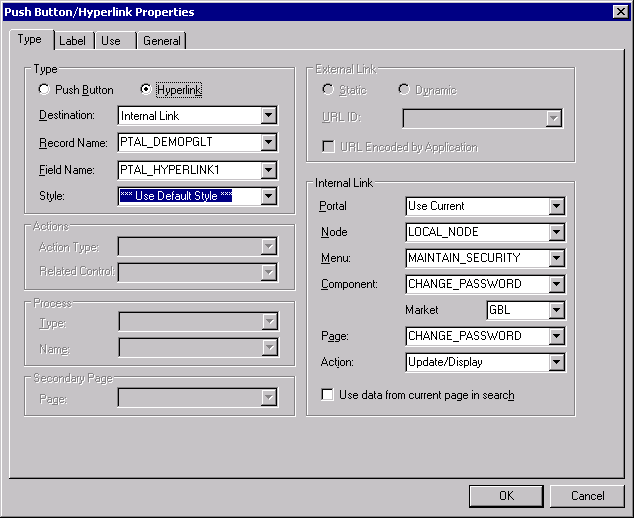
The Push Button/Hyperlink Type properties specify an internal link type. The internal link properties specify the location of the CHANGE_PASSWORD page:
See Application Designer Developer’s Guide: Using Push Buttons and Links.
Component Definition Settings
Standard components and the components that you use as component-based pagelets have different purposes, which require that the developer configure the types of components differently. The following list describes the recommended property settings for components that you use as component-based pagelets on WorkCenter pages:
-
WorkCenter pages should not generate a search page or start the search process when the user clicks the content reference to access the page. The user should immediately see the initial page.
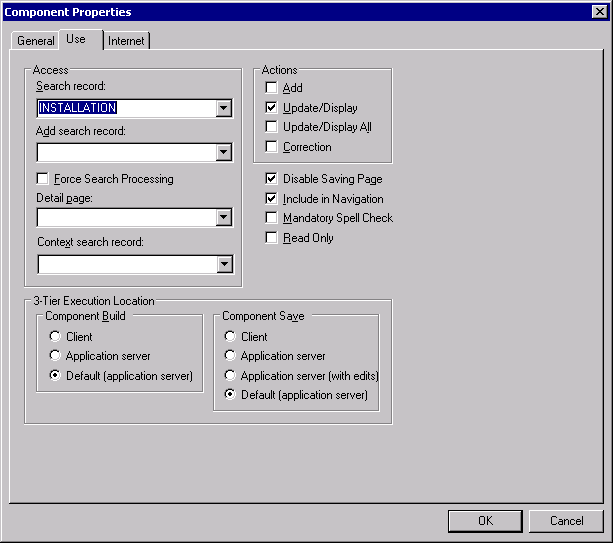
Select a “dummy” record—one that has no keys or contains only one row of data—as the component search record on the Use tab.
The INSTALLATION record is an example of a “dummy” search record.
-
Component-based pagelets generally require no save functionality.
Select the Disable Saving Page check box on the Use tab.
-
Typically, the component should consist of only one page, but no tabs or page links should appear on the pagelet.
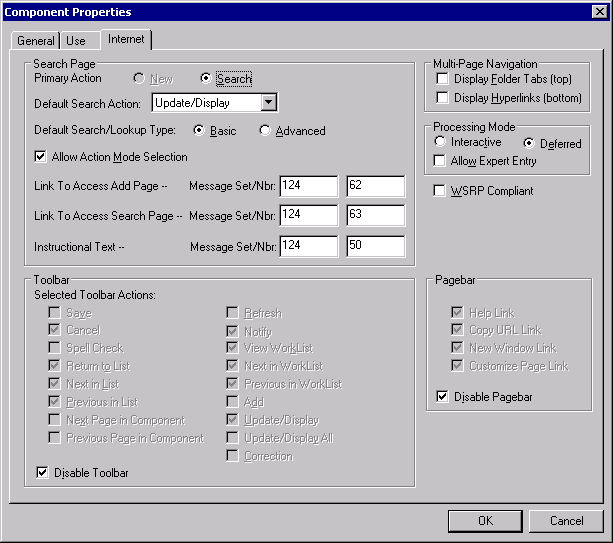
Deselect the Multi-Page Navigation check boxes on the Internet tab.
-
The elements that make up the tool bar and page bar are not applicable and should not appear on the page.
Select the Disable Toolbar and Disable Pagebar check boxes on the Internet tab.
Notice the settings of the PTAL_DEMOPGLT component in this example:
-
The search record is INSTALLATION and the Disable Saving Page check box is selected:
The following example shows the Use tab settings for the Component Properties dialog box for a component-based template pagelet:
-
The Multi-Page Navigation check boxes are deselected and the Pagebar and the Toolbar are disabled:
The following example shows the Internet tab settings for the Component Properties dialog box for a component-based template pagelet:
See Application Designer Developer’s Guide: Setting Component Properties.
Registering Components as Pagelets for Use as WorkCenter Pagelets
After creating the component definition, you must register the component as a homepage pagelet or template pagelet in the PeopleTools portal. The PeopleTools portal stores content references based on their URL information. As a result, the combination of elements that make up the URL of every content reference in a portal must be unique.
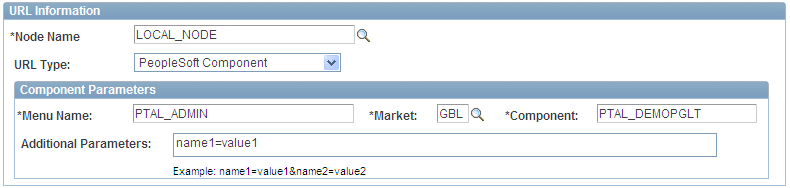
If a component is already registered as a content reference in the portal, then you must enter a “dummy” value in the Additional Parameters field when you register that same component as a template pagelet. Adding this field value ensures that the two content references are unique. A sample value that works well is name1=value1, as shown in this example: