PeopleSoft Query-Based Pagelets
PeopleSoft Query is a reporting tool that enables you to extract your data by using visual representations of your PeopleSoft database, without writing SQL statements. The queries that you create can be as simple or as complex as necessary. You can design queries that return basic lists of static text. You can also use more advanced features, such as drilling URLs. By configuring drilling URLs and associating them with query fields, the values that the query retrieves appear as links, which you click to access both internal and external content.
Query-based pagelets can take advantage of queries, whether they are simple or complex. You might base a pagelet on a query that retrieves informational text to display to the user. However, query-based pagelets also have access to the more advanced query metadata, such as the drilling URLs. If you link fields in query-based template pagelets to these drilling URLs, the values that the pagelet retrieves appear as links as they do in PeopleSoft Query. Unlike PeopleSoft Query, however, you can configure the links to open the resource in the target content area of the WorkCenter page.
Because you can configure the links so that the associated resources open in the WorkCenter page target content area, query-based pagelets that are configured to display the retrieved values as active links are ideal for using with WorkCenter pages.
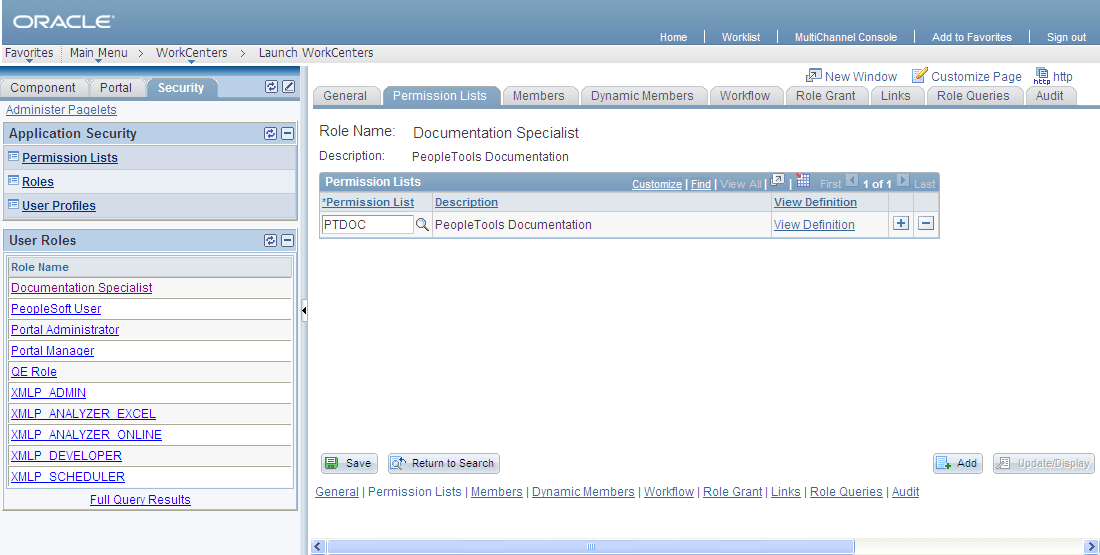
In the pagelet area of this WorkCenter page, the User Roles pagelet is based on the PT_SEC_USER_ROLES query definition, which returns the roles that are assigned to the current user. Each role name in the list is a link to the Roles component. When users click a role name such as Documentation Specialist, that role name value passes to the component as a search parameter. Using the value, the Roles component opens to the Documentation Specialist role.
Publishing Query-Based Pagelets for Use With WorkCenter Pages
You create and maintain queries using the Query Manager component.
You can use Pagelet Wizard to create pagelets based on any query. At step two of the template pagelet creation process in Pagelet Wizard, you must specify your query as the data source. At step 5, you use the link icon to access the Link Details page, where you can configure fields to use the drilling URLs and appear as links. At this step, you also specify whether a link appears in the target content area or a new window. Continue through the process to step 6, where you specify Homepage Pagelet or Template Pagelet as a publishing option. When you save the pagelet, Pagelet Wizard creates the pagelet and you can then assign it to the pagelet area of a WorkCenter page.
Specific details for creating and maintaining queries are located in PeopleTools: Query.
Specific details for using Pagelet Wizard to publish queries as template pagelets are located in this PeopleBook.