Configuring Authorized Sites
Access the Authorized Site page. (Select Select the Authorized Site page tab.)
This example illustrates the fields and controls on the Web Profile Configuration - Authorized Site page. You can find definitions for the fields and controls later on this page.
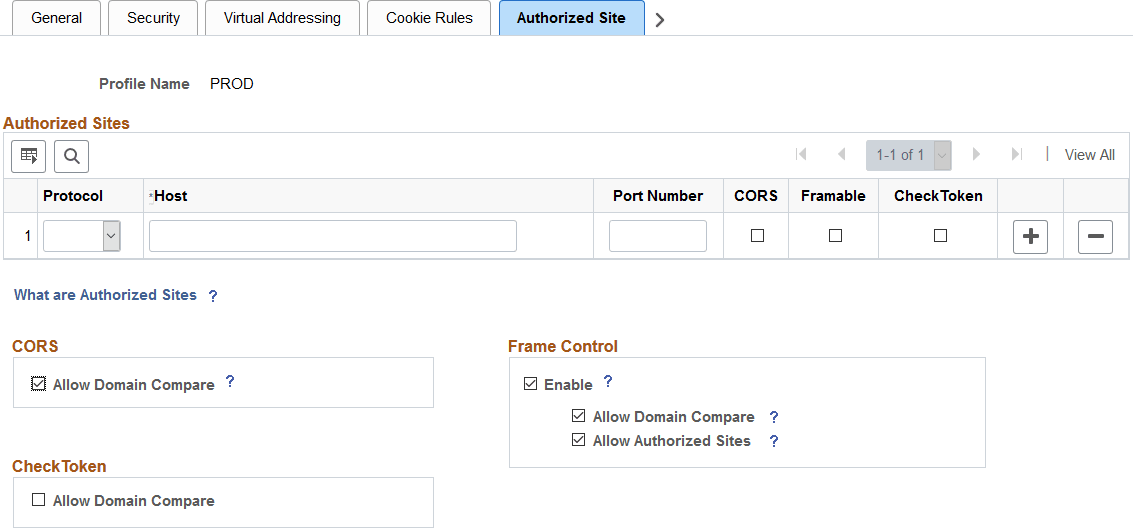
Use the Authorized Site page to maintain sites that are authorized to request resources from this web server for three mutually independent purposes:
-
Allowing other sites to make requests to this site using the Cross-Origin Resource Sharing (CORS) standard.
-
Allowing other sites to embed content from this site—that is, allow sites to request “framable” content.
-
Allowing other sites to participate in a single signon configuration with this site (using a check token ID).
The Authorized Sites grid serves as an “allowlist” identifying only those hosts, domains, or subdomains that are allowed to request resources from this web server for only the specific purpose or purposes specified. To facilitate configuration of these features within your own intranet, you can use the Allow Domain Compare check box on a feature-by-feature basis:
| Field or Control | Description |
|---|---|
|
Allow Domain Compare |
Select this check box to authorize all other hosts within the same authentication token domain as this web server. Note: When this check box is deselected, you must create individual host, domain, or subdomain entries to authorize other hosts within the same authentication token domain. |
Authorized Sites Grid
Note:
A site or domain can be added to the grid one or more times.
| Field or Control | Description |
|---|---|
|
Protocol |
Select a protocol (http or https) to restrict requests from this host to that specific protocol. |
|
Host |
Enter a fully qualified
host name (for example, Note:
Domain and subdomain
names begin with a |
|
Port Number |
Specify a port number to restrict requests from this host to that specific port number. |
|
CORS |
Select this check box to add this entry to the allowlist for CORS processing. |
|
Framable |
Select this check box to add this entry to the allowlist to allow the site to embed content from this web server. |
|
CheckToken |
Select this check box to add this entry to the allowlist for participating in single signon. |
Cross-Origin Resource Sharing (CORS)
You can maintain which sites are authorized to request resources from this web server using the CORS standard. For example, one resource (a web page or a script, for example) makes a cross-origin HTTP request when it requests a resource (an image, a CSS style sheet, a script, and so on) from a different domain than the one which served itself. For security reasons, browsers restrict cross-origin HTTP requests initiated from within scripts. The CORS standard gives web servers cross-domain access controls, which enable secure cross-domain data transfers.
To be allowed to make requests to this site using the CORS standard, another site must either be explicitly identified on this page, have its domain or subdomain explicitly listed on this page, or be implicitly included because it is a member of the same domain as this web server when Allow Domain Compare is selected.
For more information on CORS, see HTTP access control (CORS).
Note:
If CORS is not involved in the request—that is, a simple request that does not include an Origin request header, then the request is processed as a non-CORS request and the settings on this page are ignored.
Framable
Whether this web server will allow its content to be framed by the requesting site depends on the combination of check boxes selected.
| Field or Control | Description |
|---|---|
|
Enable Frame Control |
Select this check box to turn on control of which sites can embed content from this web server. Important: When this option is deselected, frame control is disabled entirely, which means that any site can embed content from this web server. Any other check boxes related to framing are ignored, even if they are already selected. |
|
Allow Domain Compare |
Select this check box to authorize all hosts within the same authentication token domain as this web server. |
|
Allow Authorized Sites |
Select this check box to authorize any hosts in the Authorized Sites Grid with the Framable check box also selected to embed content from this web server. |
For more information on X-Frame-Options, see HTTP Header Field X-Frame-Options.
Embedding PeopleSoft Content
Note the following limitations on embedding and accessing PeopleSoft content on a non-PeopleSoft system:
-
The PeopleSoft web server and the non-PeopleSoft web server must reside within the same subdomain.
-
The user accessing the PeopleSoft content must already be signed into the PeopleSoft system in the same browser session.
-
PeopleSoft content is limited what is available via the psc servlet with these additional restrictions:
-
Only classic components are supported. No fluid components or features are supported.
-
The features on classic pages that are supported include standard component search, autocomplete, file attachments, and modal windows.
-
The features on classic pages that are not supported include items in the portal header and the page bar (notifications, global search, breadcrumbs, new window, and so on).
-
In addition, classic homepages, interwindow communication, dashboards, WorkCenters, and activity guides are not supported.
-
Use the following procedure to embed PeopleSoft content on a non-PeopleSoft system:
-
On the PeopleSoft web profile configuration, on the Virtual Addressing page, deselect the Generate Relative URLs check box.
-
On the Authorized Site page, authorize the non-PeopleSoft system to embed content from this site.
-
Then stop and restart the PeopleSoft web server.
-
On the non-PeopleSoft system, modify the HTML for a page that embeds PeopleSoft content to add a reference to a required iScript in the <head> element:
<head> <script type="text/JavaScript" src="http://ps_webserver.example.com:8080/psc/SITE/PORTAL/NODE/s/WEBLIB_PTHDR.ISCRIPT1.FieldFormula.IScript_GET_PORTAL_JS"></script> </head> -
Add a frame that embeds the PeopleSoft classic component using the following HTML attributes:
Attribute Value id
'ptifrmtgtframe'name
'TargetContent'src
The full URL to the target component.
For example:
<iframe id="ptifrmtgtframe" name="TargetContent" title="Main Content" frameborder="2" scrolling="auto" src="http://ps_webserver.example.com:8080/psc/SITE/PORTAL/NODE/c/MENU_NAME.COMPONENT_NAME.GBL?PAGE=PAGE_NAME" width="100%" height="100%" style="border-color:red;" ></iframe>
CheckToken
Each PeopleSoft database participating in single signon must define a check token ID on the default local node definition on the local database, as well as on the remote node definitions for each participating default local node on all participating systems. When a request is sent from a site where PS_TOKEN originated to another site where it is consumed, an additional validation request is sent by that consumer to verify that the token is still valid at the originator site using this check token ID.
To participate in a single signon configuration, another site must either be explicitly identified on this page, have its domain or subdomain explicitly listed on this page, or be implicitly included because it is a member of the same domain as this web server when Allow Domain Compare is selected.
For more information, see Security Administration: Understanding PeopleSoft-Only Single Signon and Security Administration: Defining Nodes for PeopleSoft-Only Single Signon