Configuring Related Data
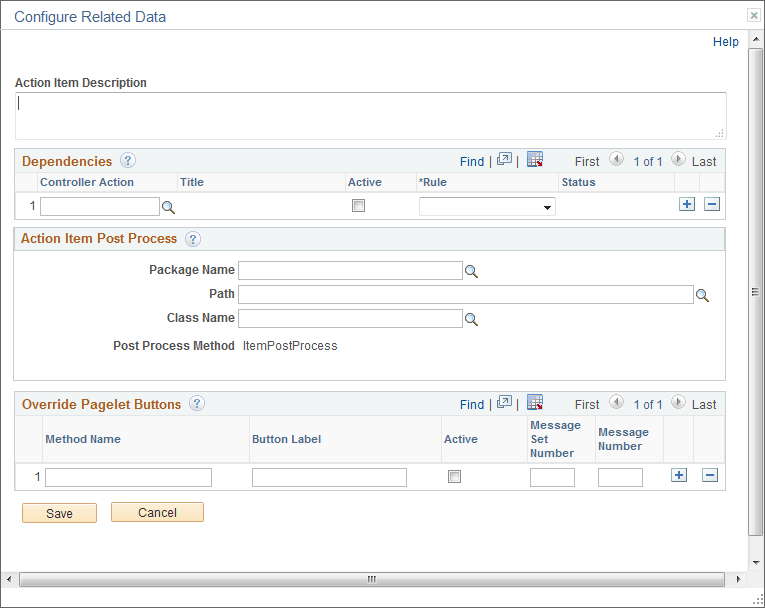
Use the Configure Related Data page to specify dependencies to other action items, to specify post-processing, to create (or override) navigation buttons for this action item, and to specify values for related data fields.
Navigation:
Click the Configure Related Data link on the General Information tab of the Action Item Details grid.
This example illustrates the fields and controls on the Configure Related Data page. You can find definitions for the fields and controls later on this page.
| Field or Control | Description |
|---|---|
|
Action Item Description |
Enter any additional description about the action item. |
Dependencies
Use the Dependencies grid to designate controller action items upon which this action item is dependent. The finish-to-start dependency rule means that the controller action item must be completed before this (the dependent) action item is allowed to start.
| Field or Control | Description |
|---|---|
|
Controller Action |
Select a controller action item. The list of action items available for selection is filtered to include only those action items with a lower sequence number than the current action item and to exclude completed or cancelled action items. |
|
Title |
Displays the title for the controller action item. |
|
Active |
Select this option to retain the dependency as active. |
|
Rule |
Select the from the following rule types:
|
|
Status |
Displays the current status of the controller action item. |
Action Item Post Process
Use the Action Item Post Process group box to specify an application package and class that contains the required method to be executed as post-processing when a user completes the transaction—for example, to update the status of the action item to complete. In addition, this application class can optionally define custom action buttons on a per action item basis.
Post-processing can occur on the local system or the remote system if that’s where the transaction is hosted. Post-processing is executed through component save processing only. If you have implemented a custom save button on the page to save the component, the button’s page field properties must be configured to invoke the toolbar save action or the PeopleCode executed by these buttons must include either the DoSave or DoSaveNow built-in functions to trigger the component save events; otherwise, the post-processing specified here will not be executed.
| Field or Control | Description |
|---|---|
|
Package Name |
Enter the name of the application package that contains the method to be invoked for post-processing and the methods to be invoked for any optional, custom action buttons. |
|
Path |
Enter the names of each subpackage in the application class hierarchy that define the location of the application class. Separate subpackage names by a colon. If the class is defined in the top-level application package, enter or select the colon. |
|
Class Name |
Enter the name of the application class that contains the method to be invoked for post-processing and the methods to be invoked for any optional, custom action buttons. Important: This class should extend the PT_RCF:ServiceAGInterface interface class and must implement a method named ItemPostProcess, which is the method that will be executed for post-processing. If you do not require any post-processing but you want to implement custom action buttons for the action item, you must still implement a stub method named ItemPostProcess. Otherwise, an error will occur and save processing will be blocked for this action item. |
Related Data
The Related Data group box and fields are displayed only when configurable field labels have been defined for the activity guide template or instance. The displayed field labels allow you to associate application data with an action item at either the template level or the instance level.
In the following example, a configurable field labeled Session was defined for the activity guide template. Here, at the action item level, the Session field is displayed along with instance-specific data (the value 801, providing one methodology for passing data from one action item to the next in the instance:

Override Pagelet Buttons
The Override Pagelet Buttons group box allows you to create custom action buttons on a per action item basis. If the name of any of these buttons is the same as a button defined at the template level, then the effect is to override the definition with the method defined here at the action item level. If the name of any of these buttons differs from buttons defined at the template level, then the button is created in addition to those defined at the template level.
In fluid activity guides, these buttons are rendered in the activity guide subbanner. In classic activity guides, these buttons are rendered in the navigation frame of the classic WorkCenter.
Note:
For classic activity guides, Next and Previous buttons are displayed in the navigation frame of the classic WorkCenter. Oracle recommends that you add no more than two additional custom action buttons to classic activity guides.
| Field or Control | Description |
|---|---|
|
Method Name |
Enter the name of the method to be invoked to create the additional navigation button. Important: The method named here must exist in the selected class. No validation is performed to ensure this is the case when the template definition is saved. You can implement certain methods with reserved names (MarkComplete, for example). In addition, you can use certain reserved words (for example, PTAI_NAV_SAVE, PTAI_NAV_SAVE_NEXT, and others) as method names to invoke other delivered functionality. See Developing Custom Action Buttons for detailed information. |
|
Button Label |
Enter the label for the custom action button as it will be displayed to users. Note: Button labels are ignored for the following reserved word methods: PTAI_NAV_AUTO_SAVE, PTAI_NAV_SAVE_NEXT, PTAI_NAV_SAVE_PREV, and ExitAGProcess. |
|
Active |
Select this option to retain the button definition as active. |
|
Message Set |
Specify the message set containing an optional message to be displayed after the user clicks the button. |
|
Message Number |
Specify the message number containing an optional message to be displayed after the user clicks the button and before invoking the specified method. For example, if the user clicks a Cancel button to cancel an activity guide instance, this could display a confirmation message. |