Creating WorkCenter Dashboards
This example illustrates the fields and controls on the Dashboard Page Administration page. You can find definitions for the fields and controls later on this page.
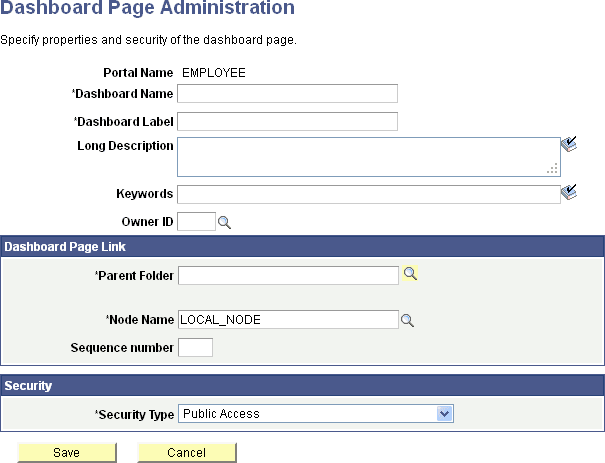
| Field or Control | Description |
|---|---|
|
Portal Name |
Displays the portal in which the content reference is registered. |
|
Dashboard Name |
Enter the name for the new WorkCenter dashboard page. |
|
Dashboard Label |
Enter the menu item title for the WorkCenter dashboard as it will appear in the portal menu and breadcrumbs. |
|
Long Description |
Enter a description for the WorkCenter dashboard page. Note: This value also appears in tool tip text. |
|
Keywords |
Enter a keyword or keyword phrase to be stored as a content reference attribute. Note: Two content reference attributes are created: KEYWORD (to store the keywords in the base language) and KEYWORD_LNG (to store the keywords in the current session language). See Defining Content References for more information on content reference attributes. |
|
Owner ID |
Select the object owner ID. |
Dashboard Page Link
| Field or Control | Description |
|---|---|
|
Parent Folder |
Specify the parent folder for the menu item representing the WorkCenter dashboard. |
|
Node Name |
Specify the portal host node for the WorkCenter dashboard. |
|
Sequence number |
Specify a sequence number for this menu item within its parent folder. |
Security
The Security group box displays the selected security settings for this content reference.
| Field or Control | Description |
|---|---|
|
Security Type |
Select one of the following security types:
|
|
Selected Security |
Select which permission lists have access to the content reference for this WorkCenter dashboard. |