Defining Navigation and Pagelet Options
Use the Setup Activity Guide - Navigation Options page to add custom action elements and to define pagelet properties including pagelet pre-processing.
Navigation:
-
In the Setup Activity Guide WorkCenter, click the Template Properties task.
-
Select the Navigation Options page.
This example illustrates the fields and controls on the Template Properties: Navigation Options page. You can find definitions for the fields and controls later on this page.
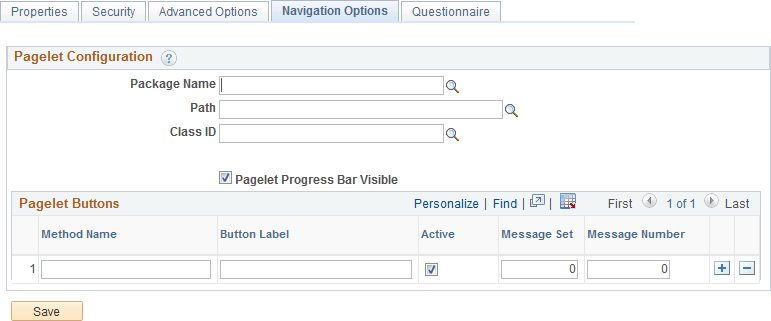
| Field or Control | Description |
|---|---|
|
Package Name |
Enter the name of the application package that contains the method (or methods) to be invoked to create custom action buttons. |
|
Path |
Enter the names of each subpackage in the application class hierarchy that define the location of the application class. Separate subpackage names by a colon. If the class is defined in the top-level application package, enter or select the colon. |
|
Class ID |
Enter the name of the application class that contains the method (or methods) to be invoked to create custom action buttons. In addition to or in lieu of navigation buttons, this application class can define a pagelet pre-processing method that will be executed every time the pagelet is loaded or reloaded in the WorkCenter pagelet area. This method must be named PageletPreProcess. See Performing Pre-Processing for the Activity Guide Pagelet for an example. |
|
Pagelet Progress Bar Visible |
Indicates whether the progress bar will be displayed in the activity guide pagelet on the WorkCenter page. Note: This option applies to classic activity guides only when accessed through a WorkCenter. |
Pagelet Buttons
In fluid activity guides, these buttons are rendered in the activity guide subbanner. In classic activity guides, these buttons are rendered in the navigation frame of the classic WorkCenter.
Note:
For classic activity guides, Next and Previous buttons are displayed in the navigation frame of the classic WorkCenter. Oracle recommends that you add no more than two additional custom action buttons to classic activity guides.
| Field or Control | Description |
|---|---|
|
Method Name |
Enter the name of the method to be invoked to create the additional navigation button. Important: The method named here must exist in the selected class. No validation is performed to ensure this is the case when the template definition is saved. You can implement certain methods with reserved names (MarkComplete, for example). In addition, you can use certain reserved words (for example, PTAI_NAV_SAVE, PTAI_NAV_SAVE_NEXT, and others) as method names to invoke other delivered functionality. See Developing Custom Action Buttons for detailed information. |
|
Button Label |
Enter the label for the custom action button as it will be displayed to users. Note: Button labels are ignored for the following reserved word methods: PTAI_NAV_AUTO_SAVE, PTAI_NAV_SAVE_NEXT, PTAI_NAV_SAVE_PREV, and ExitAGProcess. |
|
Active |
Select this option to retain the button definition as active. |
|
Message Set |
Specify the message set containing an optional message to be displayed after the user clicks the button. |
|
Message Number |
Specify the message number containing an optional message to be displayed after the user clicks the button and before invoking the specified method. For example, if the user clicks a Cancel button to cancel an activity guide instance, this could display a confirmation message. |